Bulk Object Key Retention Migration
Bulk Object Key Retention Migration is a specialized migration mode that aligns the target schema structure and object creation sequences with the source environment, preserving original Object Type keys and Object keys.
Key Capabilities
- Key Preservation: Retains identical source Object Type keys and Object keys without requiring translation mapping.
- Asset Data Retention: Restores associated object comments and attachments alongside schema objects.
- Cross-Schema References: Re-links inbound and outbound references after key alignment completes.
- Direct Schema Backup Control: Execute manual backups directly from the schema list within the Bulk Migration interface.
- Real-Time Progress Tracking: Monitor sequencing, object creation, and reference re-linking live with interactive progress bars.
Prerequisites and Configuration Rules
Before initiating a Bulk Object Key Retention Migration, verify that the following requirements are met:
- Existing Target Schemas: All target schemas must already exist on the destination instance prior to starting the restore. The migration process does not create new target schemas.
- Empty Target Schemas: The target schemas must be completely empty. Migrating into schemas containing existing objects is not supported.
- Schema Selection: Select all target schemas relevant to the migration during setup.
- Empty Target Site Selection: Keep target site selection unselected/empty during setup.
- Sequential Processing: Parallel object creation is automatically disabled to guarantee exact key ordering.
If any selected schema on the target instance lacks a completed backup, the system displays the following warning banner:
”Schemas of this instance have no backup and will not be migrated”
Ensure all required schemas have completed backups before proceeding.
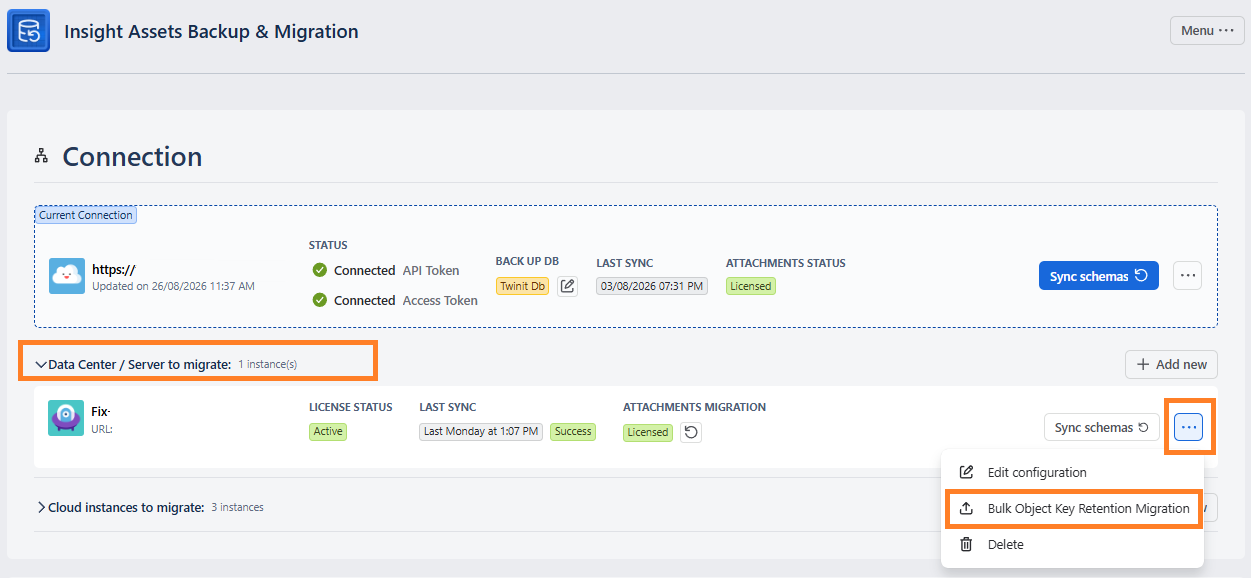
Select Schemas
Review the list of target schemas: You can search or filter the schema list by its status. If a schema displays a missing backup warning, select a schema and click the Back up selected button to generate an immediate backup.
Only schemas with a backup and a synced schema key can be migrated with their original object keys.
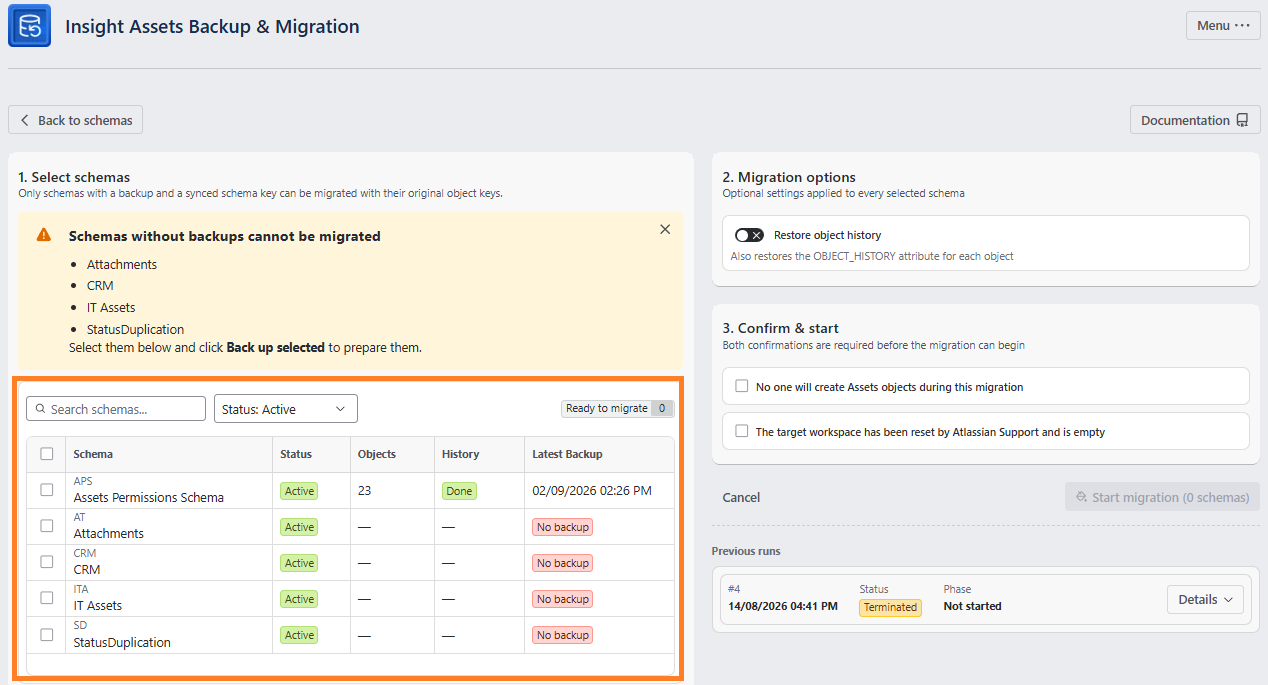
Migration Options
Select the desired schema or schemas. If needed, enable the “Migration options” toggle which Also restores the OBJECT_HISTORY attribute for each object:
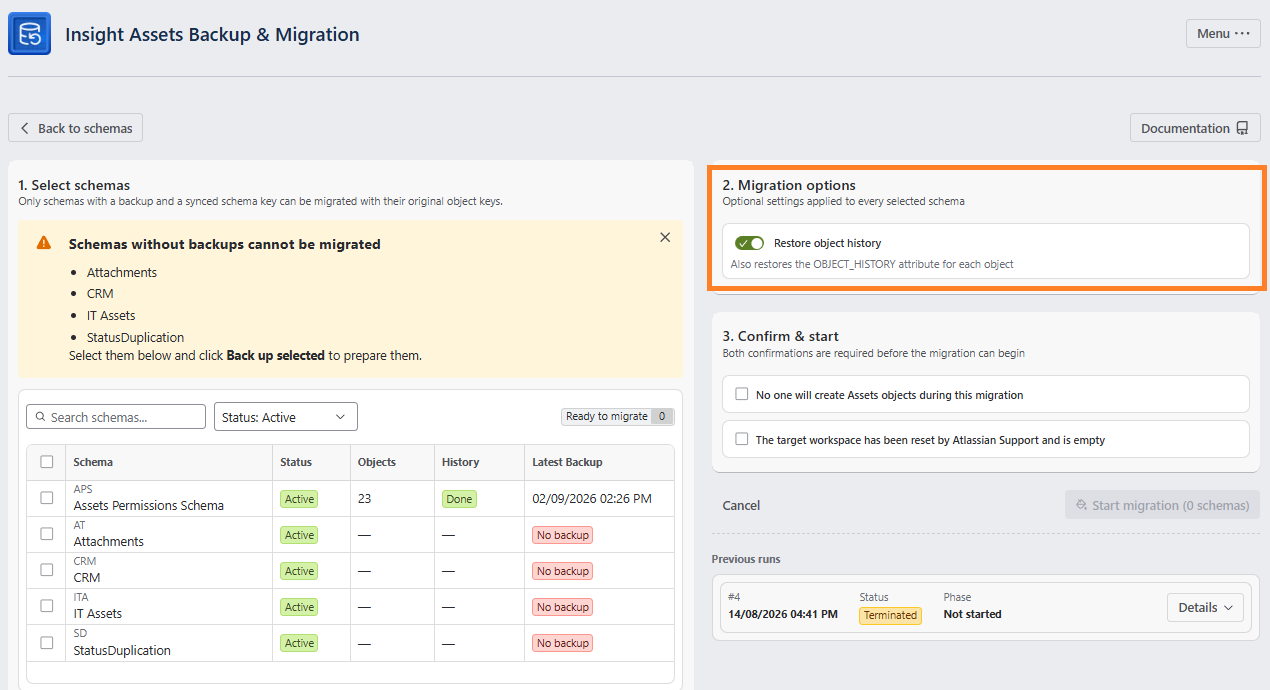
Confirm & Start
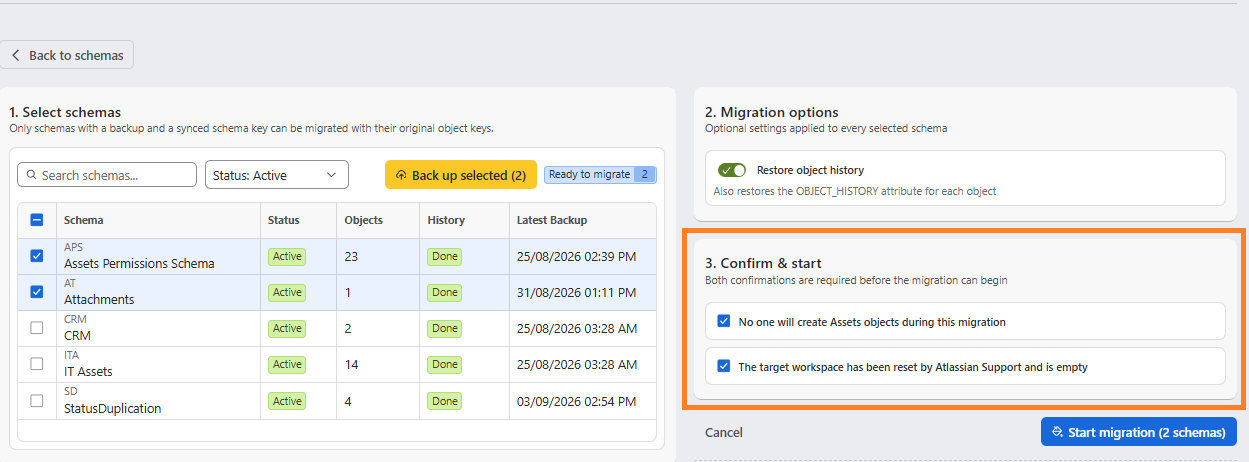
Then, select “No one will create Assets objects during this migration” and “The target workspace has been reset by Atlassian Support and is empty”. Both confirmations are required before the migration can begin. Then click “Start migration” button.
You will see the popup message with the following info:
Start bulk object key retention migration?
The target Assets workspace must be empty, and nobody may create Assets objects while the migration is running. This process can take a long time and cannot be safely resumed if interrupted.
After starting migration, you can see the three available status:
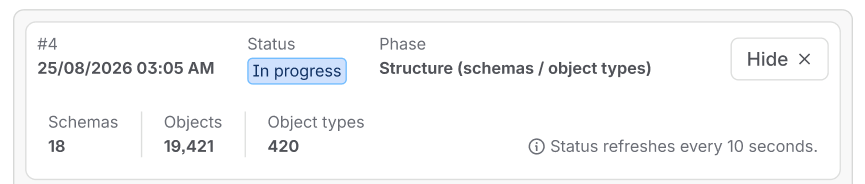
In Progress:
The migration is actively running. The system is executing phased steps — creating key sequence placeholders, restoring object types, attributes, comments, attachments, and re-linking cross-schema references. Do not create any Assets objects on the target workspace while this status is displayed.
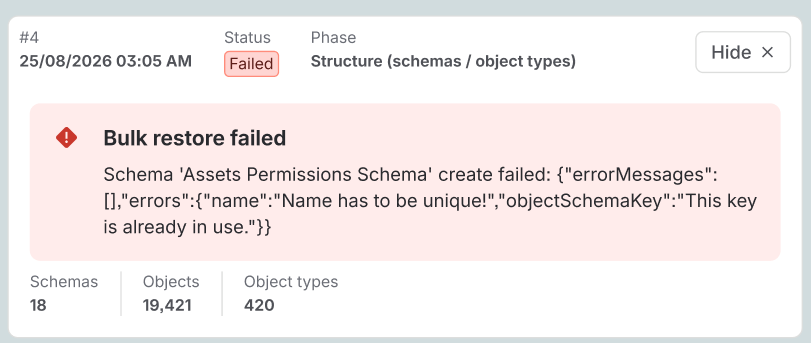
Failed:
The migration was interrupted or could not complete. This may occur due to a key index mismatch detected during audit validation, an empty target schema requirement not being met, or a connection interruption. Review the migration log for details. Contact support if the issue persists before attempting to re-run the migration.
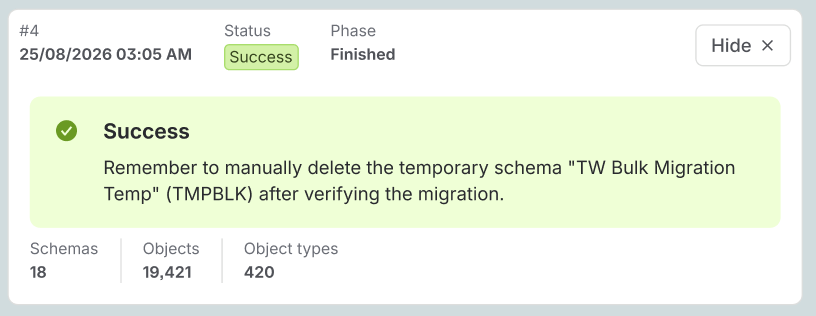
Success:
The migration has completed successfully. All objects, object types, attributes, comments, attachments, and cross-schema references have been fully restored on the target instance with original Object Type keys and Object keys preserved. You can now verify objects in the target Assets workspace.
Restoring Objects in Jira Issue Custom Fields
Once the schema migration is complete:
- Go to Restores Grid > Restore objects in issues.
- Select Work item key as the identifier.
- Initiate the restore. Because original object keys were retained during schema migration, Jira custom fields will re-link to target objects automatically.