Restore History
All the restores, whether successful or unsuccessful will be shown in the History table on the main page of the app:
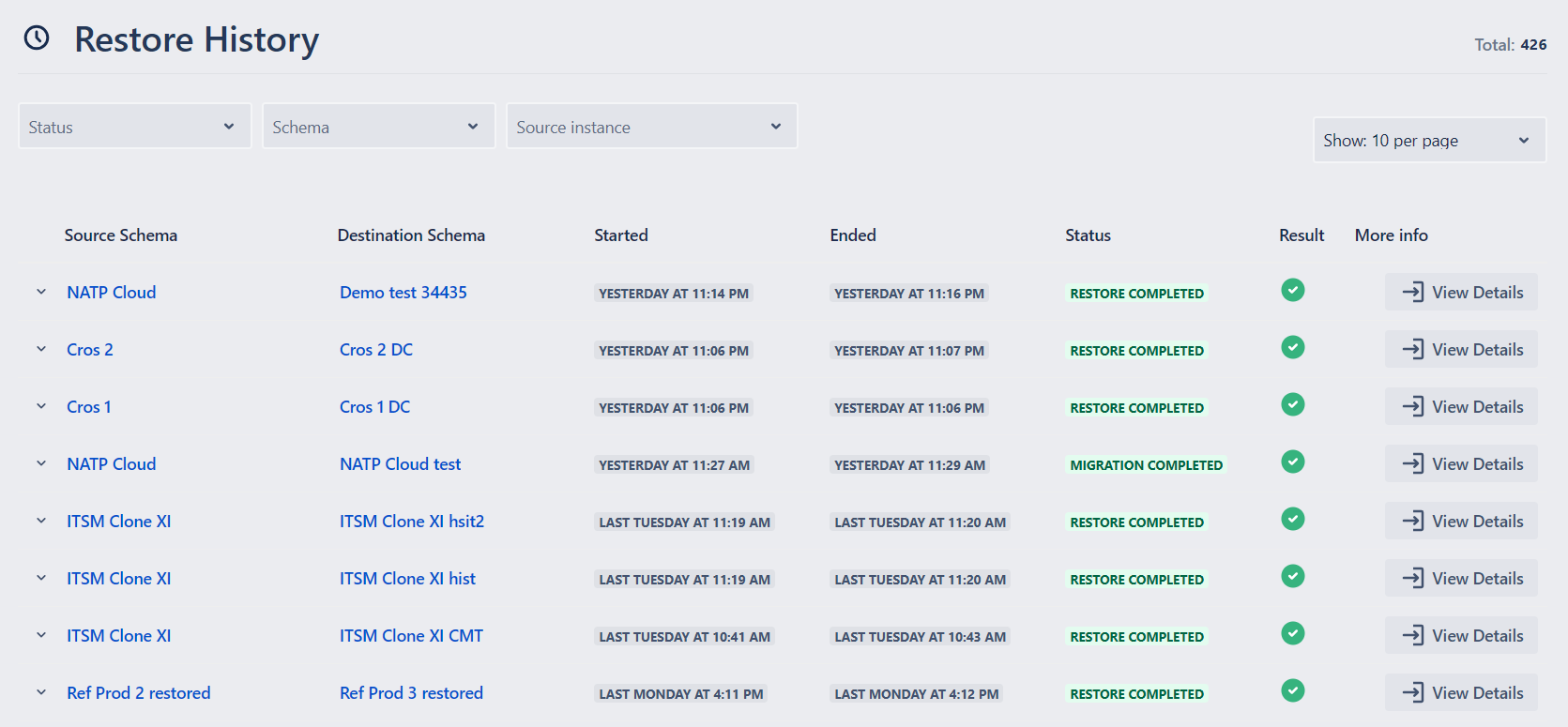
Total shows the total number of the restore/migrations, including successful and failed ones. You can also select the number of restores you want to see on one page (from 10 to 200).
Restores Grid shows the following information regarding all the restores after the app installation:
Source Schema
Name of the source schema restored or tried to be restored
Destination Schema
- Name of the destination schema restored or tried to be restored
- For successful restore/migrations, the schema name is clickable and you will be navigated to the restored schema in Atlassian Assets.
Started
- Date and time when the schema restore was started
Ended
Date and time when the restore was finished
- will be empty for unsuccessful restores
Status
status of the restore
- In progress: the restore process is in progress.
- Restore completed: restore was finished successfully.
- Restore error: restore was not finished.
Result
Result message: details of the result. Clicking the result message will show the details of the result.

View Details
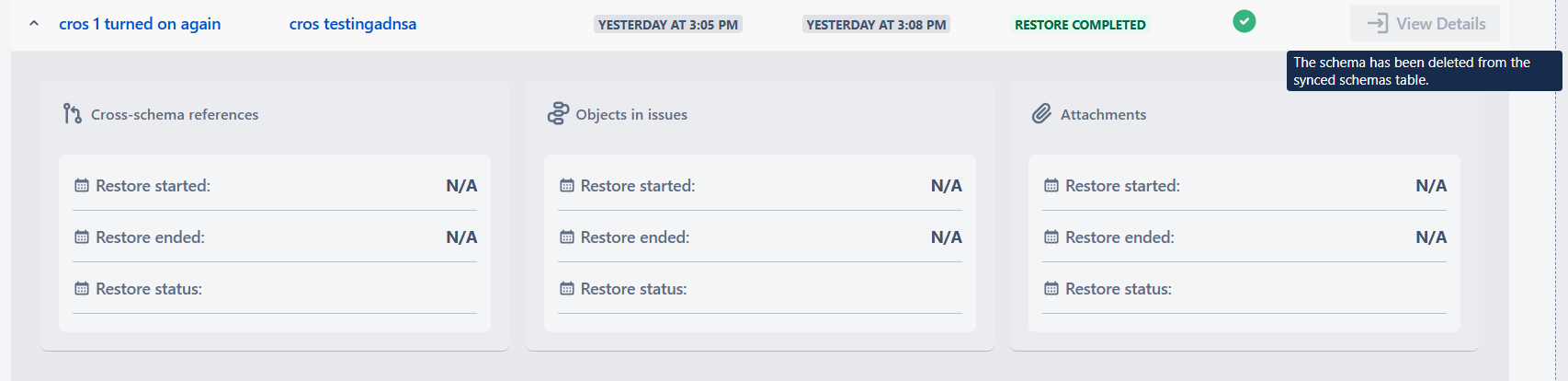
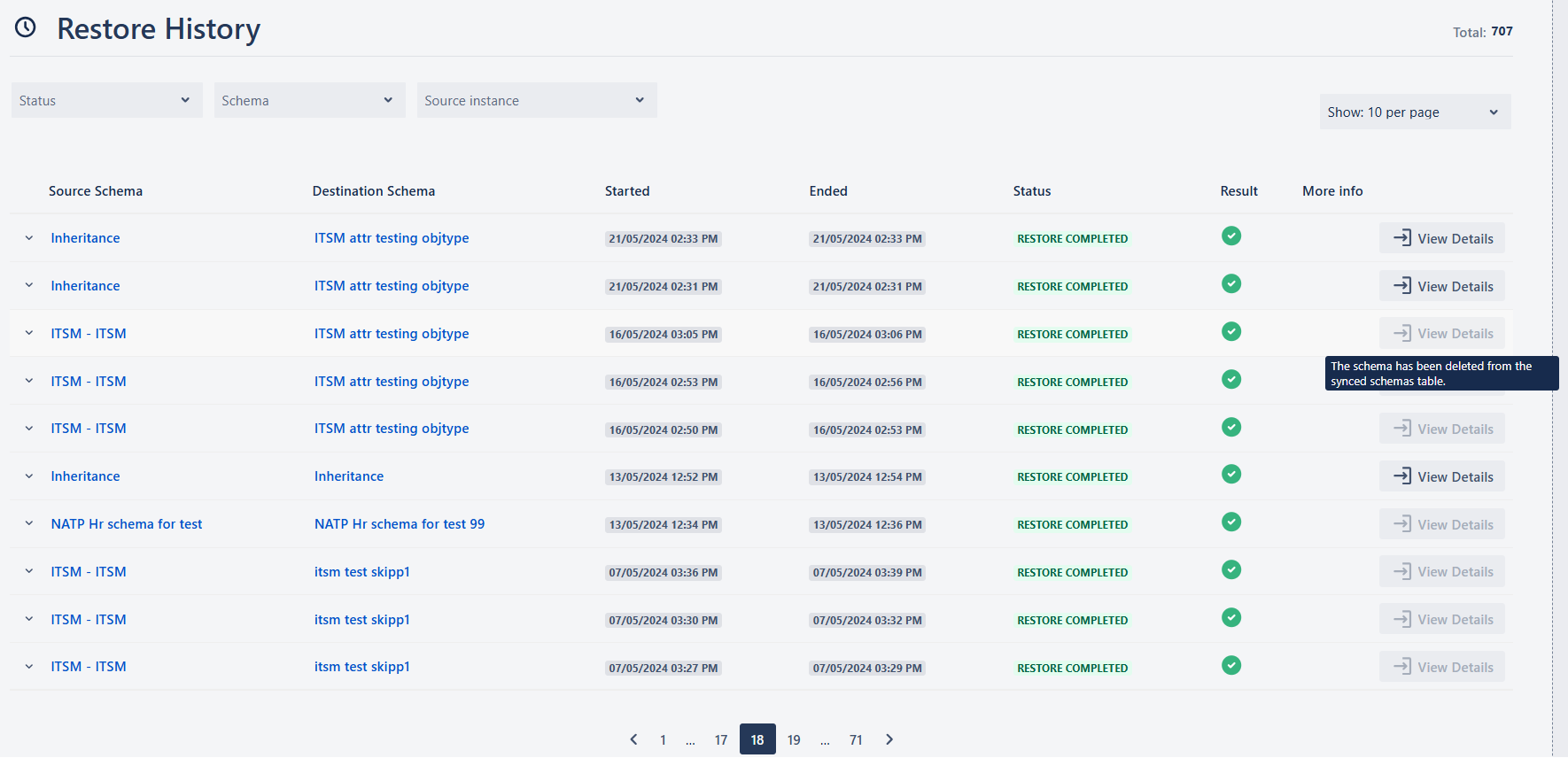
Click the View Details button to navigate to the details in the Schema Restore Grid. If the schema was deleted from the app, the “View details“ button will be disabled.
When there are more than 20 schemas, pagination will appear below the Schema Grid.
In addition, by clicking the downward arrow button on the left of the schema name, you can see more details regarding the certain restore:
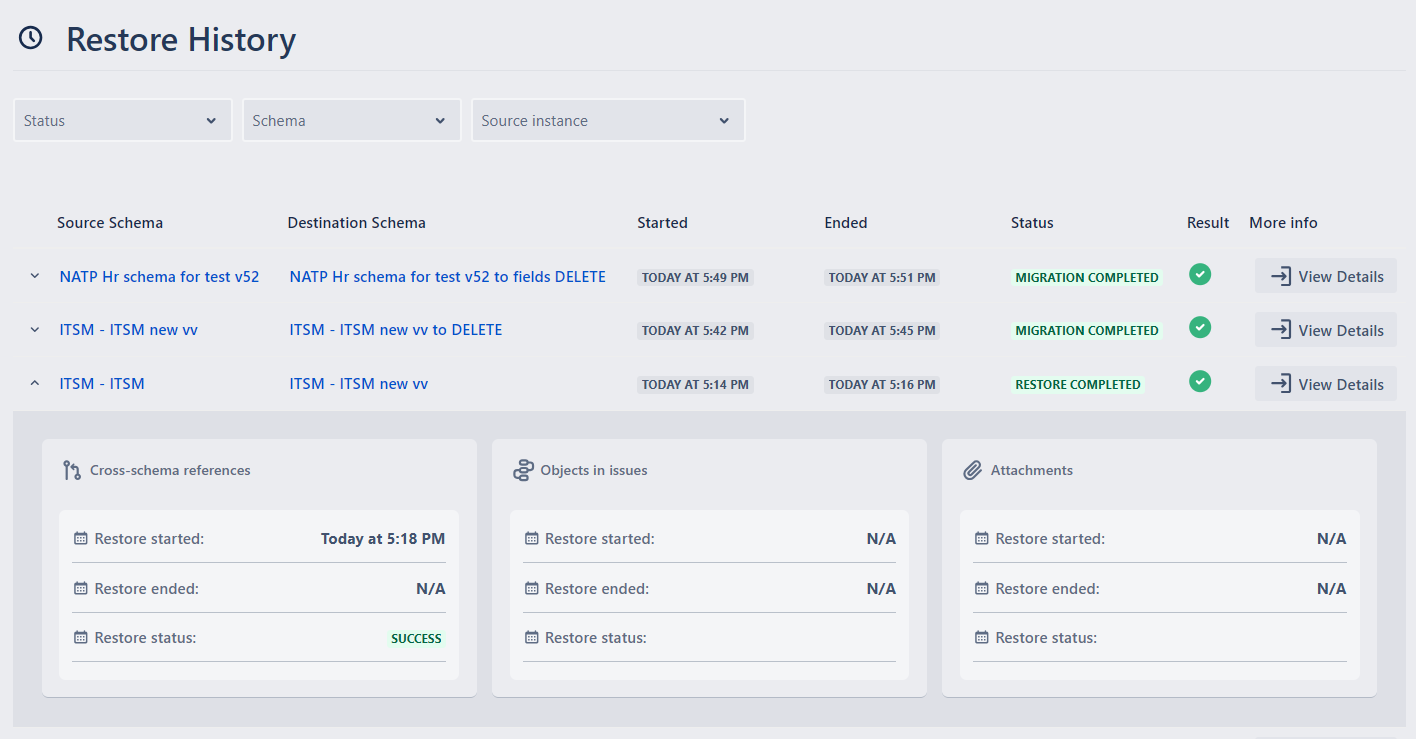
The following additional details are available:
Cross-schema references
- Restore started (date and time when Cross-schema references restore started; N/A if not yet started)
- Restore ended (date and time when Cross-schema references restore ended; N/A if not yet started)
- Restore status (Status of Cross-schema references restore; Empty if not yet started)
- Restore log (If cross-schema references were restored multiple times, only the most recent restore details (started, ended, status) will be displayed)
Objects in issues
- Restore started (date and time when objects in issues restore started; N/A if not yet started)
- Restore ended (date and time when objects in issues restore ended; N/A if not yet started)
- Restore status (Status of objects in issues restore; Empty if not yet started)
Attachments
- Restore started (date and time when attachments restore started; N/A if not yet started)
- Restore ended (date and time when attachments restore ended; N/A if not yet started)
- Restore status (Status of attachments restore; Empty if not yet started)
Comments
- Restore started (date and time when comments restore started; N/A if not yet started)
- Restore ended (date and time when comments restore ended; N/A if not yet started)
- Restore status (Status of comments restore; Empty if not yet started)
If the restored schema is already deleted, you won’t be able to click View Details and the button will be disabled, showing the reason:
If two or more restores are started approximately simultaneously, the restores executed later will wait in queue until the first ones are completed.
If schema contains many objects, restore may take time!
Additional Remarks and Limitations
During restore or migration, if a Text attribute value exceeds 255 characters, the app will automatically convert the target attribute type from Text to Text Area and restore the full value without interruption. The conversion occurs only once per attribute. A warning entry will be added to the restore log indicating the attribute conversion, and the restore report will include the number of attributes automatically converted from Text to Text Area. This behavior applies to both schema restore and object restore operations.
If the objects types that were backed up,
- had either custom icons,
- or they were imported with Asset Discovery,
- or were restored to different instance,
some icons may be lost after restore, as they are not saved in the schema itself. If this happens, the icons will be changed with the default object icon (see the screen below). As a workaround, you can upload the original icons to the global icons on the target instance, keeping the name identical to the original ones, and after the restore, correct icons will be updated for Object Types and corresponding objects.
If the Object Type in the source schema does not contain a “Name” attribute (and therefore, Label is assigned to another attribute), after restore/migration, if the Object Type is created, the Name attribute will be created, due to the requirement of the corresponding Atlassian API. The created attribute will have “N/A“ in the value, as creation of the Object Type is not possible with the empty “Name“ attribute. If this happens, if the label is assigned to the “Name“, remove the label and add to the correct attribute and delete the “Name“ attribute.
When restoring or migrating objects from Data Center to Cloud, if an object has an empty value in the attribute configured as the Label, the app will automatically populate the label with the placeholder value “Empty Label (Migrated)” to comply with Cloud’s requirement for non-empty labels. The restore process will continue without interruption, and a warning will appear in the restore log indicating the number of objects restored using placeholder labels. This behavior applies only to Cloud restore operations.
It may happen that the Schema was backed up in the Cloud, and after some time, you decide to switch to your MongoDB. In such a case, if you try to restore the older backup, you will see the error message. This is also true if you backed up a schema in your MongoDB, and later you try to restore that certain backup after switching to Cloud backup (switched off the “Backup on local database“ toggle).
During restoring the schema on the current instance, If the objects in the schema contain references to another schema not existing on the instance, the attributes will be restored, however with the empty values.
Due to the corresponding REST API limitations, when the objects are restored, they always have new Object ID, Object key and date/time of creation is when the objects are migrated. This results in various issues in the restore process e.g. the objects are duplicated when restored more than once, or the references are lost between the schemas. However, to deal with this issue, all the restored objects have 3 new additional attributes:
- ORIGINAL_ID
- ORIGINAL_KEY
- ORIGINAL_CREATED (showing original creation date/time in UTC)
All the attributes represent the data, that the object had in the VERY FIRST backup of the schema. e.g. If the schema was backed up, restored and the newly restored schema was restored again, the original ID and the Key will not be changed in the last restore.
If the schema which is being restored contains references to the users, which does not exist in another instance, the object attribute will be still restored but the attribute value will be empty. If the attribute contains several users, from which at least one user does not exist (or is disabled) on the Cloud instance, the attribute will not be populated also with the other users. If this happens, the corresponding error will appear in the real-time and full log, indicating the relevant object key and the attribute. This is also relevant to the cases, when a user group is selected in the attribute, but the user does not belong to that group on Cloud.
Such empty attributes are by default hidden from an object view unless manually edited. Additionally, due to the GDPR restrictions, matching with the users is not possible via email, and only Name/Surname is used. Therefore, in some cases (e.g. when there are several users with identical names and surnames), the user attribute value may not be restored.
Due to the GDPR restrictions, matching users in the users’ attributes during migration is not possible via email, and only Full Name Display Name (Name and Surname) can be used. Therefore, in some cases (e.g., when there are several users with identical names and surnames, or if the full name was changed during users migration), the user attribute value may not be restored.