Restores Grid
After the restore is completed or failed, the restore will appear in the Restores grid for the certain backed-up schema:
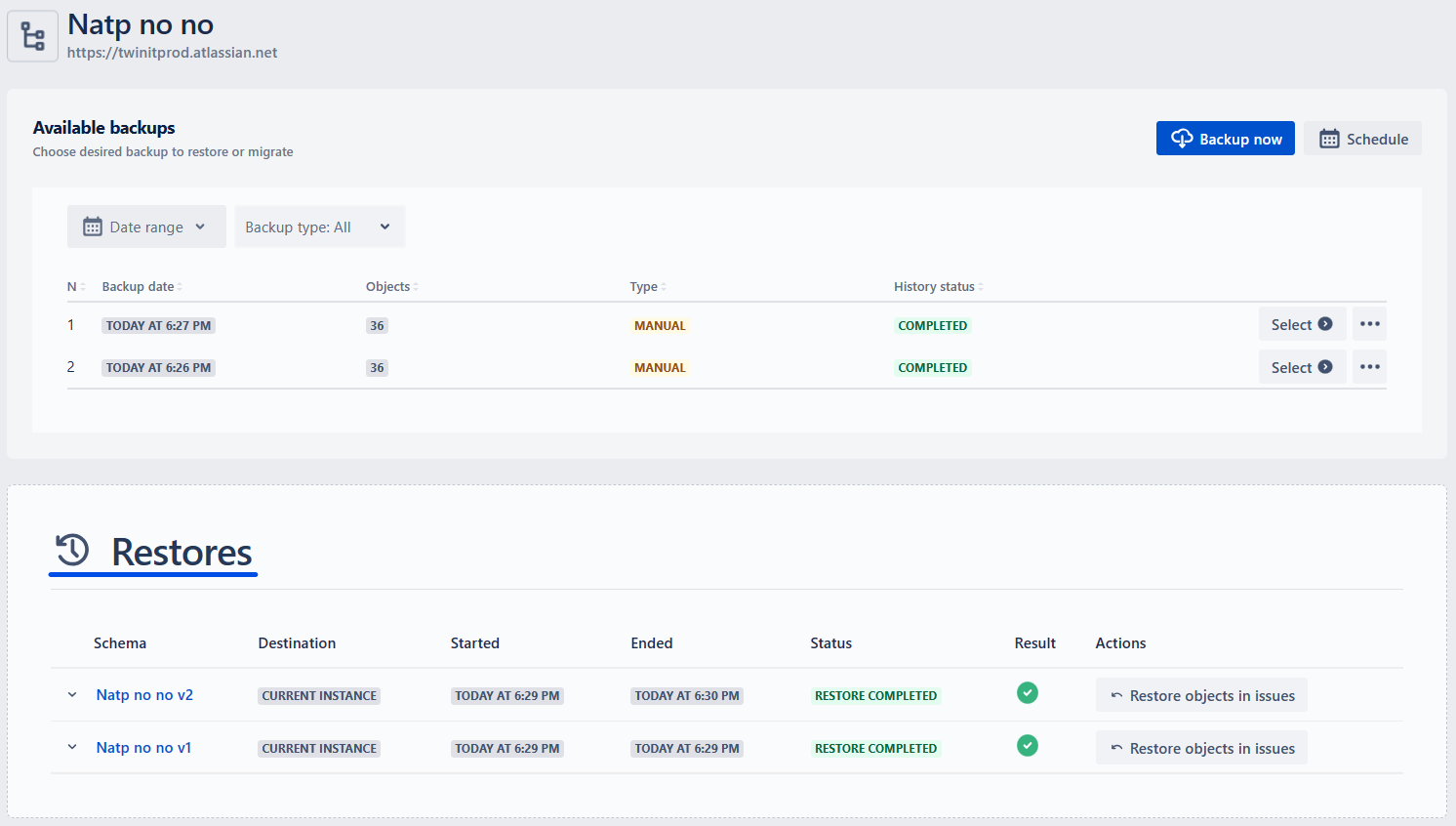
The grid shows the following information:
Schema
Name and link (if the restore/migration was successful) of the schema that was restored. You can click the schema name to directly go to the schema
Destination
Which option was used as a destination during the restore/migration:
- Current instance
- Existing schema
- Another instance
Started
- The date and time of the restore/migration was started
Ended
The date and time of the restore/migration was Ended
Status
Status of the restore/migration. Can be:
- Restore completed
- Restore error
Result
Result of the restore. In case of error, you can click an error icon to identify the reason for the error:
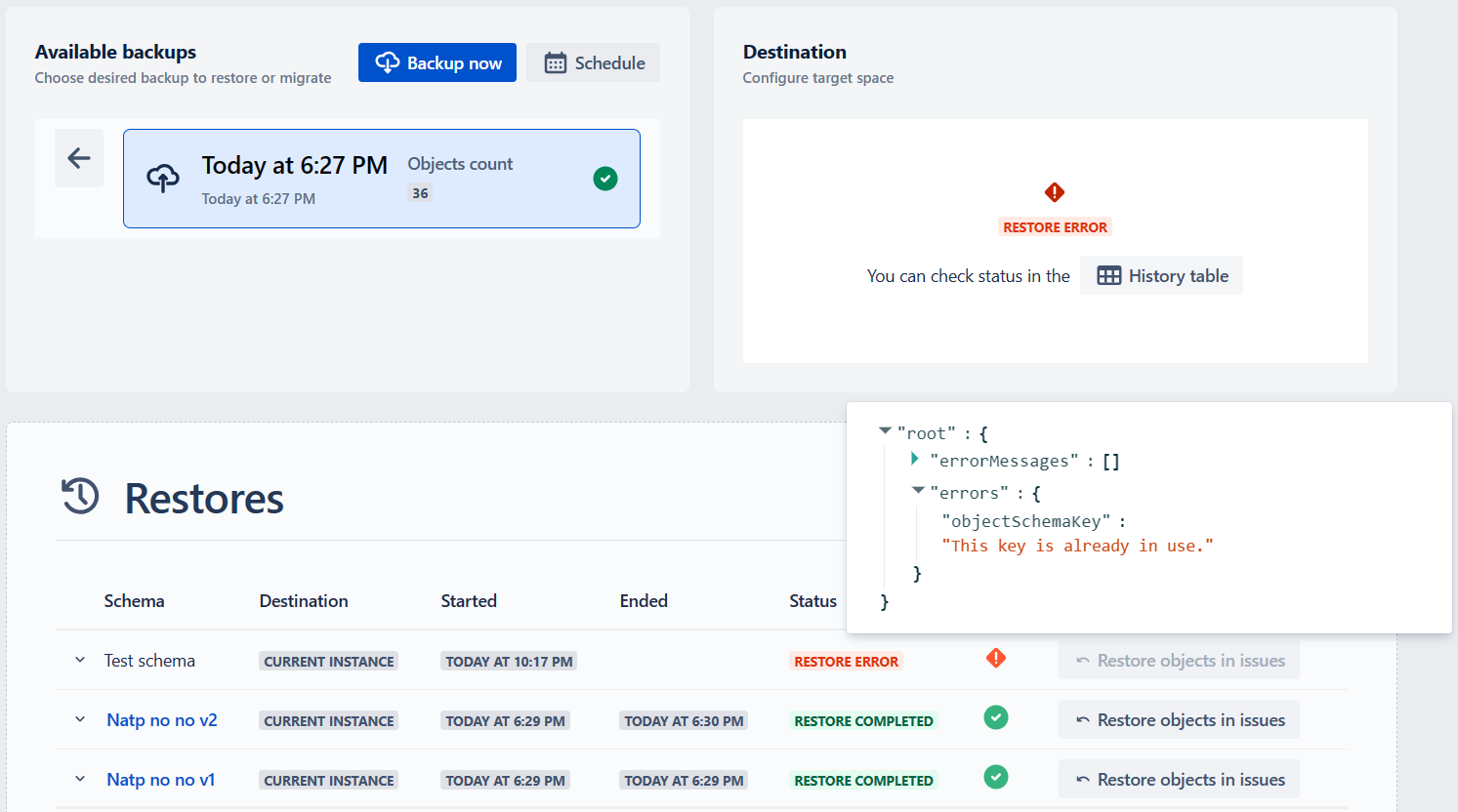
If the “Restore objects in issues” is attempted for the restored schema, the result will show the fields validation results. Please refer to Restore Objects in Jira Issue Fields for more details
“Restore objects in issues” button
- For more details refer to Restore Objects in Jira Issue Fields to restore the objects in the issues of the current instance or to restore objects in the migrated issues from DC to Cloud or from Cloud to another Cloud.
To view additional information regarding the restore, click the “down arrow” in the beginning of the schema row:
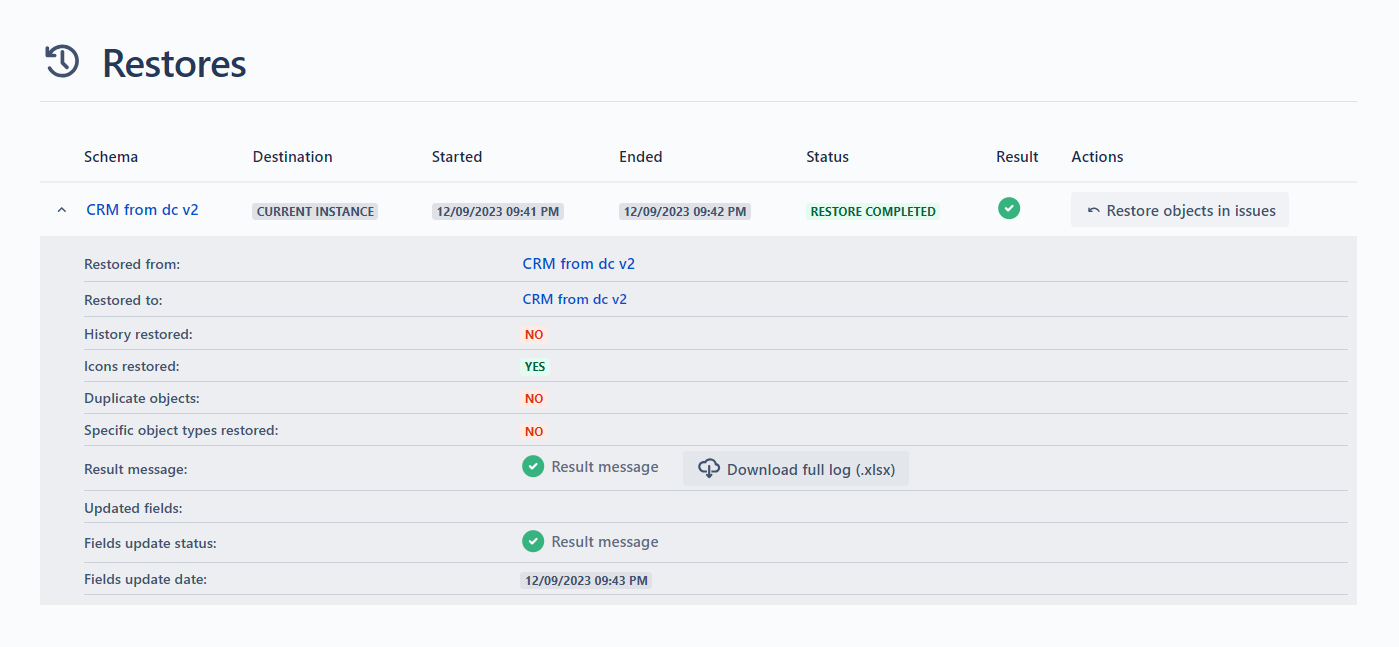
You can see the following information here:
Restored from: the name and link of the original schema
Restored to: the name and link of the restored schema
History restored: YES/NO - whether history restore option was selected
Icons restored: YES/NO - whether the “Restore icons“ option was selected
Specific object types restored: YES/NO - whether the “Restore only specific object types“ option was selected during the restore. When YES, an AQL button appears, allowing users to view the AQL query used for filtering specific object types.
Result message: the result of the restore. In case of an error, you can click an error icon to identify the reason for the error (see the screen above)
- Download full log (.xlsx) - you can download full restore/migration log by clicking the button. More details: </insight-assets-backup-and-migration/restore-migration-guide/> .
Updated fields: List of the updated Jira custom fields
- For this and the next two positions, please see Restore Objects in Jira Issue Fields for more details.
Field update status
Fields update date
Comments
- Restore started: date and time when comments restore started; N/A if not yet started
- Restore ended: date and time when comments restore ended; N/A if not yet started
- Restore status: Status of comments restore (Pending / In Progress / Success / Error); Empty if not yet started
- Restore result: Result of the comments restore
- Full log: Download the full comments restore log (.xlsx)
- Real-time log: Monitor comments restore progress in real-time
Full restore log:
The full restore log (.xlsx) contains detailed logs for the following restore stages:
- Config Logs: Icons — log of icon restore actions
- Config Logs: Global status types — log of global status type restore actions
- Config Logs: Schema status types — log of schema status type restore actions
- Config Logs: Reference types — log of reference type restore actions
- Config Logs: Global reference types — log of global reference type restore actions
- Object types — log of object type creation actions
- Objects — log of object restore actions
Each sheet contains the following columns:
- ObjectKey — Key/identifier of the restored item
- Result — TRUE (if restored) / FALSE (if not restored)
- Message — Details of the restore action (e.g.,
{ message: 'OK' }) or the error details
If any objects were restored with an empty label (applicable during DC-to-Cloud migrations), the log will contain warning entries for the affected objects, with the Message indicating that the placeholder label “Empty Label (Migrated)” was assigned.
If any attributes were automatically converted from Text to Text Area (due to values exceeding 255 characters), the log will contain warning entries for the affected attributes, with the Message indicating the attribute conversion.
Restore History
All the restores, whether successful or unsuccessful will be shown in the History table on the main page of the app:
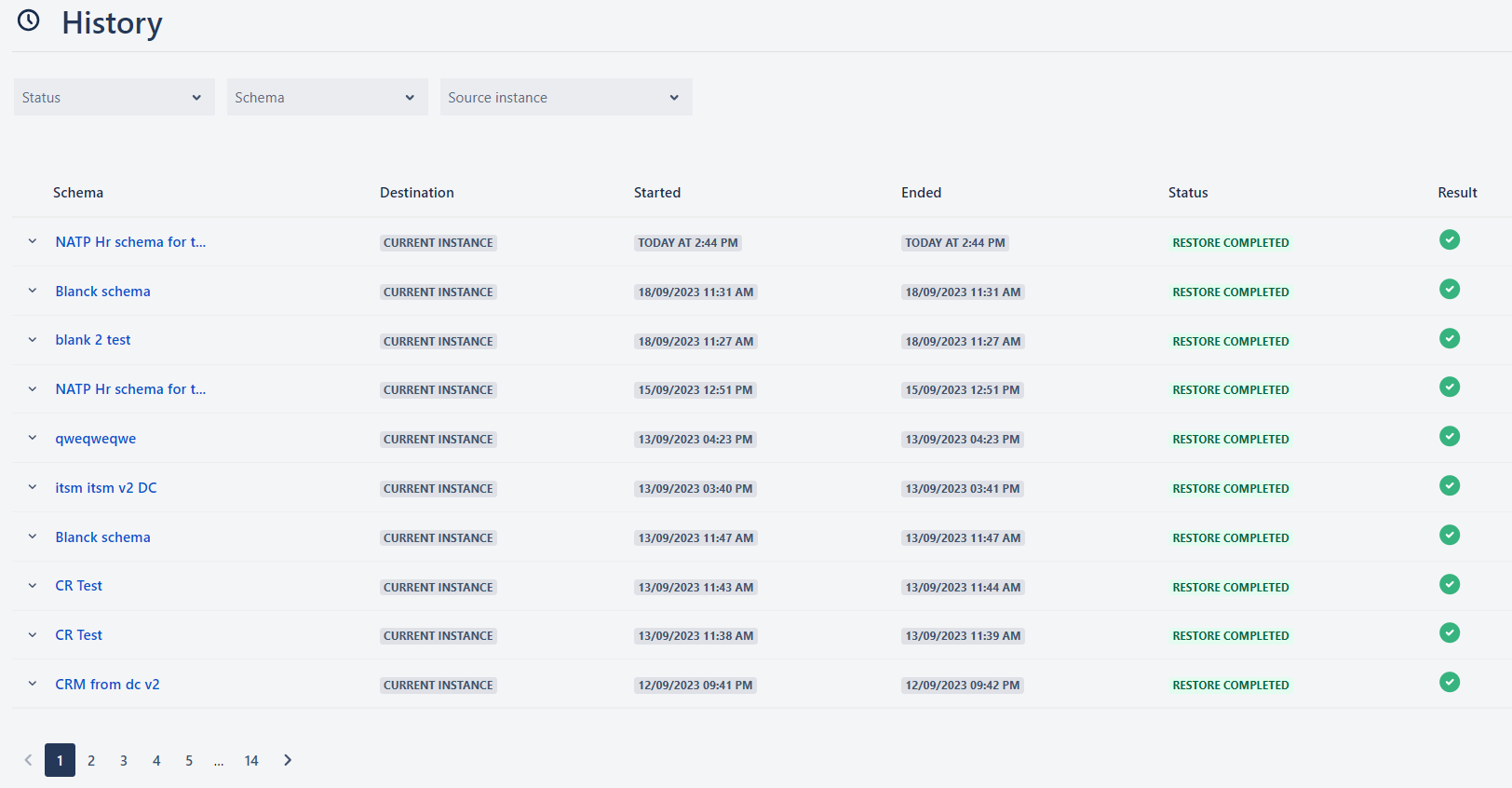
Restores Grid shows the following information:
Schema
- Name of the schema restored or tried to be restored
- For successful restore/migrations, the schema name is clickable and you will be navigated to the restored schema in Atlassian Assets.
Destination
- Current instance
- Another instance
Started
- Date and time when the restore was started
Ended
Date and time when the restore was finished
- will be empty for unsuccessful restores
Status
status of the restore
- In progress: restore process is in progress.
- Restore completed: restore was finished successfully.
- Restore error: restore was not finished.
Result
Result message: details of the result. Clicking the result message will show the details of the result.
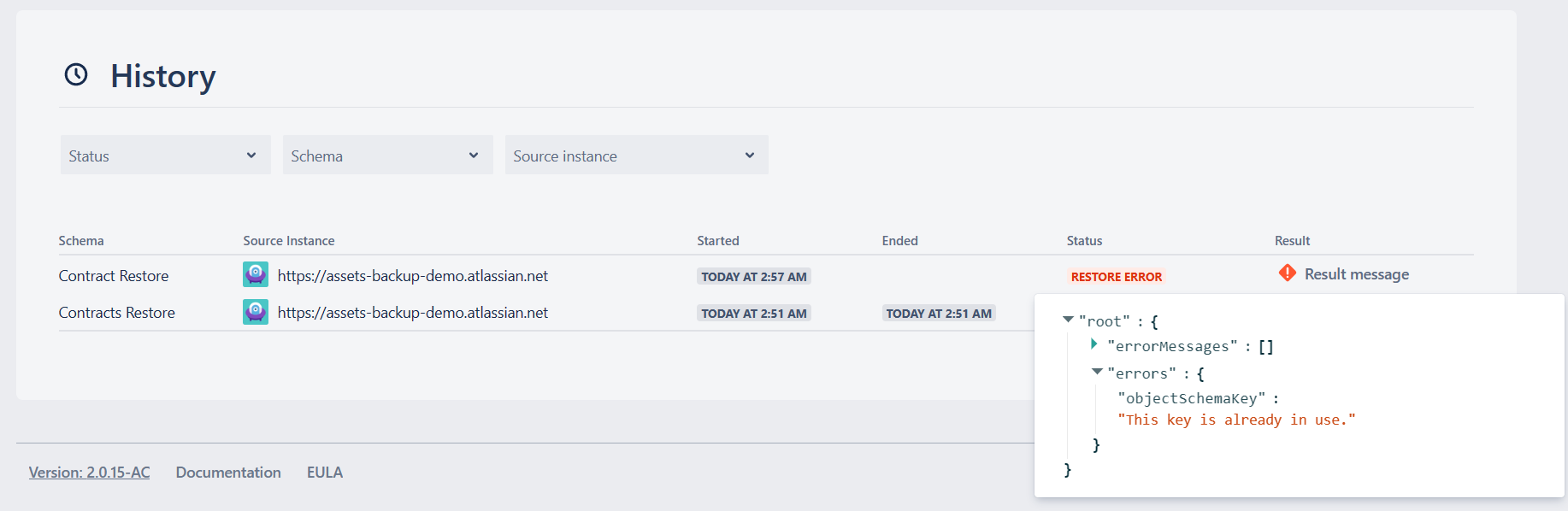
When there are more than 20 schemas, pagination will appear below the Schema Grid.
In addition, by clicking the downward arrow button on the left of the schema name, you can see more details regarding the certain restore:
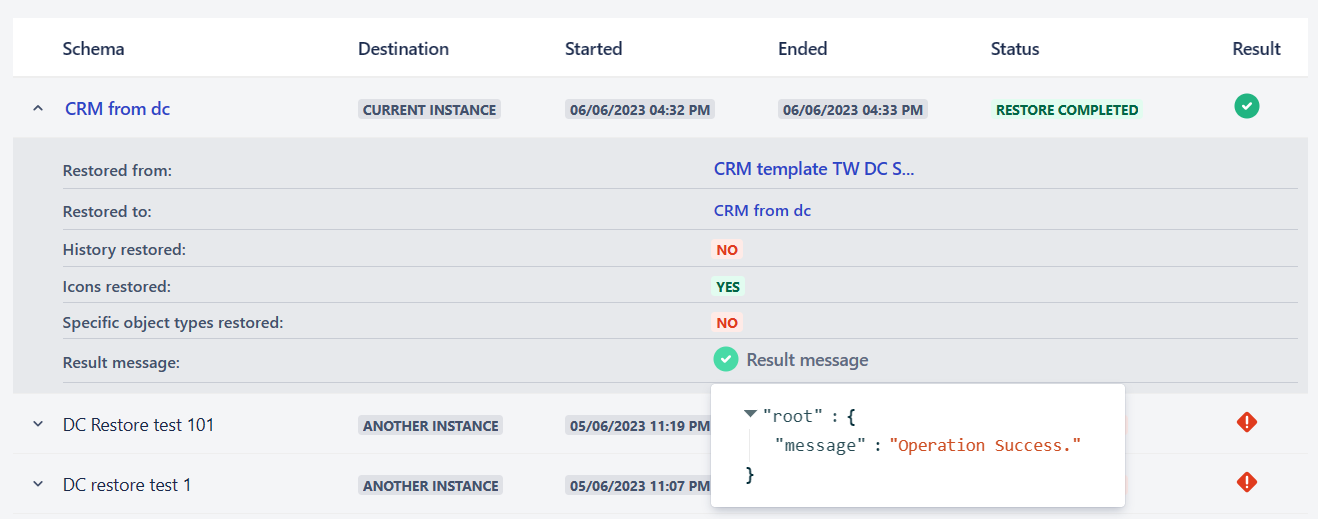
The following additional details are available:
Restored from
- Name of the original schema (clickable, if the schema is on the same instance and is not deleted)
Restored to
- Name of the restored schema (clickable)
History restored
- YES/NO - whether the options was selected while restore
Icons restored
- YES/NO - whether the options was selected while restore
Specific object types restored
- YES/NO - whether the options was selected while restore. When YES, an AQL button appears, allowing users to view the AQL query used for filtering specific object types.
Result message
- Details of the restore result. Clicking the result message will show more details, particularly in case of failed restores.
Comments
- Restore started: date and time when comments restore started; N/A if not yet started
- Restore ended: date and time when comments restore ended; N/A if not yet started
- Restore status: Status of comments restore (Pending / In Progress / Success / Error); Empty if not yet started
If two or more restores are started approximately simultaneously, the restores executed later will wait in queue until the first ones are completed.
If schema contains many objects, restore may take long!
Additional Remarks
During restore or migration, if a Text attribute value exceeds 255 characters, the app will automatically convert the target attribute type from Text to Text Area and restore the full value without interruption. The conversion occurs only once per attribute. A warning entry will be added to the restore log indicating the attribute conversion, and the restore report will include the number of attributes automatically converted from Text to Text Area.
If the objects types that were backed up,
- had either custom icons,
- or they were imported with Asset Discovery,
- or were restored to different instance,
some icons may be lost after restore, as they are not saved in the schema itself. If this happens, the icons will be changed with the default object icon.
It may happen that the Schema was backed up in Cloud and after some time you decide to switch to your MongoDB. In such case, if you try to Restore the older backup, you will see the error message. This is true also if you backed up a schema in your MongoDB and later you try to Restore that certain backup after switching to Cloud backup (Switched off the “Backup on local database“ toggle).
During restoring the schema on current instance, If the objects in the schema contain the references to another schema, the attributes will be restored, however with the empty values. Otherwise, the references between the schemas (inbound and outbound) will be restored.
Due to the corresponding REST API limitations, when the objects are restored, they always have new Object ID and Object key. This results in various issues in the restore process e.g. the objects are duplicated when restored more than once, or the references are lost between the schemas. To deal with this issue, all the restored objects have 2 new additional attributes:
- ORIGINAL_ID
- ORIGINAL_KEY
Both attributes represent the Original ID and the Key, which the object had in the VERY FIRST backup of the schema. e.g. If the schema was backed up, restored and the newly restored schema was restored again, the original ID and the Key will not be changed in the last restore.