Schema Backup
You can back up the desired schema either manually or by scheduling regular backups.
Manual Backup
To back up the desired schema, click “ Back up now “ button under the Actions of the schema grid. After clicking the button you will see the confirmation popup:
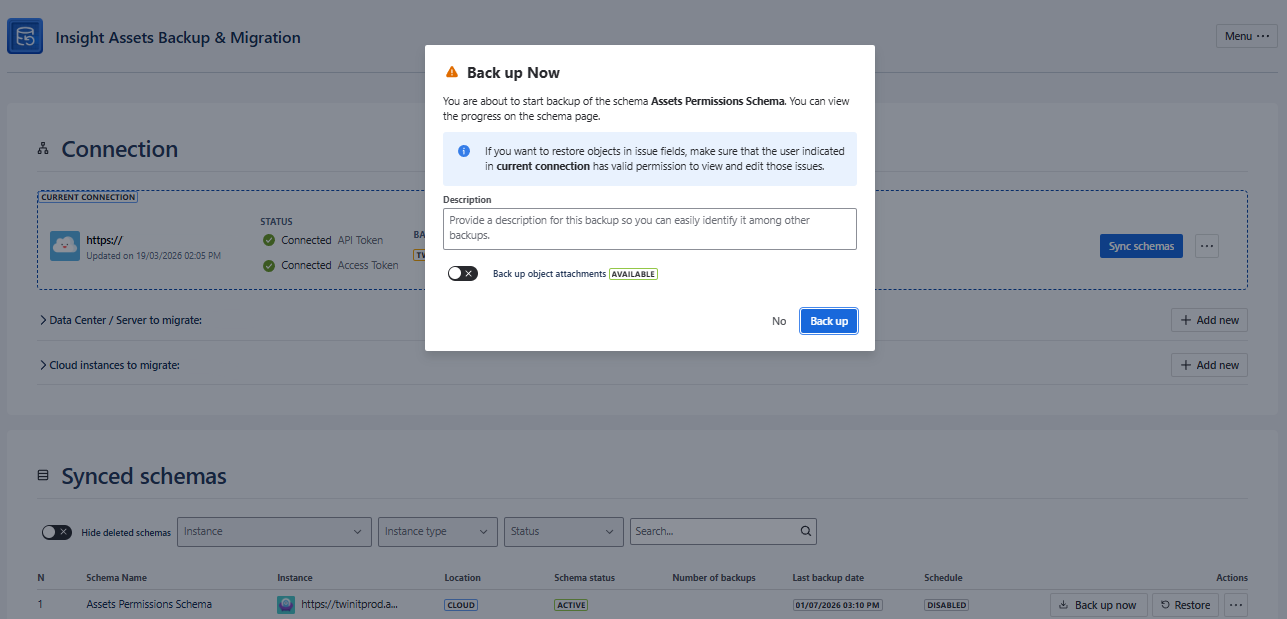
You can backup also attachments by enabling the toggle, if the Assets Attachments Backup & Migration app is installed on Cloud. See Backup and Restore of object Attachments for more details.
Bulk Backup (Multi-Schema Backup)
To back up the several desired schemas, you can select the relevant ones and click “ Back up “ button.
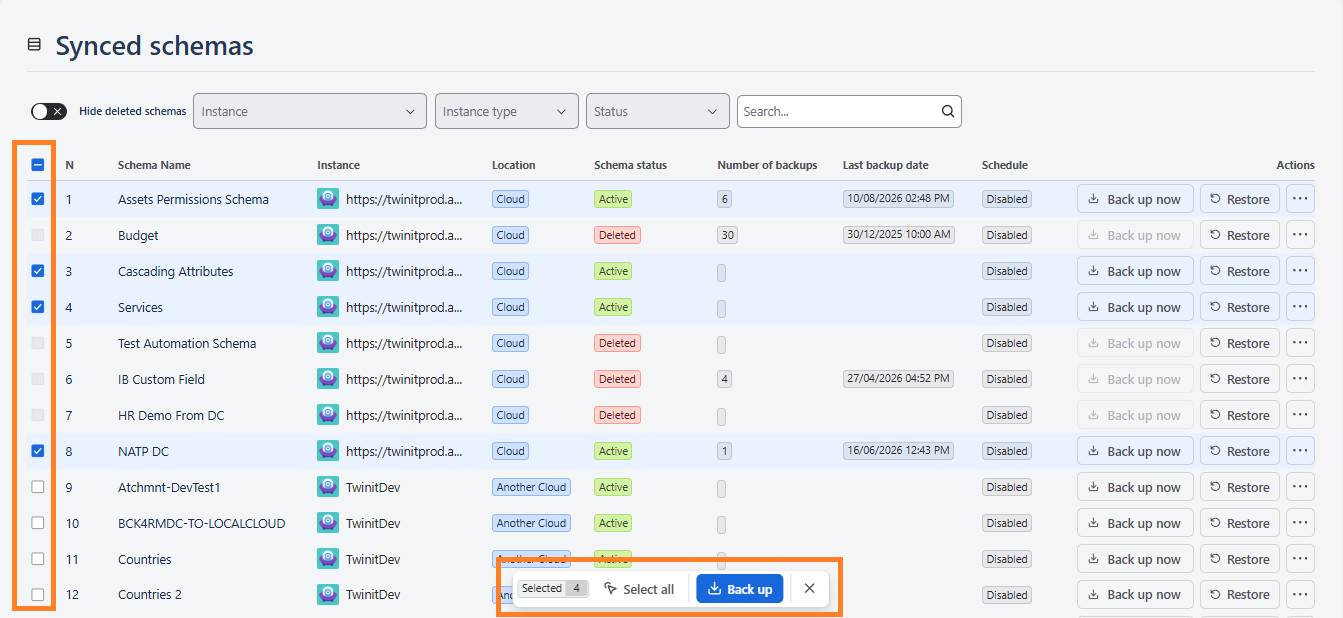
The backups will be queued and run in the background — you can follow the progress in the schemas grid.
You can add descriptions to certain backups for further simplifying the backups management. You can later view and edit the description if needed. After adding the description (not mandatory), click the Yes button to start the backup. You can check the backup process status along the corresponding schema in the Synced schemas grid:

After the backup is started, it will go into the “IN QUEUE“ status and “IN PROGRESS“, when the backup process is started.
Stop Backup Process
When the backup is started you can stop the process anytime, by clicking Stop button
After you click the button, you will see the confirmation popup either to stop the process or abort the termination of the backup.
The terminated backups can be seen in the Audit Log .
After the backup is finished, you can check the status below the Last backup date column. If the process was successful, you will see the date and time of the last backup.
Otherwise, you will see the error message, explaining the problem with the backup.
If a schema contains many objects, backup may take up to hours. Also, please keep in mind that if you start more than one parallel backup, it may also take long due to the Request per-minute limitation of the corresponding Atlassian REST API.
Data Center instance performance may also affect backup time and performance. In case of large Assets schemas and many issues with Assets custom fields, we strongly recommend running reindex on the Data Center before taking schema backup.
After the backup is completed, icons will be backed up in the background, which may also take several hours, depending on the number of objects. Therefore, if you are trying to restore backup immediately, icons may not be included.
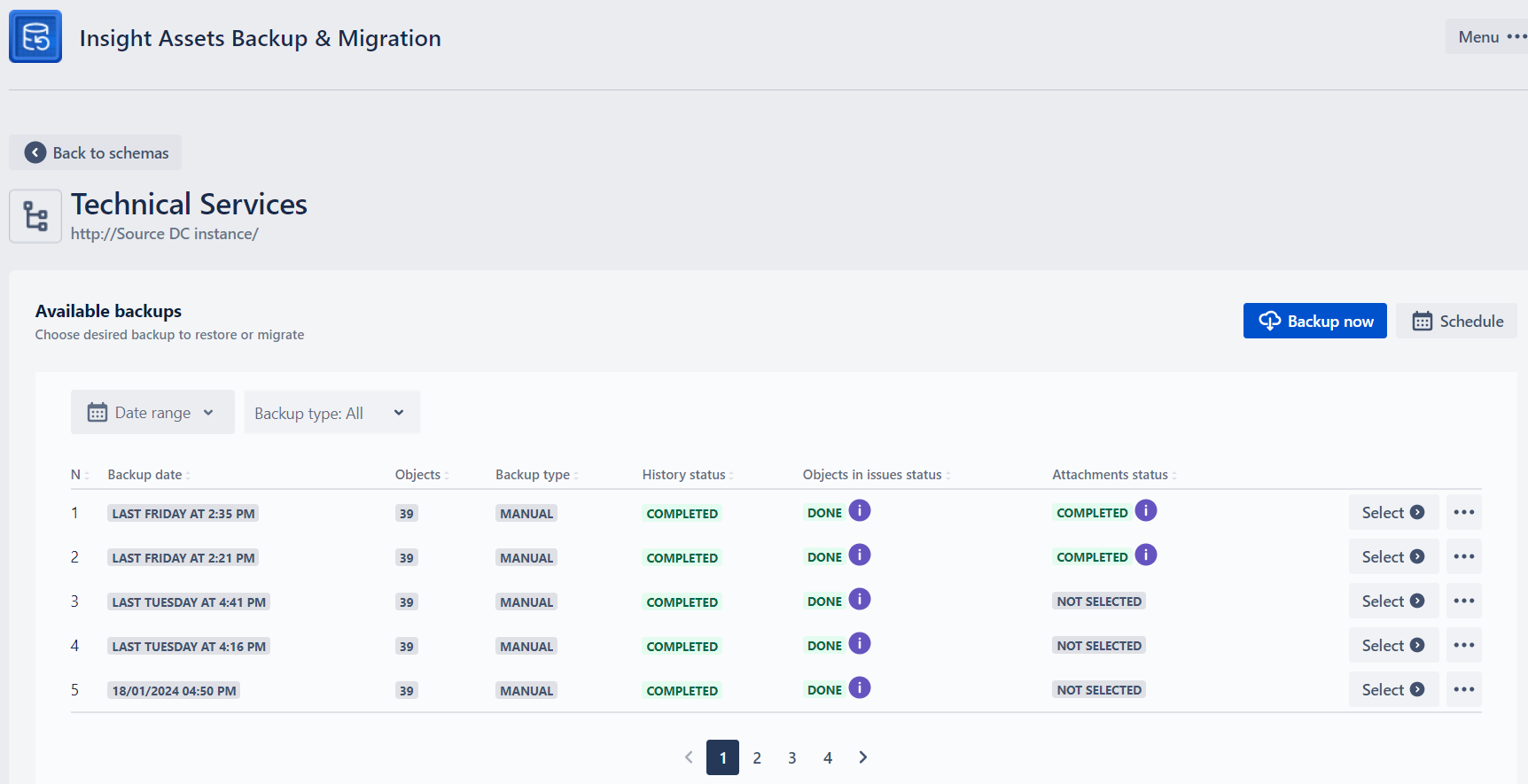
After the backup is completed, the new item will appear on the Restore page, under Available backups (see Restore and Migration Guide for more details):
Empty schemas cannot be backed up. If you try to backup such schema either scheduled or manually, you will see an error message by the corresponding schema.
Due to the limitation of the Database, if size of the object equals or exceeds 16MB, such an object will not be backed up!
The comments can be backed up if the schema contains less than 30,000 objects. If the schema contains more than 30,000 objects, the comments backup status will be THRESHOLD and the corresponding information will be given after hovering status: “The schema contains more than 30,000 objects, and the comments were not backed up“.

Please try not to change anything in Assets (Insight) while the backup is running! If schema contains many avatars, the very first backup may take long. In addition, after the backup is completed, the avatars will be backed up in the background. This means that if you try to immediately restore a schema after the backup is finished, avatars may not be restored. The exact time depends on the quantity and sizes of the avatars, but with a considerable number, we recommend waiting at least 1 hour until restore.
Backups are stored for 1 year after the backup date.
If you want to restore objects in issue fields, the user indicated in “current connection“ must have valid permission to view and edit those issues before the backup has started.
Schedule Backup
A backup schedule should be configured for an individual schema. To configure the backup schedule, click on the “ Schedule back up “ button, under three dots along the desired schema. The schedule configuration window will pop up:
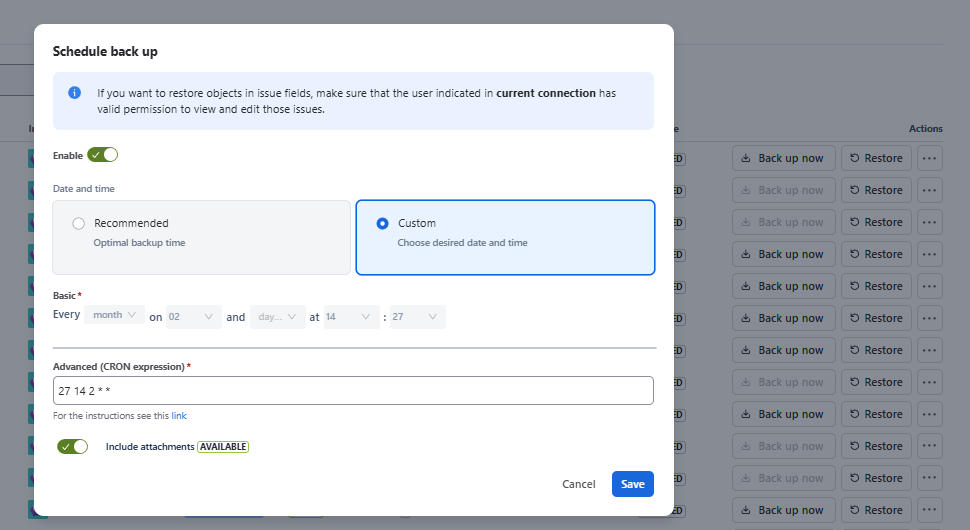
You can backup also attachments by enabling the toggle, if the Assets Attachments Backup & Migration app is installed on Cloud. See Backup and Restore of object Attachments for more details.
To switch the backup on, activate the “Enable“ toggle. The green color of the toggle corresponds to “On“ and the grey color corresponds to “Off”.
You can choose between two options - Recommended and Custom. In the case of choosing the recommended time, the most optimal time is defined at the moment and the backup will start every day on that time.
You can also choose your desired schedule for the backup. You can define the schedule at a specific time by choosing from every:
- Year
- Month
- Week
- Day
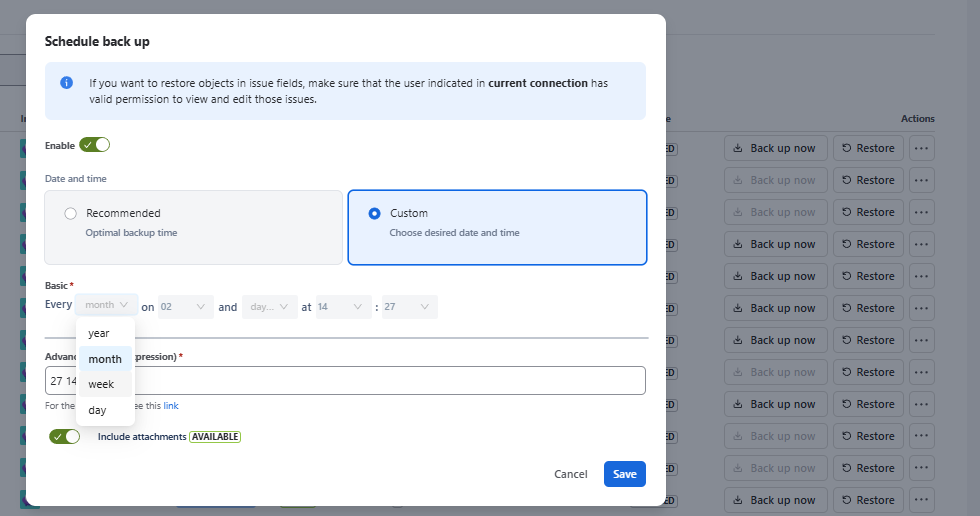
some of the date/times are dynamically reserved for database maintenance. If you choose that time, you will see the notification to choose another time. In that case, choose any time 2 hours before or after the selected time.
Additionally, you can use Cron expression to further define the schedule.