Authorization in Assets Backup Vault
Authorization in Assets Backup Vault
For authorization into the Assets Backup Vault, first you need to enter the instance URL, where the user is trusted.
Make sure to include https:// into the Cloud instance URL!
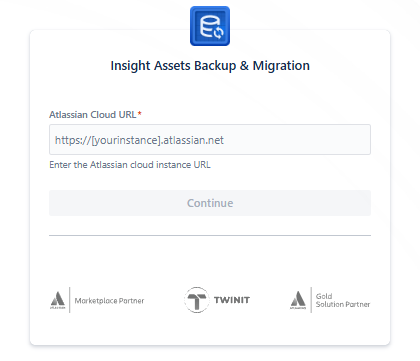
After entering the URL, you can choose Google or Microsoft Authorization method and enter your username and password:
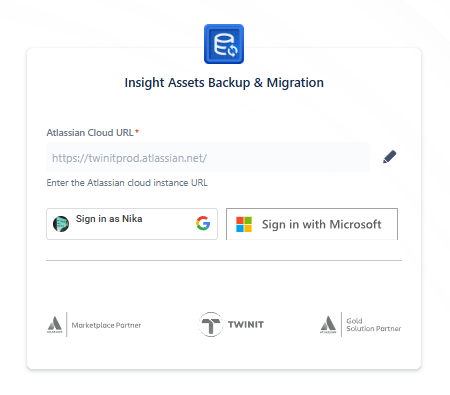
You may also need to authorize with SMS, Token or any other secondary authorization method, if 2FA is enforced for the user account.
After successful authorization, you will be navigated to the main page of the Assets Backup Vault.
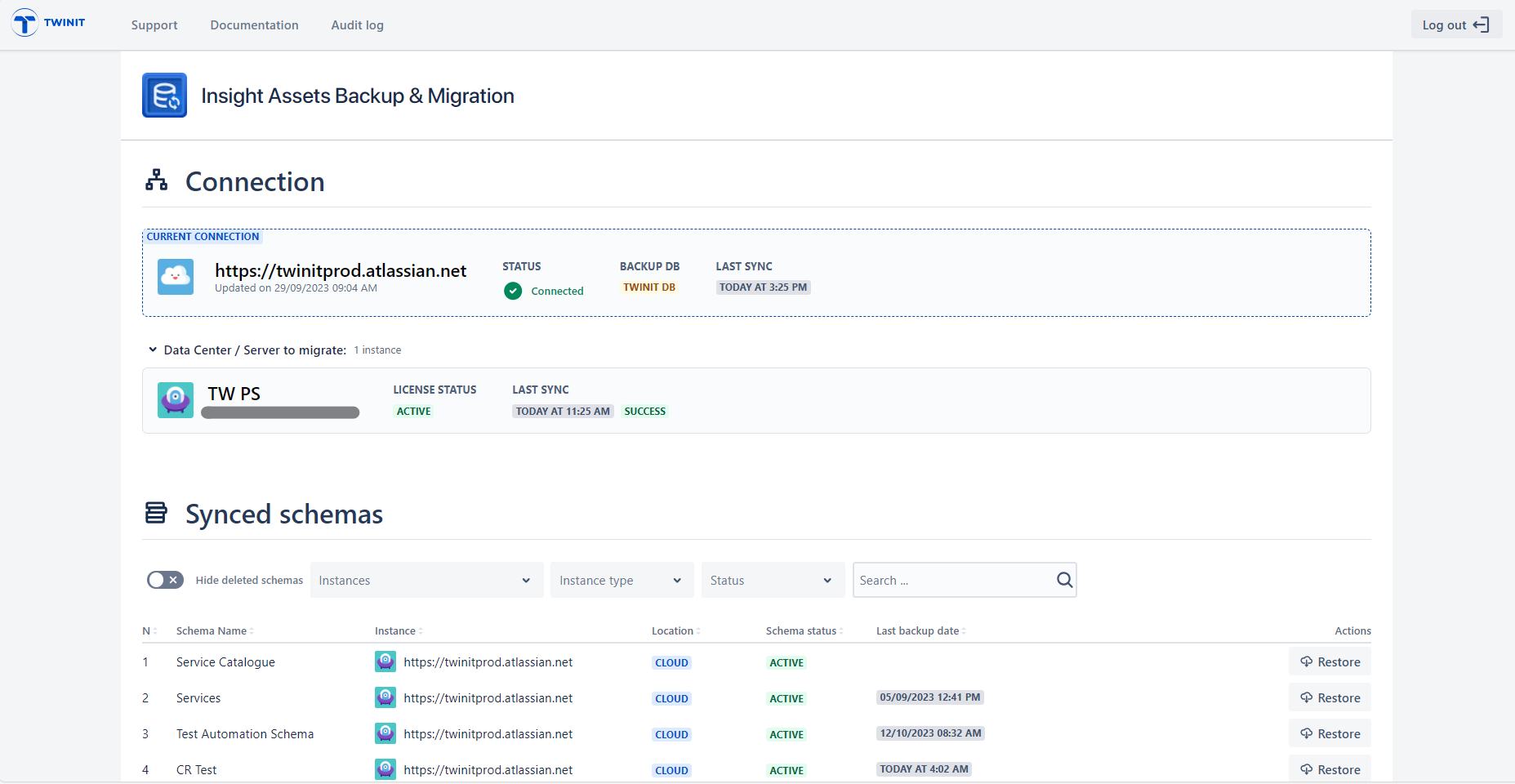
The interface is similar to the Cloud plugin interface and you can restore and migrate the schemas that were backed up initially.