Synced Schemas
Here you can see the synched schemas from the current instance and Data Center / Server instances.
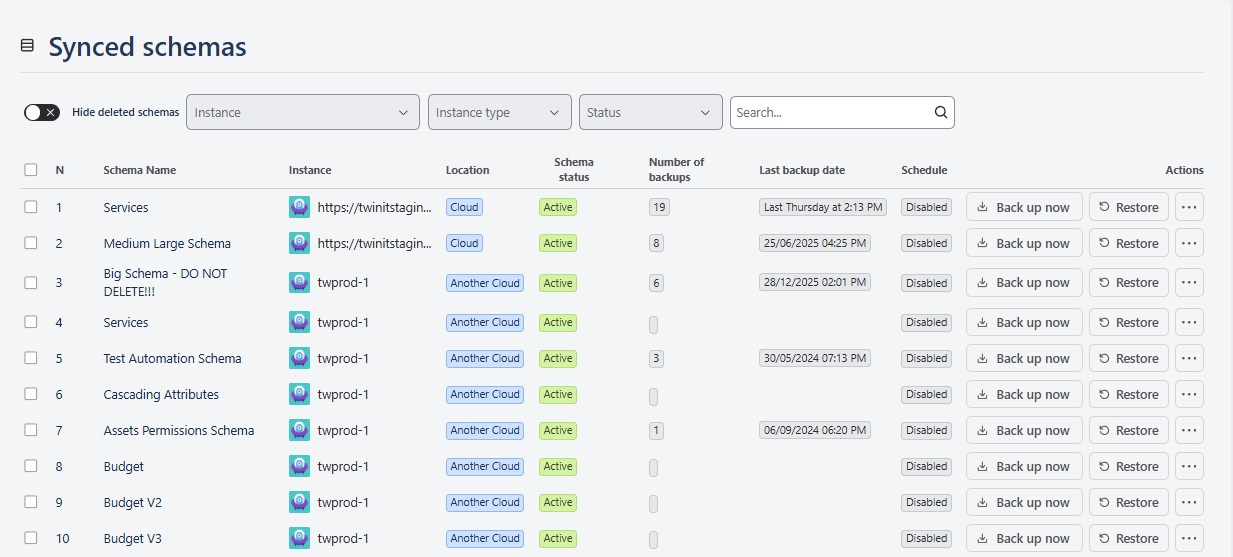
The grid shows the following information:
Schema Name
Instance
- URL of the instance where the schema is located
Location
- Cloud
- Another Cloud
- Data Center
Status
Active
Inactive
- The schema will be “inactive” if it was a part of another instance , but the instance was later removed from the list.
- Backup will be disabled for the schemas with the “Inactive” status
Deleted
When the schema is deleted from the assets. It is not possible to backup the deleted schema, in this case Backup now button will be disabled
Sync Error
- Backup will be disabled for the schemas with the “Sync error” status
Number of backups
Last backup date
- Date of the last backup
- In this column, additional information might be shown, e.g. regarding the last backup backup error
Backups
Disabled
- When the backup schedule is not set
Pending
- When the backup has not yet started and is in the queue
In Progress
- Backup in Progress
Auto
- Backup is scheduled
- The next backup date will also be displayed
Actions
Back up now
Restore
Schedule Back up
- You can schedule backup using a corn expression
Configure
After clicking the Configure button, you will see information regarding the schema, from where you can also delete the schema from the app:
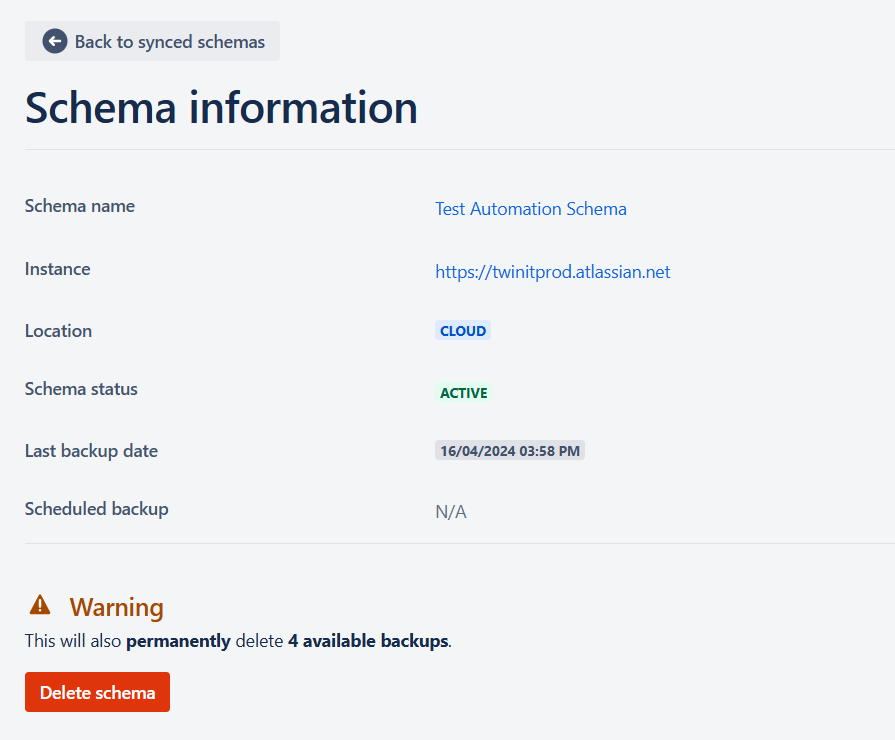
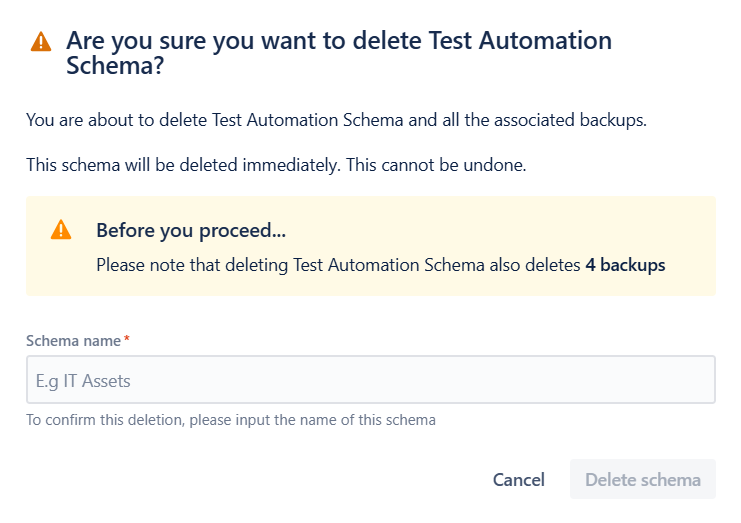
To delete the schema, click the “Delete schema“, type the schema name in the “Schema name“ field and click the “Delete schema“ button in the popup:
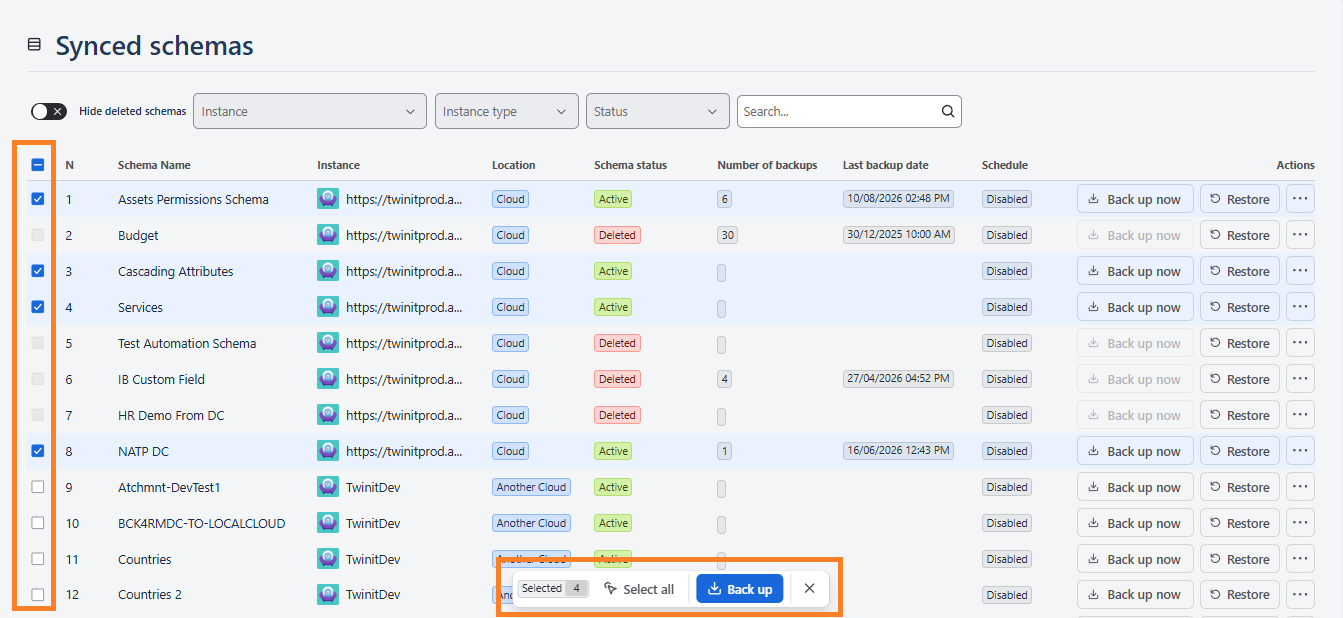
Bulk Selection Controls
- Checkboxes: Select individual schemas or click the header checkbox to select all active schemas on the page.
- Bulk Action Bar: Appears automatically when one or more schemas are selected, displaying the count of selected items and allowing you to trigger multi-schema actions such as Back up selected.
After restoring the schema on the current instance, the schemas will be automatically synced.
If you delete an active schema (meaning it exists in Assets (Insight)), the schema will reappear after a sync.
If you delete the schema with the Deleted status, schema will be permanently deleted, including all the corresponding backups.
You can also use additional filters for filtering the schemas in the grid:
Hide deleted schema toggle
- By turning off the toggle you can hide the deleted schemas
Instances (single-select)
You can choose the instances for which you would like to see the schemas
Instance type
- Cloud
- Another Cloud
- DC/Server
Status
- Active
- Inactive
- Deleted
- Sync Error
Search
- You can search the scheme by name. After typing the first letter in the Seach field, the schema grid will be automatically filtered according to the search term.
Clear Filter
- Will appear if at least one filter is selected and will clear all the selected filters
The filters will remain selected if you navigate through the app or refresh the browser window.
Dates and times are shown based on UCT according to your time zone settings. Daylight savings are also elaborated while showing last and next backup dates and times.
When there are more than 25 schemas in Assets (Insight), pagination will appear below the Schema Grid.