Restore / Migration
With the trial license of the DC/Server app, it is possible to restore 50 attachments of random objects for testing purposes.
To restore/migrate the attachments, initially, the schema containing the attachments must be restored/migrated.
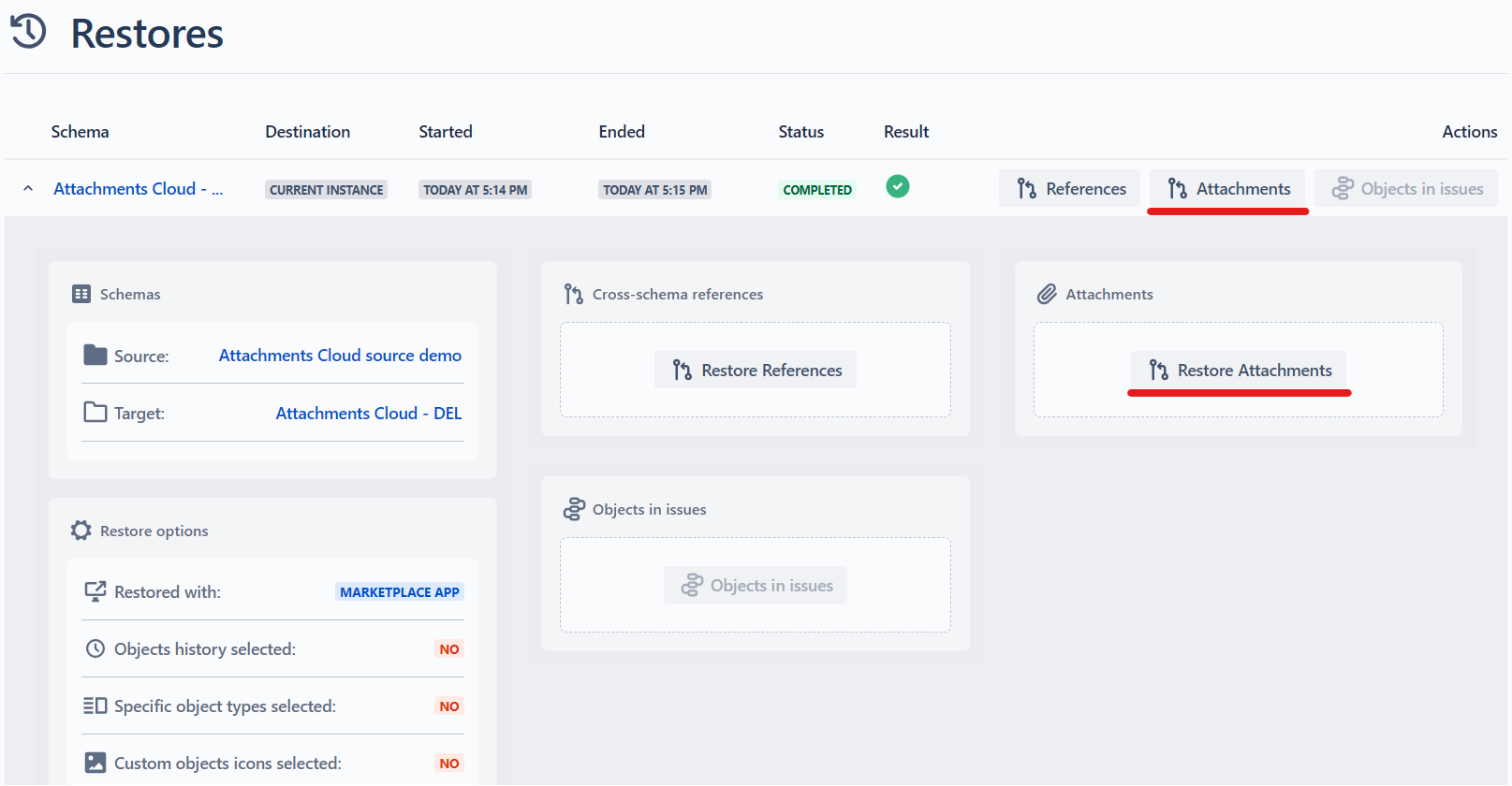
After the schema is restored, you will be able to restore the attachments. To do so, go to the Restores of the schema and click either the “Attachments” or “Restore Attachments“ buttons along the schema in the “Restores” grid:
After clicking the button, you see the confirmation popup:
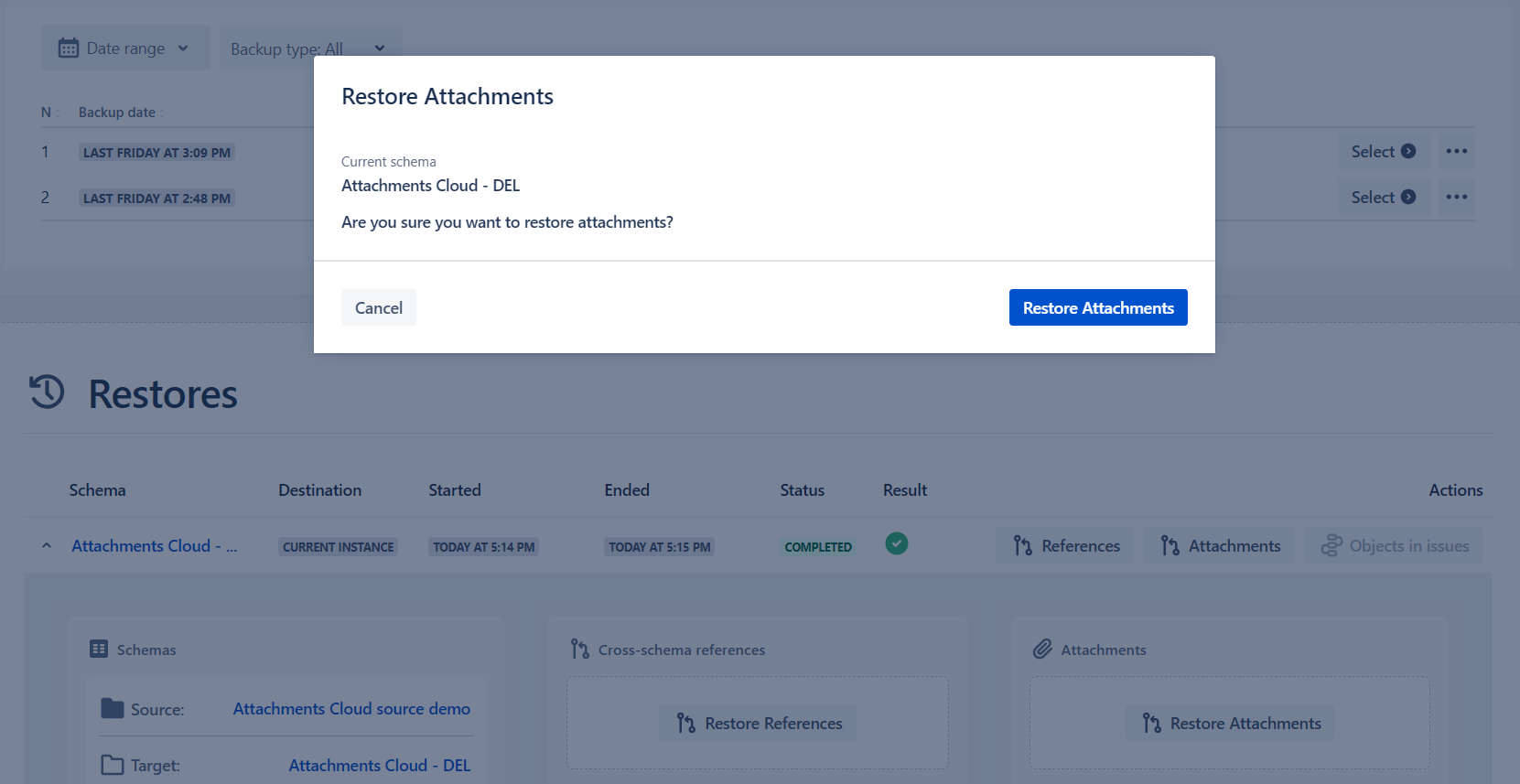
After clicking the “Restore Attachments“ button, the restore will start and you will be able to monitor the progress in the Attachments box under the schema restore details:
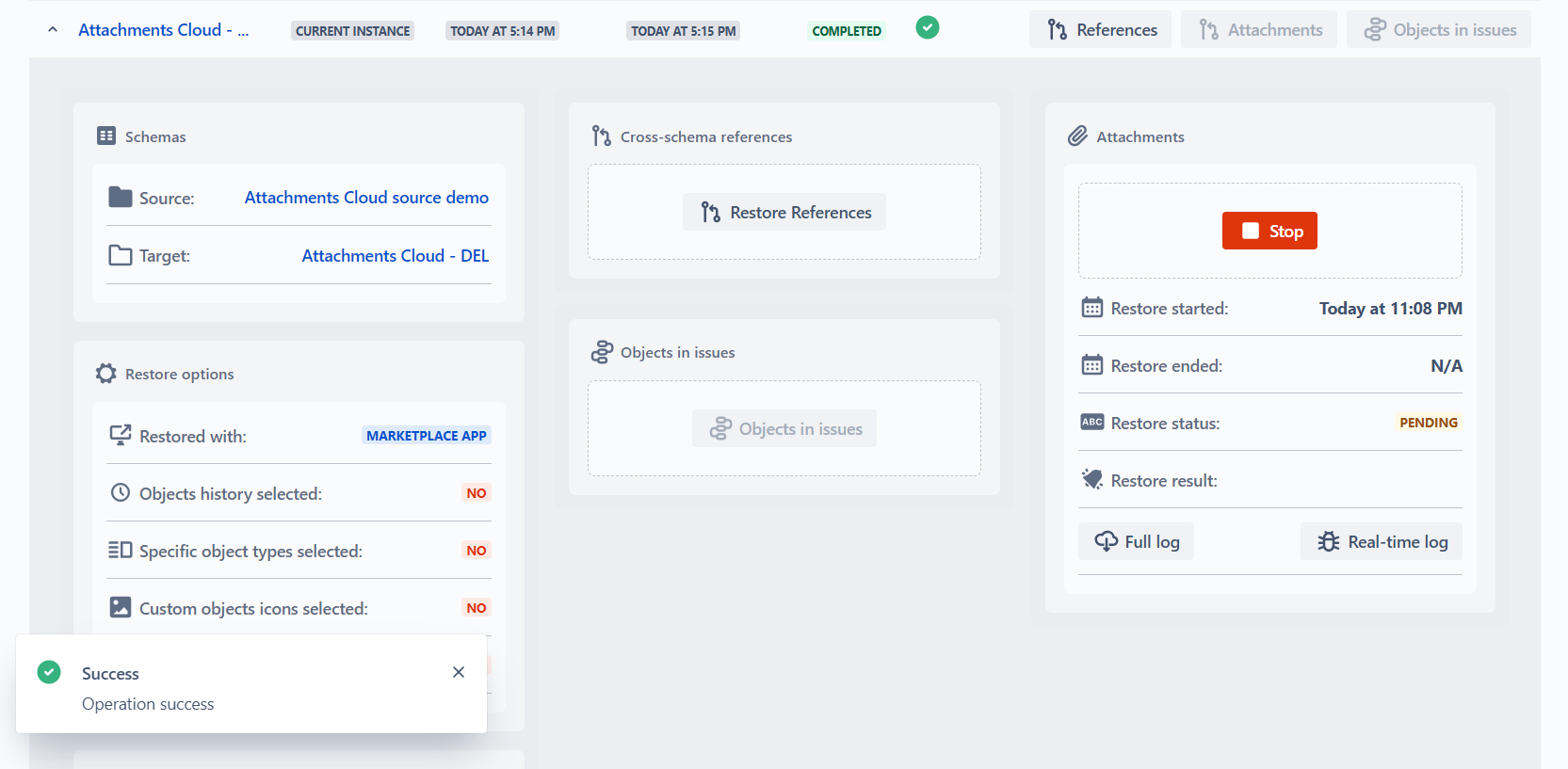
From here you can:
Stop the process of the process restore
- Termination may take some time (up to 2 minutes), therefore if the process is stopped by the end of the progress, restore still might have been completed! The “Restore ended” will show date/time when the restore was terminated. Additionally, if you click the STOP button more than once, until the process is stopped and start a new restore during this 2-minute period, the newly started process might also be stopped!
See the start and end time/dates of the restore
Check the restore status
- Pending
- In Progress
- Terminated (if the restore was stopped by the user)
- Error (you will see the error details)
- Success (when the restore is completed successfully)
Restore result
- When in progress, you will be able to check how many attachments are restored (e.g. “Processed: 300 from 28,374 restored”)
- If for some reason the corresponding object does not exist in the schema, the Result message will be “Some of the attachments were not restored. Please see the log for more details.“
Full log
When the process is finished, you will be able to download the full restore log JSON with the following information
ObjectKey
Result
- True (if the attachment is restored)
- False (if the attachment is not restored)
Message
- Name of the attachment
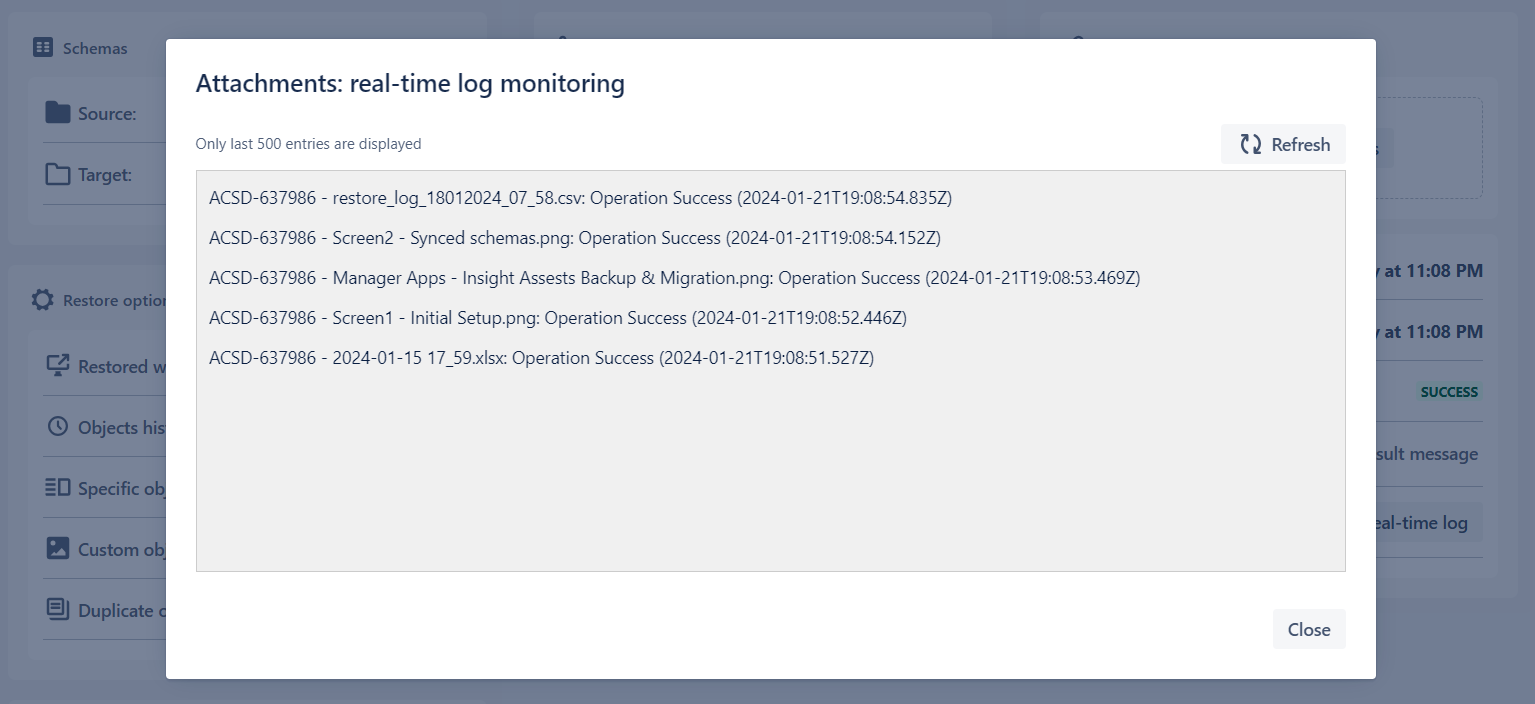
Real-time log
You can check the progress of the restoration during the process and see the errors for the specific object attachments.

Additional Remarks
After the first full backup of the schema attachments, all the subsequent backups will be incremental, therefore taking less time.
The attachment backups are not stored in the database, therefore if you choose local database as storage of backups, the attachments will not be stored there. Attachments are stored in Amazon S3 cloud object storage (US West (N. California) us-west-1). The backups are stored for 4 months.
While restoring in the existing schema, if the object exists in the schema (an therefore skipped during the restore), but lacks the attachment, the attachment can be restored. The attachments already added to the objects, will be skipped (Full and real-time log will contain the information about this).
Due to the limit of the Atlassian Assets Cloud, maximum size of the attachments to be restored or migrated is 10MB.