Available Backups
To restore the desired backup of a certain Schema, click on the “Restore” button across the needed schema in the Synched schemas grid:

The button may be temporarily disabled if there is an error on establishing a connection to the database or if the schema is already deleted from Assets.
Clicking “Restore” button will navigate you to the page with the list of all the available backups and restore history:
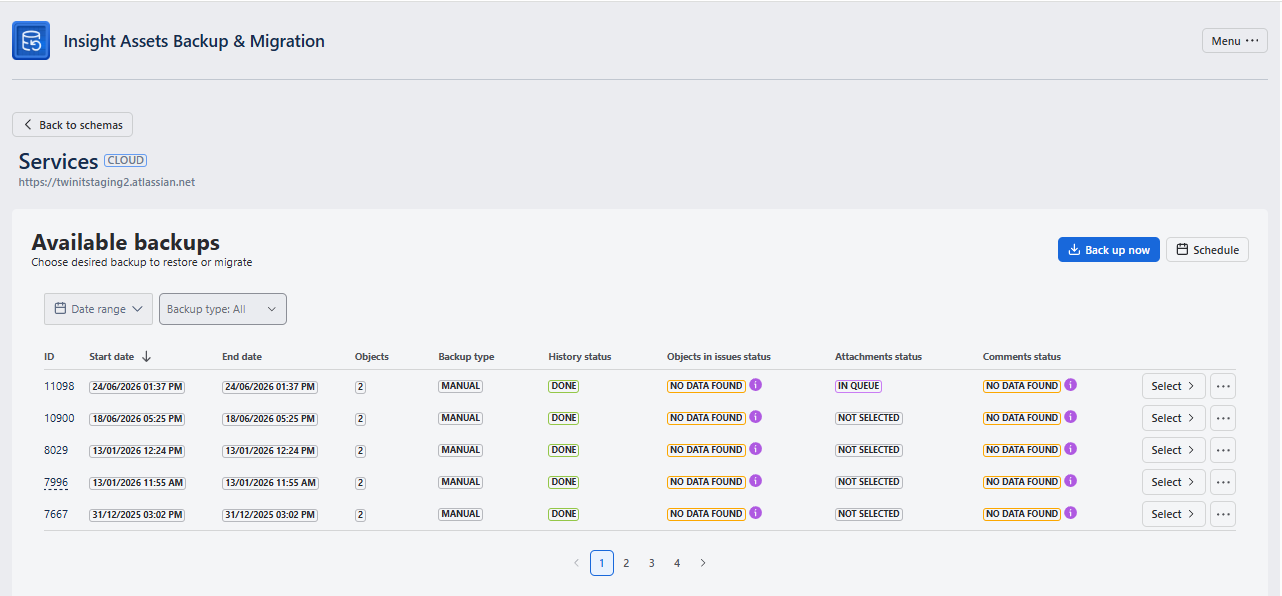
For each backup you can see the following information and Actions:
ID
- ID of the backup
Backup date
- Date and time when the backup was completed
Objects
- Number of the object in the schema backup
Backup Type
- Manual
- Scheduled
- If the backup has a Description, you will see the info icon (:info:) and you can see the description by clicking on it.
History status
- Defined the status of the object history restoration
Objects in issues status
- Status of background backup of the objects in issue fields
Attachments status
- Status of the object attachments in the backup
Comments status
- Status of the object comments in the backup
Actions
- Select
- Delete
Quantity of objects in backup is visible for the backups made with or after version v2.0.12 (November 17th, 2022).
You can also filter the backup with the Backup type (Scheduled or Manual) or the Date, by clicking Date control, which will display a calendar to choose a date or a date range.
If yet there are no backups of the schema, the list will be empty with the options either to manually back up the schema by clicking Back up now button or schedule back up by clicking Schedule button.
Edit Backup
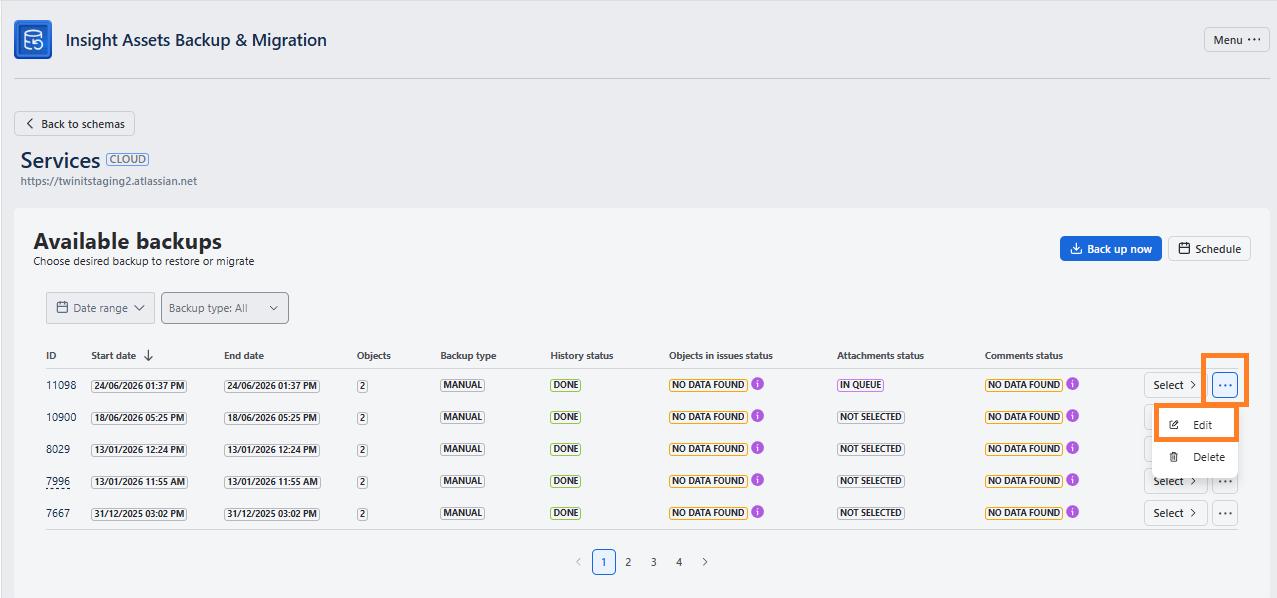
You can edit the Description of the backup by “Edit“ under the three dots:
You will see the description and basic information of the backup in the popup:
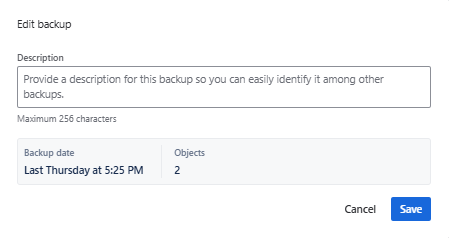
After entering the information in the text box, under the “Description”, you can **save **the backup.
Delete Backup
With the Delete under the three dots along the backup, you can delete a certain backup by typing the schema name and confirming delete in the following confirmation popup:
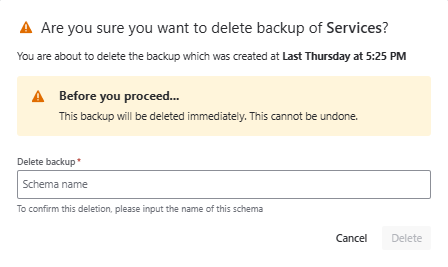
After deleting, the backup data will be permanently removed in 24 hours!
While deleting the backup from own database (e.g. MongoDB), the deletion may take up to 6 hours.