Overview - Configuration
After installation, you will see User Activity Audit Log in the “Apps” drop down menu:
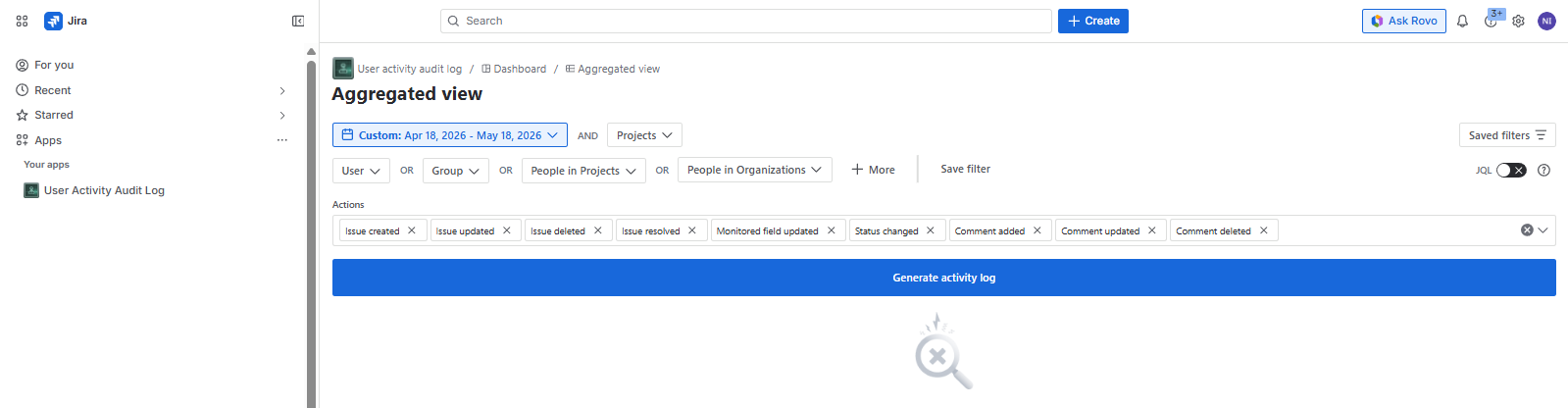
[!IMPORTANT]
Initially, only site- and org-admins can access the app. User access can be defined in User Guide.
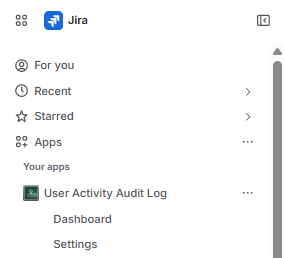
After clicking User Activity Audit Log drop down menu, you will see the following options:
- Dashboard
- Settings
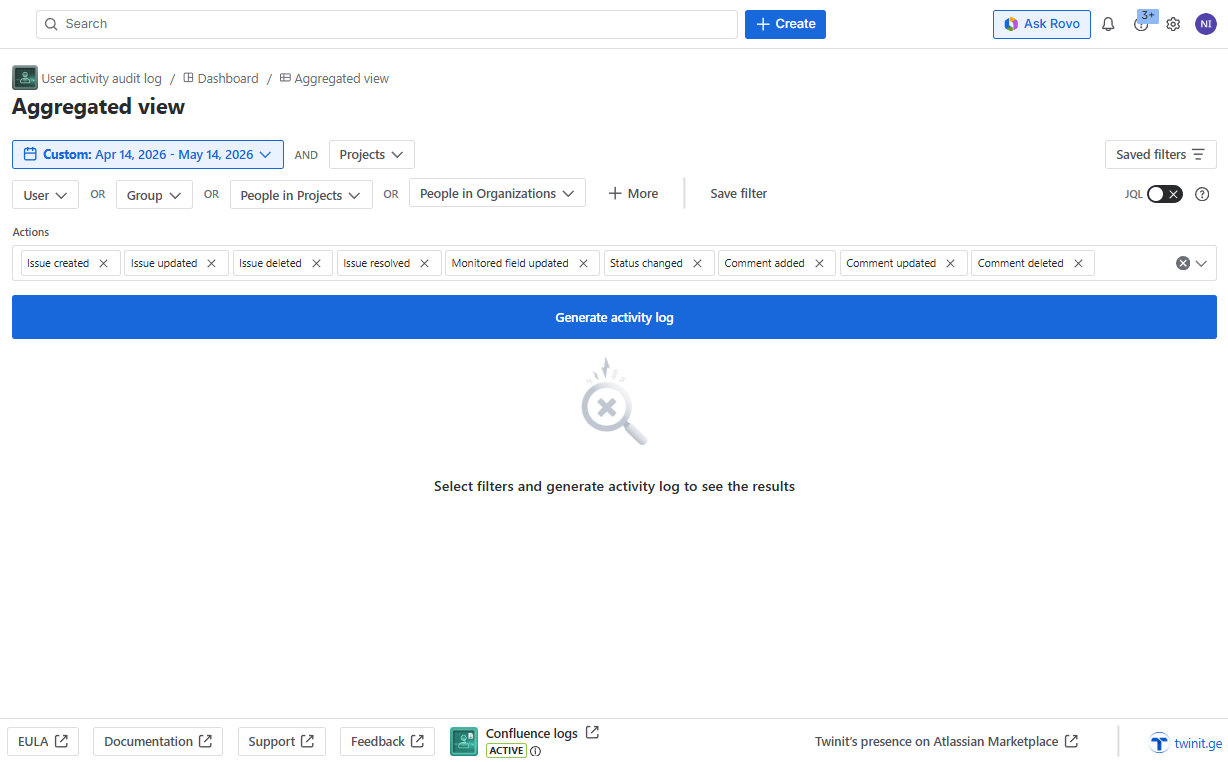
After clicking “ Dashboard “ you will be navigated to the home page of the app:
[!IMPORTANT]
After the expiration of the license, you will see the corresponding message and will not be able to use the app (The “generate activity log” button will be disabled).
If you access the app for the first time, you will be presented with a brief onboarding session, displaying the main features of the app. You can dismiss the session at any step.
[!IMPORTANT]
If you have IP allowlisting enabled on your Cloud instance (this is possible Jira for Premium plans), please contact us for the IP to be added to the Cloud allowlist. Without this, some actions will not be logged.
The app configuration setting can be accessed by clicking the “ Setting “ in “User Activity Audit log” drop down meny:
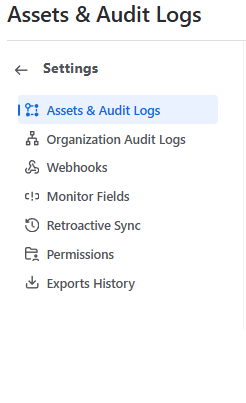
You can configure the following settings in the app:
- Assets & Audit log
- Organization Audit log
- Webhooks
- Monitor Fields
- Retroactive Sync
- Permissions
- Exports History