Results Breakdown
Additionally, you can break down the results in the aggregated view by:
- Project
- Destination status
- Transition
- work items
- Fields
Breakdown by Projects
You can break the actions down by projects. To do so, click “**Breakdown” **button and select Projects:
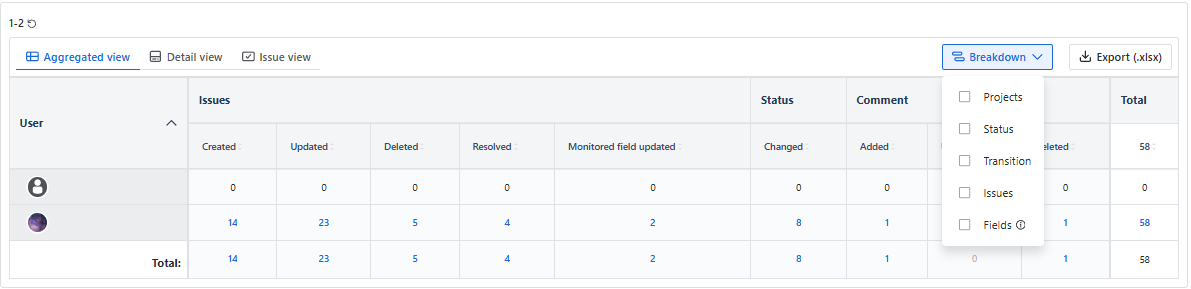
You will see the actions, across the user, for specific projects. Non-project-related activities will be shown in a separate row - Non-project activities.
To get back to the aggregated view, without a breakdown by projects, uncheck “Projects” under the Breakdown dropdown.
Breakdown by Status
You can break the actions down by the destination status to see how many times the user transitioned the work item into the statuses. To do so, click **Breakdown **button and select Status.
You will see the actions, across the user, for specific destination status.
To get back to the aggregated view, without a breakdown by statuses, uncheck “Status” under the Breakdown dropdown.
Breakdown by Transition
You can break the actions down by the transitions to see how many times the user transitioned the work item from one status to another. To do so, click **Breakdown **button and select Transition.
You will see the actions, across the user, for specific status to status transition.
To get back to the aggregated view, without a breakdown by transitions, uncheck “Transition” under the Breakdown dropdown.
In the breakdown view, clicking the number in the Total column (the very last column) will open all the work items, for which the user has changed the status in the project, regardless of the work items, statuses, and how many times the status was changed. Therefore, the numbers across the status/transitions breakdown row might be different, but the opened work items will be the same.
Column sorting will be disabled during the breakdown.
Breakdown by work items
You can break the action by the work items. To do so, **Breakdown **button and select work items.
It is possible to show at most 100 work items at the same time. If the filter retrieves more work items, you will see the corresponding notification below the “Generate activity log” button:
After the breakdown, you will see the list of the work items and the corresponding actions.
You can combine breakdown by work items with breakdown by project, status, and transition.
Breakdown by fields
You can break the action by the fields that were updated. To do so, **Breakdown **button and select Fields.
You can see the log only for the fields added to the Fields monitoring (Monitor Fields) , after the date when the fields were added to the monitoring.
You can also combine various breakdowns, by selecting all the desired options under Breakdown.
You can combine the breakdown by fields only with Project and work items. If Status and/or transition was selected in the Breakdown dropdown, clicking Fields will unselect those options.