Basic Search Configuration
After installation, you will see User Activity Audit Log in the “Apps” Drop Down menu:
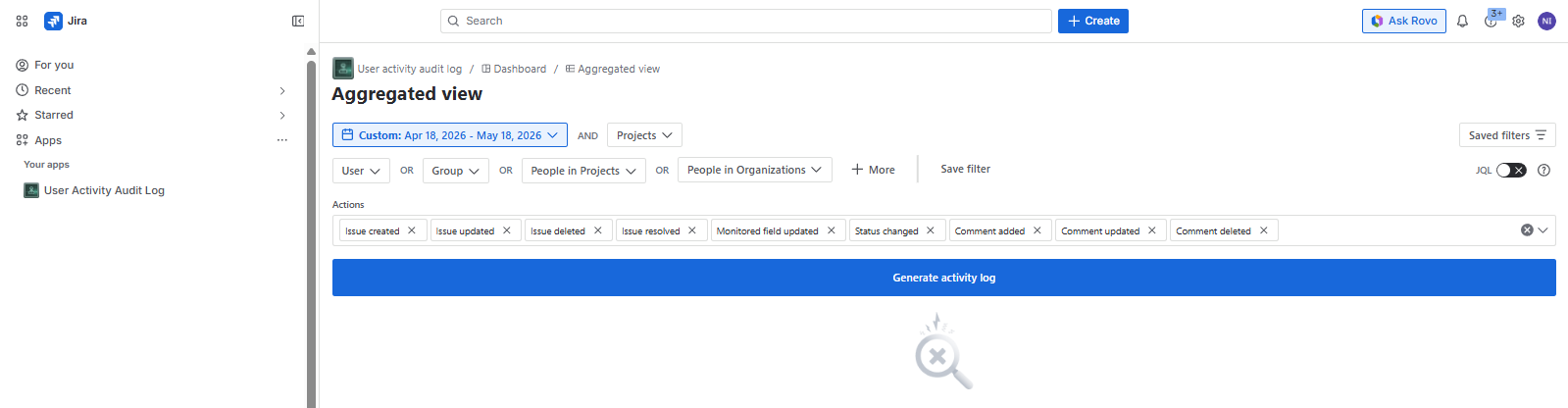
Initially only site- and org-admins can access the app. Users access can be defined in Permissions.
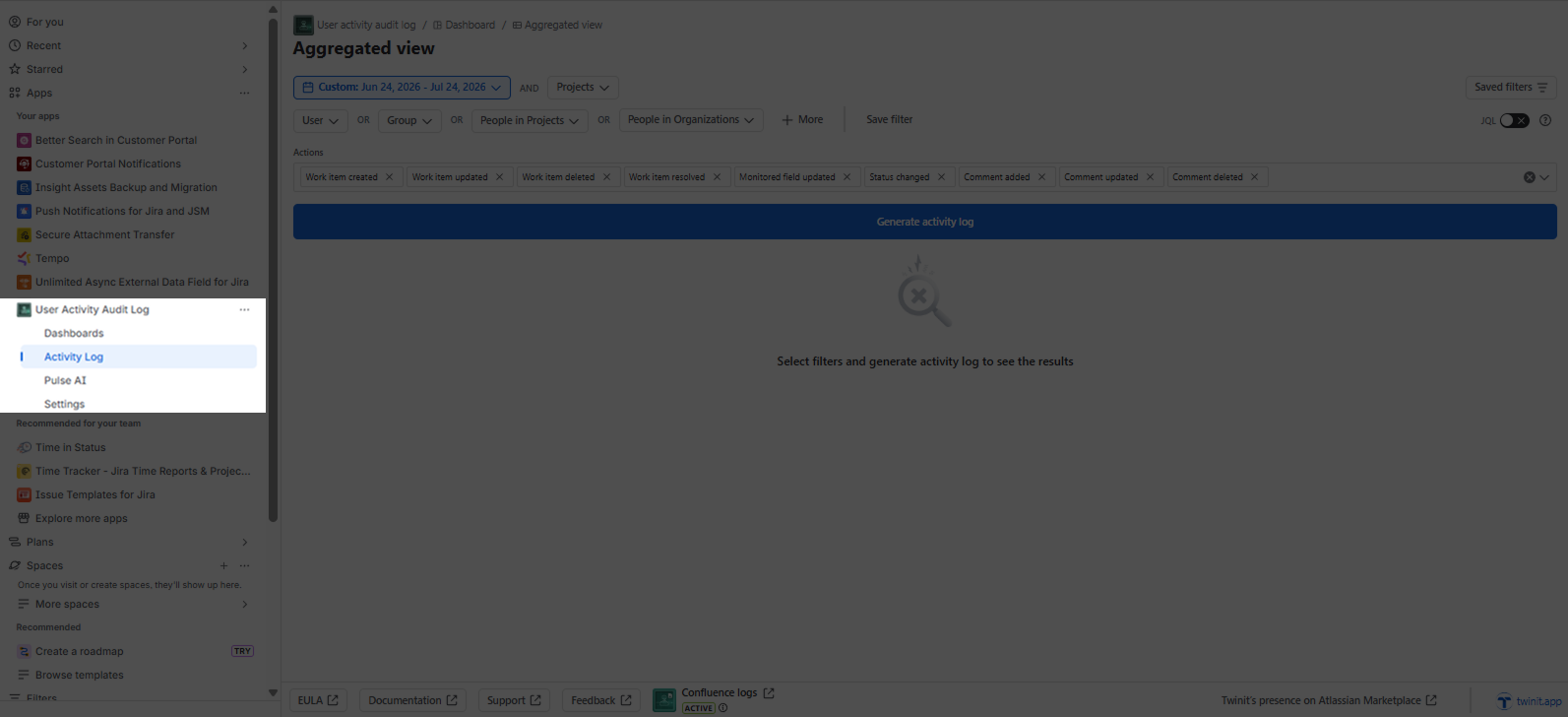
After clicking User Activity Audit Log drop down menu, you will see the following options:
- Dashboards
- Activity Log
- Pulse AI
- Settings
After the expiration of the license, you will see the corresponding message and will not be to use the app (Generate activity log button will be disabled):
If you access the app for the first time, you will be presented to a brief onboarding session, displaying the main features of the app. You can dismiss the session at any step.
If you have IP allow listing enabled on your Cloud instance (this is possible Jira for Premium plans), please contact us for the IP to be added to the cloud allow list . Without this, some actions will not be logged.
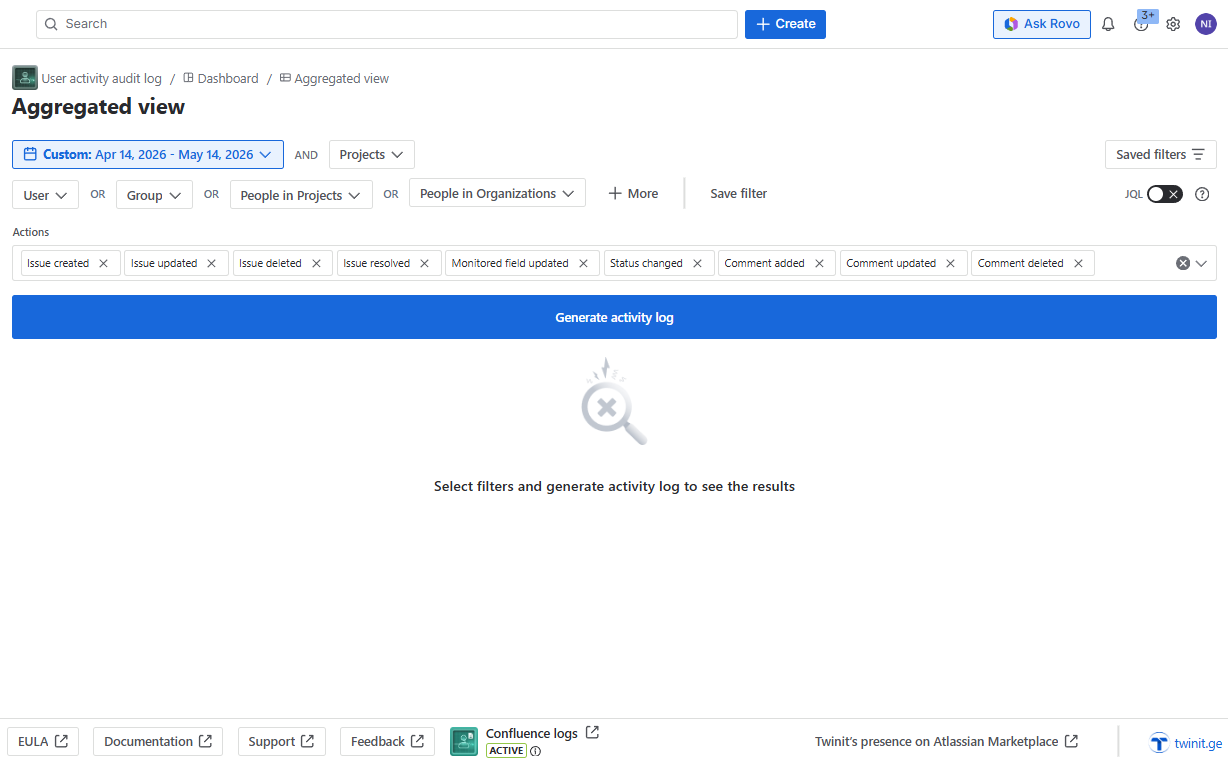
After clicking “ Activity Log “ you will be navigated to the home page of the app:
Basic Search
Using the basic search, you can define several terms from your Jira instance for filtering the users for which you would like to see the results in the audit log. There are the following options:
Calendar
Project
User
Group
People in Projects
People in Organizations
More
- Status changed
- Resolution set
- Fields
- Version
Calendar control is used for choosing a date or range of dates:
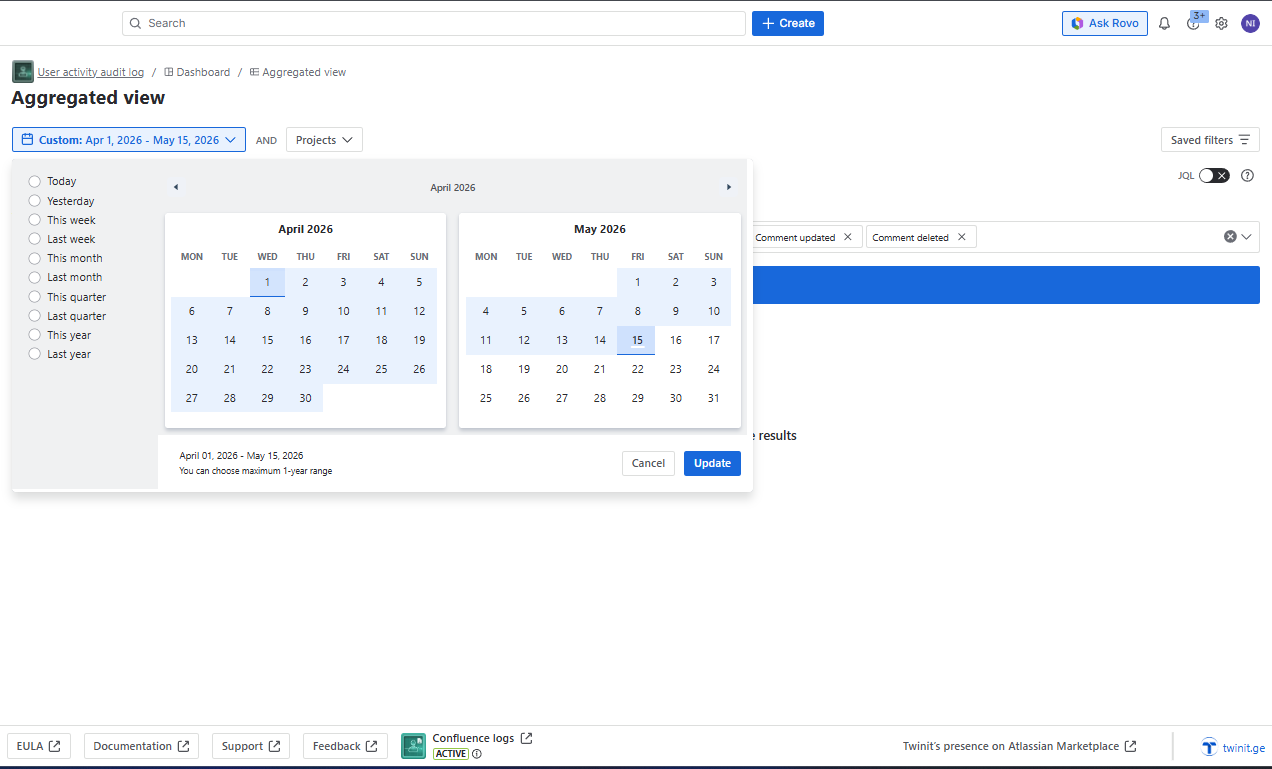
To choose a range, you can click a starting date followed by an ending date of the range. To choose a single day, simply click on a desired date, and if it is part of a selected range, click the same date again. In addition, predefined dates can be chosen from the left panel of the calendar.
By default, the last 30 days are selected in the calendar.
After selecting the desired date or range, click Update to confirm the selection.
You can only select the maximum 1-year range. In case of selecting a wider range, the corresponding message will show up and the Update button will be disabled.
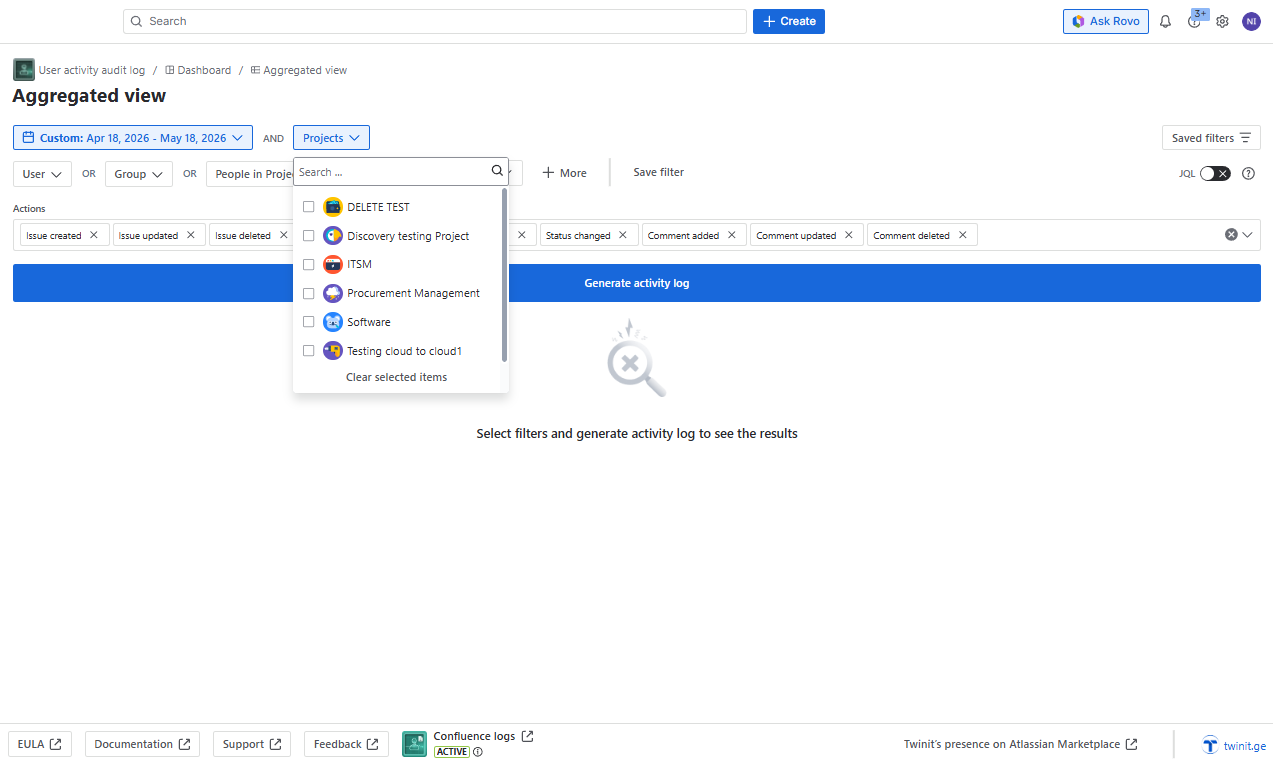
With the Projects you can filter the action in the results that were done in certain projects. The existing (projects that the current user is allowed to access) projects will be displayed in the dropdown after typing the first letter:
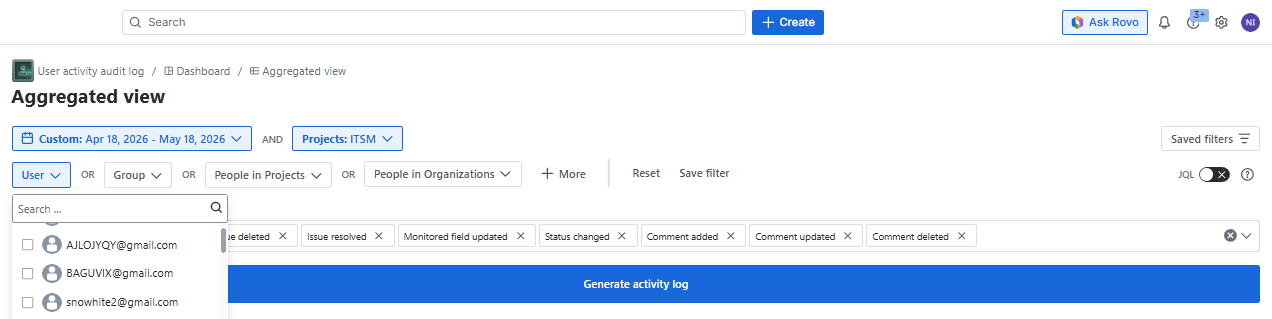
User filter enables you to select a certain user or users on the instance, for which the action log should be displayed in the results. To choose the user, start typing the name, surname, or email of the user. The possible options will be displayed in the dropdown after the first letter:
You can select the desired user by checking the checkboxes on the left of the name of the user. The selected users will move to the top of the list:
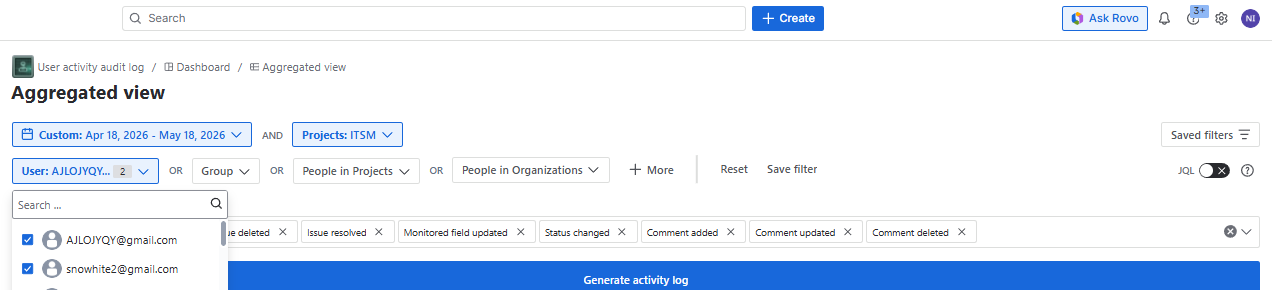
You can clear the selected users with “Clear selected items“.
Besides users, you can select users Group(s), People in Project(s) and/or Organizations(s). After selecting filters, click Generate Activity Log button to see the results based on the selected filters.
All the filters work in a way to filter USERS. For example, when you select a project under People in Project filter, all the users that are added to the People in the selected project, will be filtered. All the filters work with OR condition. The selection of the filters is not mandatory - if you select no filters, the results will show the data for ALL the users.
The filters will remain selected after page change or refresh.
More filters
By clicking the “+More“ button, you can also filter the actions by Status changed, Resolution set and Fields:
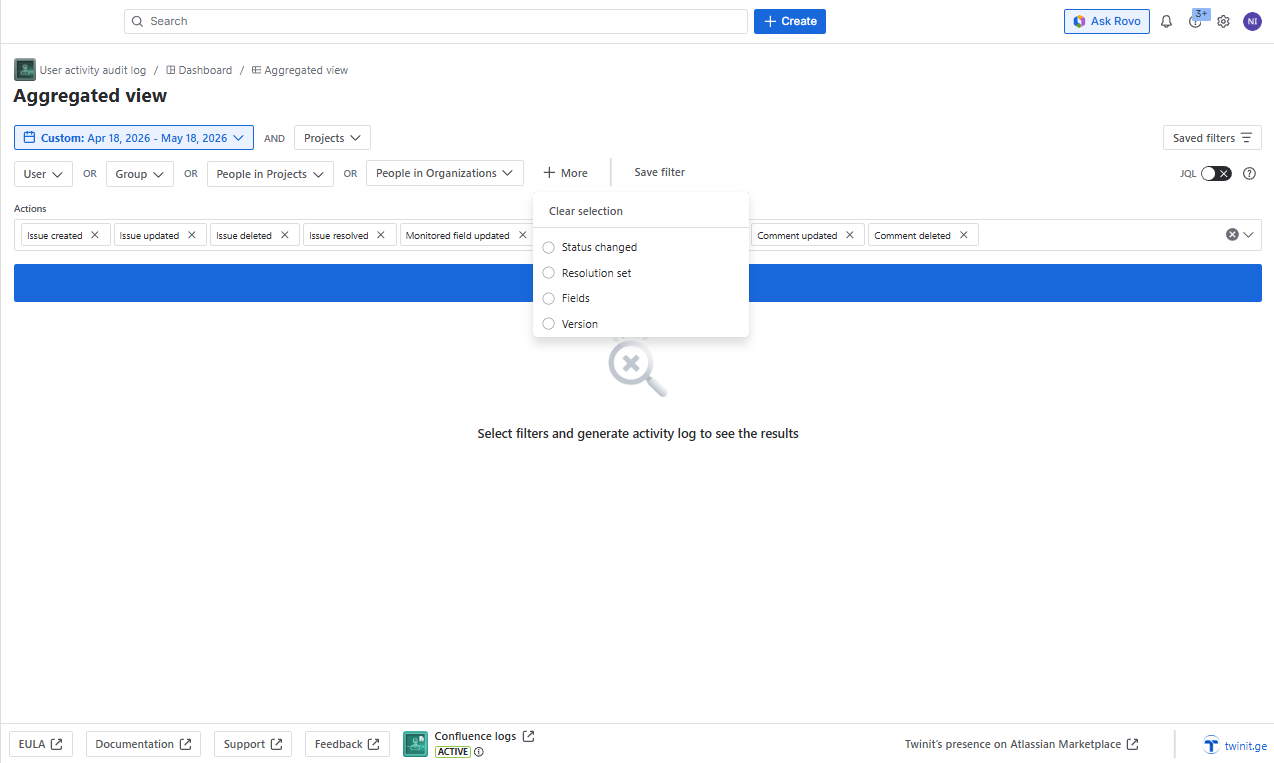
You can choose only one option at the same time
From Status change, you can select the statuses from where or to which the statuses were changed:
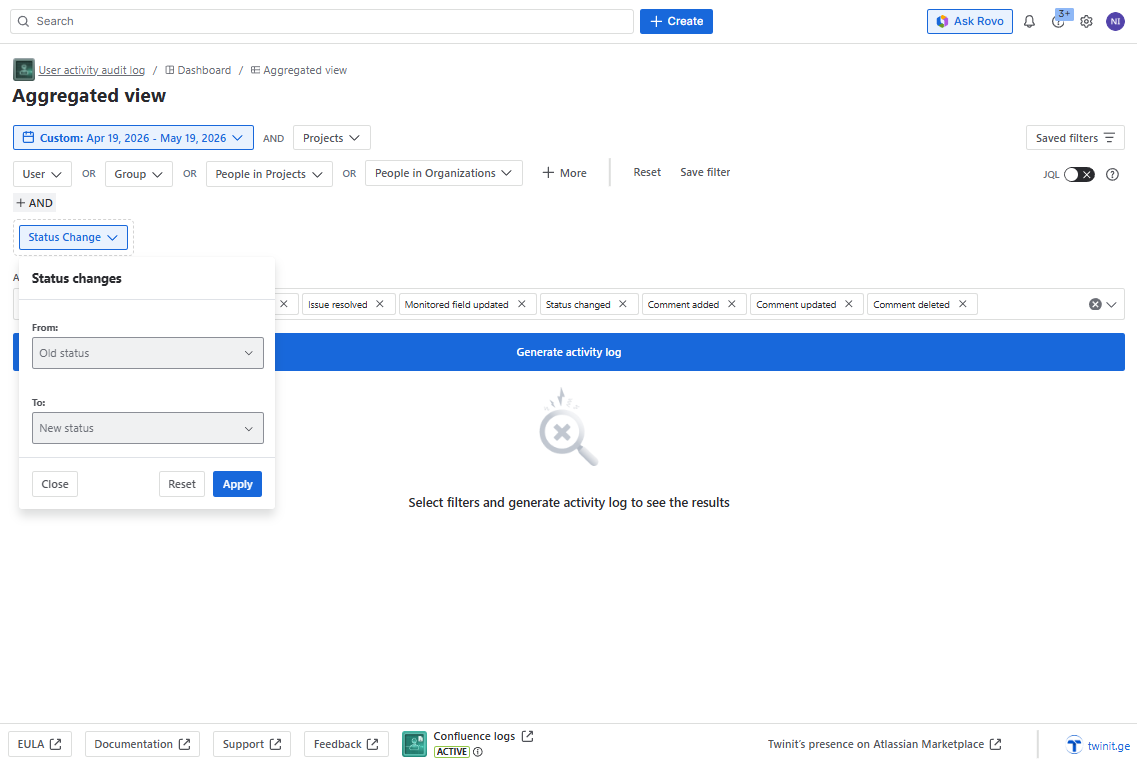
By typing the status, or selecting from the dropdown, you can choose the statuses in “from“ or “To“ destinations. You can choose several statuses and click the “Apply” button to save the selection.
After selecting the statuses, click the “Generate activity log“ button to see the results.
In the same way, you can choose the resolutions, to filter the work items with the selected resolutions. Click the “Resolution set“ option and start typing to search and select the desired resolution. You can choose more than one resolution and click the” Apply” button to save the selection
After selecting the resolutions, click the “Generate activity log“ button to see the results.
You can also search for and select the Fields, to filter the work items where certain fields were updated. Click the “Fields“ option and start typing to search and select the desired field. The list of the fields shows the fields initially added to the Monitored fields in the Settings . You can choose more than one field and click the” Apply” button to save the selection:
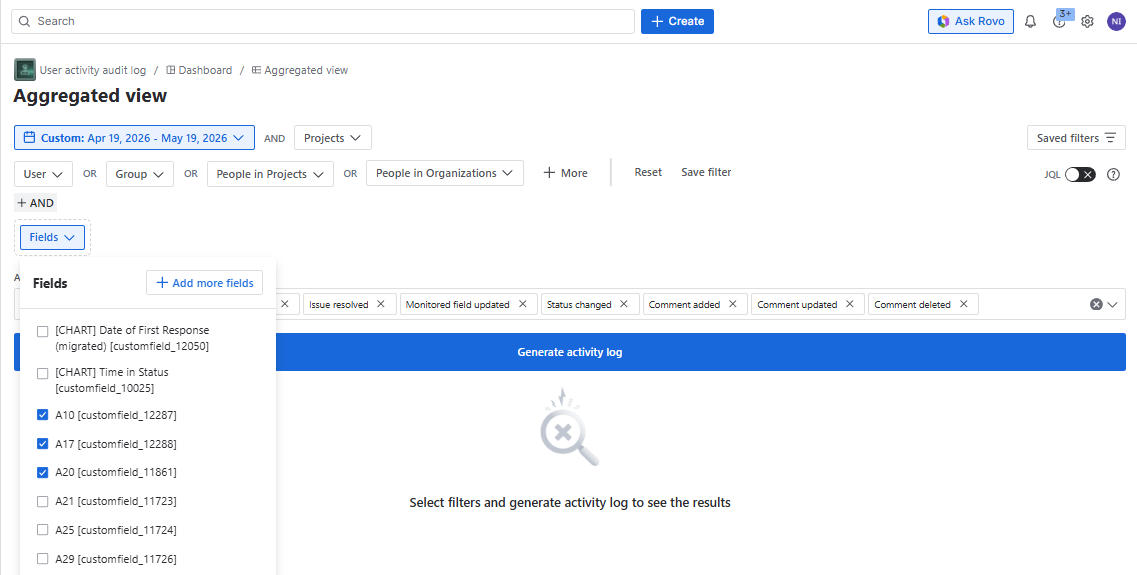
After selecting the resolutions, click the “Generate activity log“ button to see the results.
If no field is selected, the results will show updates of all the monitored fields!
Versions
You can filter the activity log by a specific version. Click the “Version” option — a Project dropdown will appear first. Select a project to load the available versions for that project.
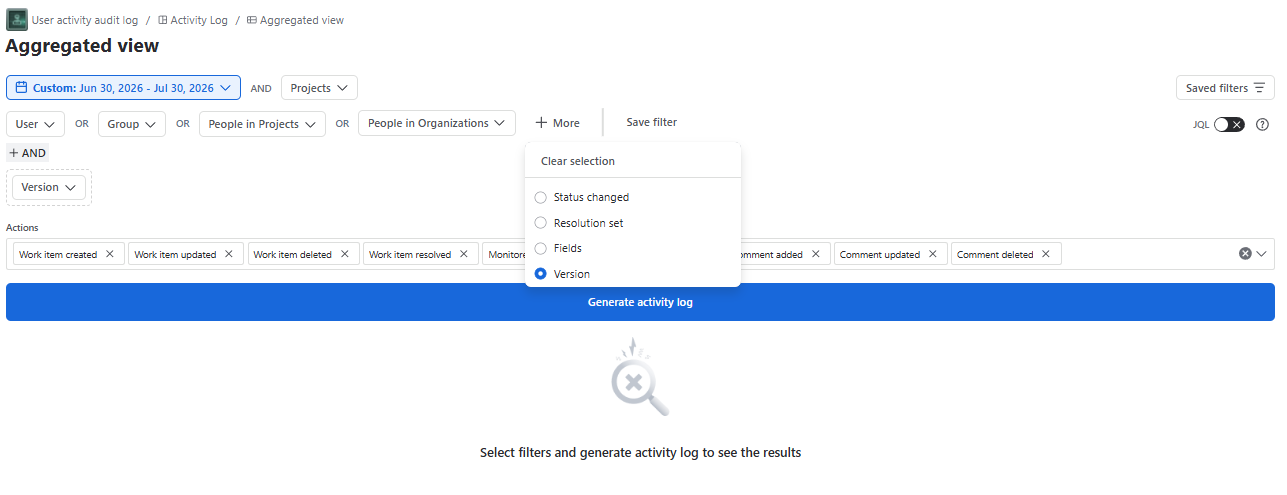
- Click “+ More” → selects “Version”
- A Project dropdown appears first (required) — because the Version API needs a
projectKeyto retrieve versions - After selecting a project, a Version list (radio buttons) appears showing all versions for that project
- Each version in the list displays the project key in brackets for clarity (e.g.,
Version 2.0 (CP)) - Only one version can be selected at a time (radio selection, not checkboxes)
- Click “Apply” → then “Generate Activity Log”
JQL Search
You can also enhance search using JQL. If you already preliminary have selected the filters in Basic Search, by toggling to JQL, the filters can be enhanced additionally with JQL. Pre-defined selections will remain and filter the results:
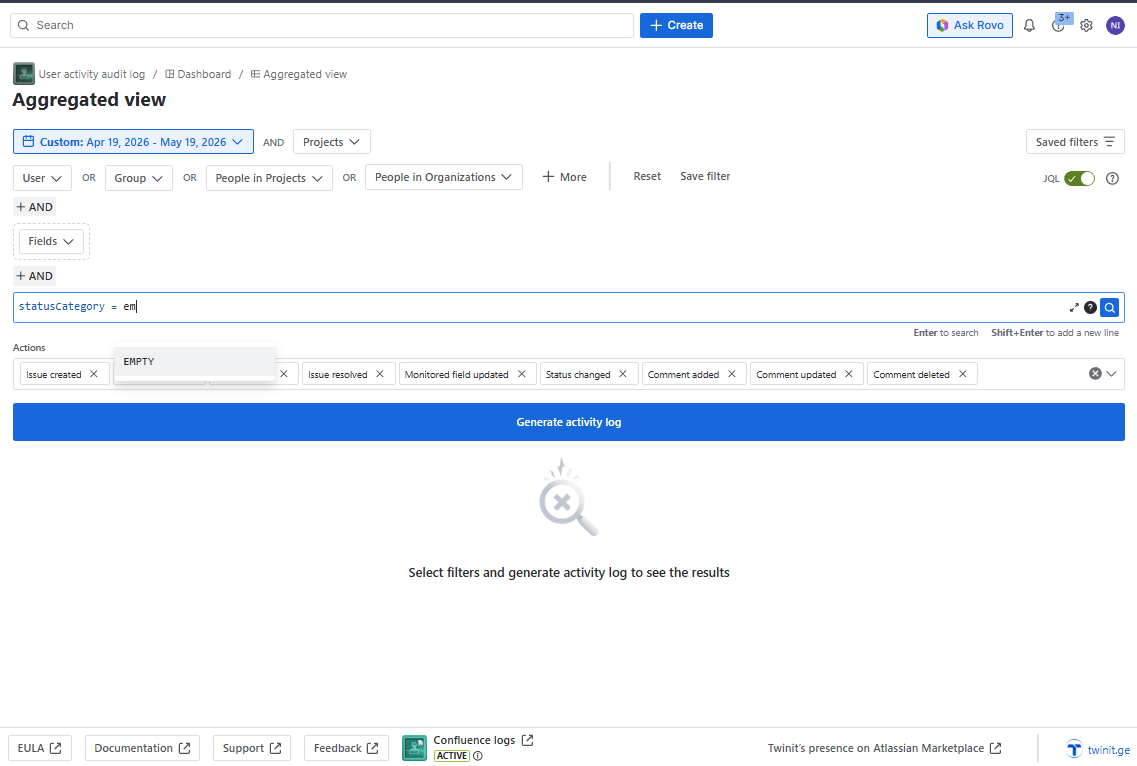
With JQL you can filter only the actions related to the work items.
With the buttons on the right side of the text field, you can:
- Expand the JQL field;
- See the help page for JQL (will be opened on a new tab);
- Display results based on the JQL term (identical to clicking Generate Activity Log button).
After typing in the JQL term, click Generate Activity Log button to see the results based on the selected filters.
Due to the limitation of the corresponding Atlassian API, it is possible to retrieve at most 1,000 work items. If your search retrieves more work items, you will see the corresponding message and refine your search to view more actions.
Adding a JQL filter limits the filter scope to only show actions performed in work items, and exclude other types of activities.