Permissions
You can define user roles for the Jira users who can access the plugin. There are two roles available in the app:
- Administrator: can access all the logs in the app + access Settings and configure the app.
- Manager: can access all the logs in the app, and can access and configure only Monitor Fields in the Settings.
All Jira Administrators and Administrator permission in the app, by default. If a non-administrator is added to the Manager role, access to the projects where the user is not added will be given through the app.
To define roles for certain users, go to Settings and click “Permissions“ in the left menu:
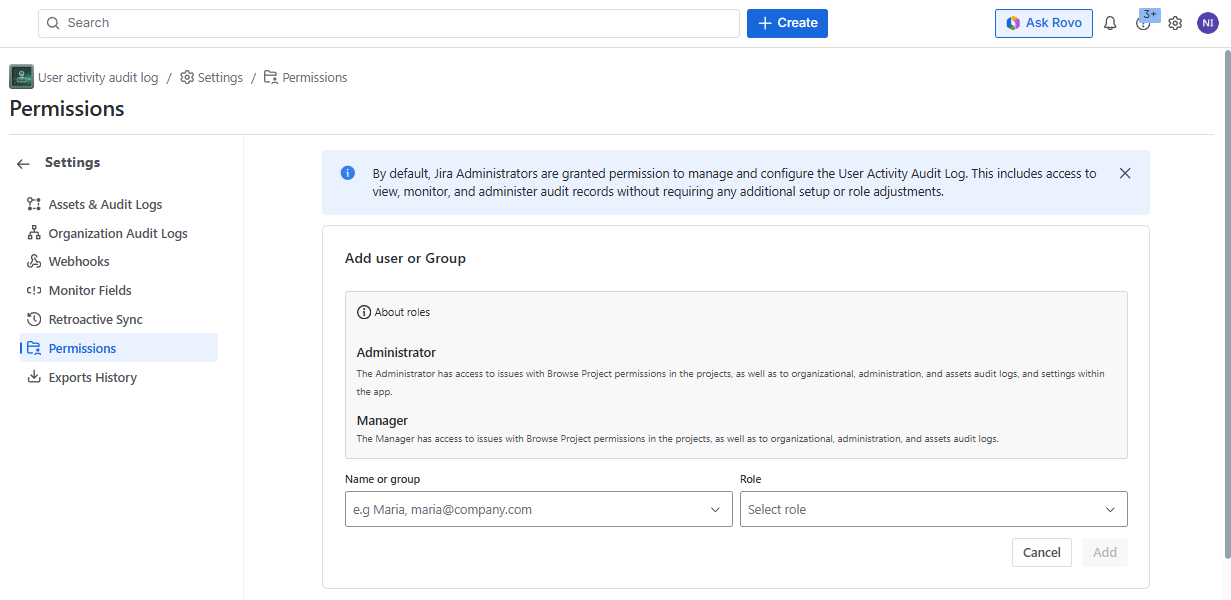
To add a user to the app, search and select the user name or group from the dropdown menu, you can search the user by name, email, or group and select the user from the list:
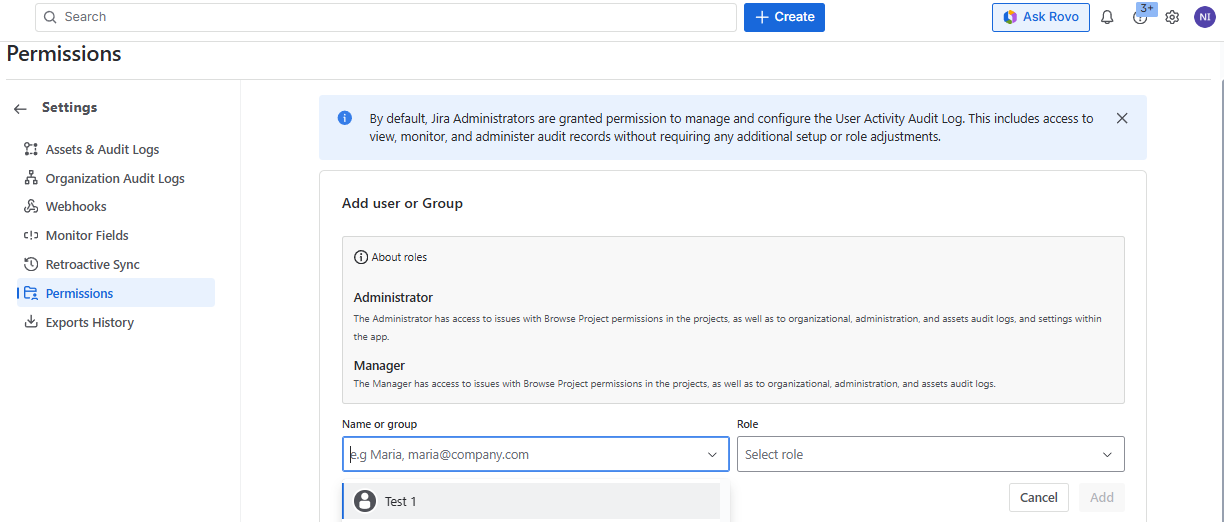
You can add several users/groups into the list. If the user or a group is already added to one of the roles, it will not show up in the search results.
Define the role of the user and click Save:

After adding, the user & groups will be added to the list. For the users & groups in the list, you can change the Role from the list itself:

For the added users, at least one Role should be selected.
To remove the user from the Permissions, click the Remove button and the Delete button on the confirmation popup
You can search users in the list by name or filter the list by role.
When a user, who does not have the right to use the app, tries to access the logs, the corresponding message will be displayed “ Access Denied “.