Assets & Audit log
The app includes action logs made on Assets (formerly Insight), namely object created and object updated.
To enable displaying the asset-related actions, go to Settings and click “ Assets & Audit Logs “ in the left menu:
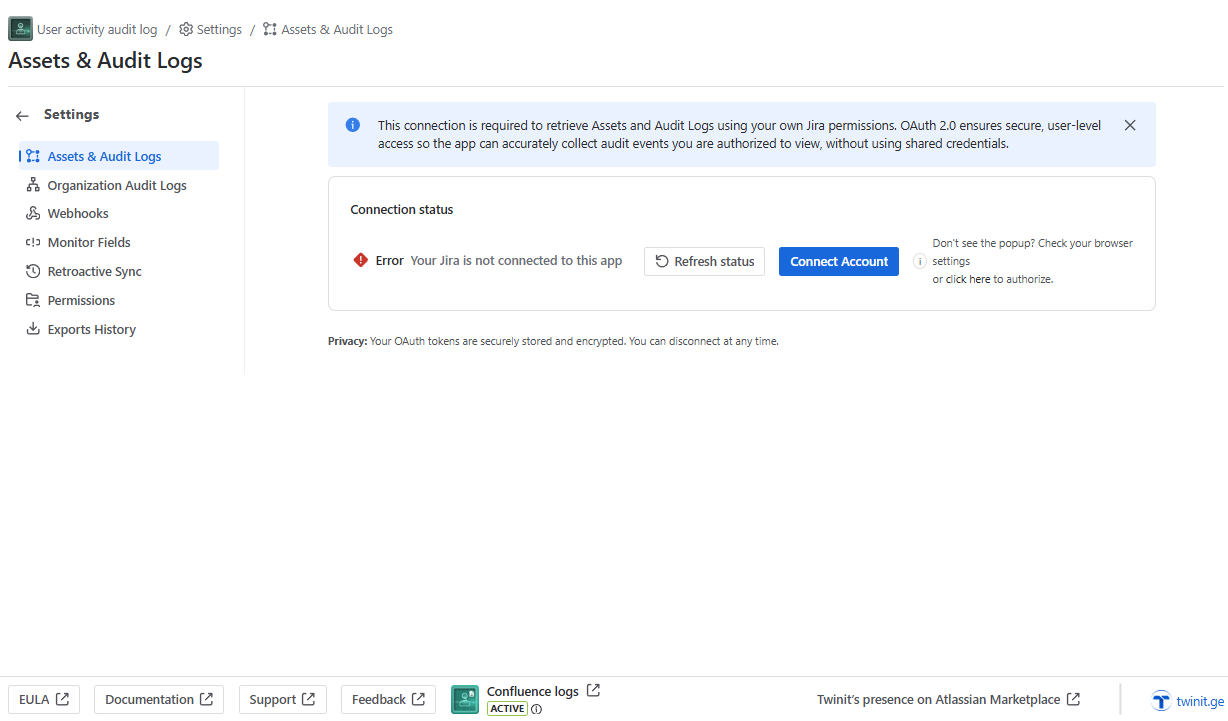
To connect an account click “Connect Account” and you will be navigated to page where user Activity Audit Log Access is requesting access to your Atlassian account.
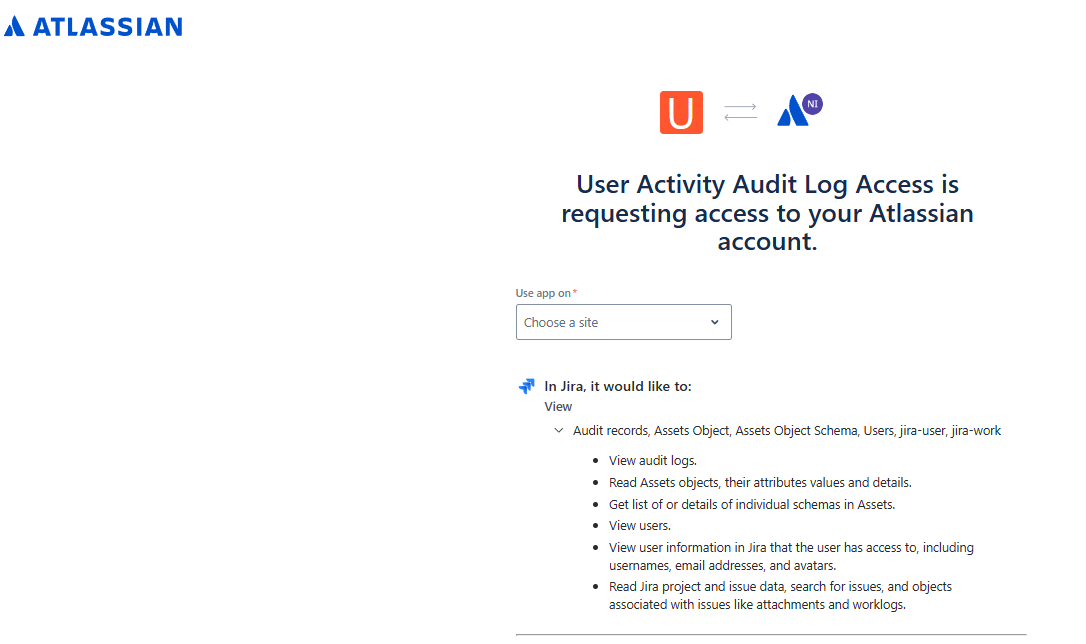
Select the app you want to connect from the “Use app on” drop-down menu, then click “Accept” at the bottom of the page. A success message will appear, confirming that the app has been connected successfully.
In Jira, it would like to:
Audit records, Assets Object, Assets Object Schema, Users, jira-user, jira-work
- View audit logs.
- Read Assets objects, their attributes values and details.
- Get list of or details of individual schemas in Assets.
- View users.
- View user information in Jira that the user has access to, including usernames, email addresses, and avatars.
- Read Jira project and issue data, search for issues, and objects associated with issues like attachments and worklogs.
In Confluence, it would like to:
Audit log records, Space details
- View and export audit records for Confluence events
- View space details
In User, it would like to:
- account
In Jira, it would like to:
ServiceDesk-request
- Read customer request data, including approvals, attachments, comments, request participants, and status/transitions. Read service desk and request types, including searching for request types and reading request type fields, properties and groups.
After successful connection you will see success icon on “Connection status”
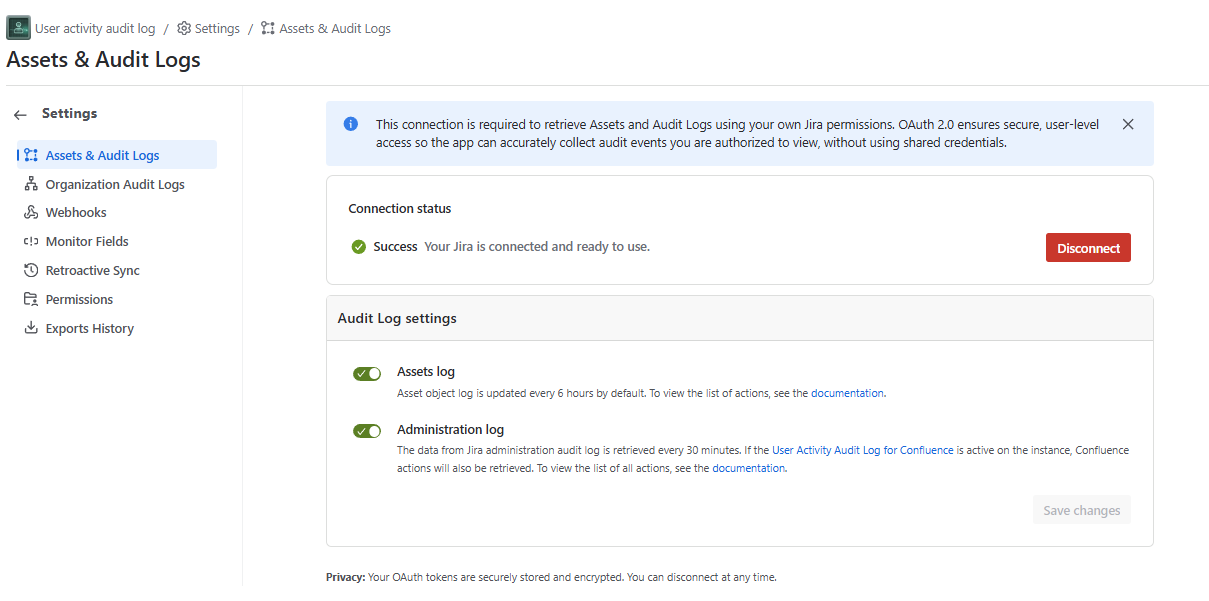
You can disconnect connected app by clicking “Disconnect” button. Additionally you can see Audit log settings
Assets log
- Asset object log is updated every 6 hours by default.
Administration log
- The data from Jira administration audit log is retrieved every 30 minutes. If theUser Activity Audit Log for Confluence is active on the instance, Confluence actions will also be retrieved.
Jira Administration Audit log is required for logging the following Actions:
- Work item resolved
- Status changed
- Project role created
- Project role updated
- Project role deleted
- Project category changed
- Permission scheme created
- Permission scheme copied
- Permission scheme deleted
- Permission scheme updated
- Permission added
- Permission deleted
- Global permission added
- Global permission deleted
- Customer permissions changed
- Agent Portal Announcement Update Permission
- Permission scheme added to project
- Project roles changed
- JIRA Service Desk configuration
- Login-free portal settings changed
- Public signup enabled
- Public signup disabled
- Requirement for email verification for signup changed
- Help center permissions changed
- Help center updated
- Work item view
After changing “Audit log settings” by toggle , click “save changes” to save changed configuration.
After a successful connection, the Asset actions will be retrieved. Depending on the number of the objects, it may take from minute to hours.
The Asset actions are retrieved every 6 hours, therefore the latest actions, done in the last 6 hours may not be shown in the logs. If you would like to sync the Asset actions immediately, go to “Assets audit log“ in the settings and click “Sync assets log“ button - depending on the number of the objects, it may take from minute to hours.
If the connection with the Organization Log is lost, an email alert will be sent to the email address indicated in the configuration of the Administration Audit Log or Assets Log connection.