Configuration
Connect your Signify account. Each Jira user signs into their own Signify account once. After installing the “Signify For Jira” app, click its logo in the sidebar and sign into your Signify account.
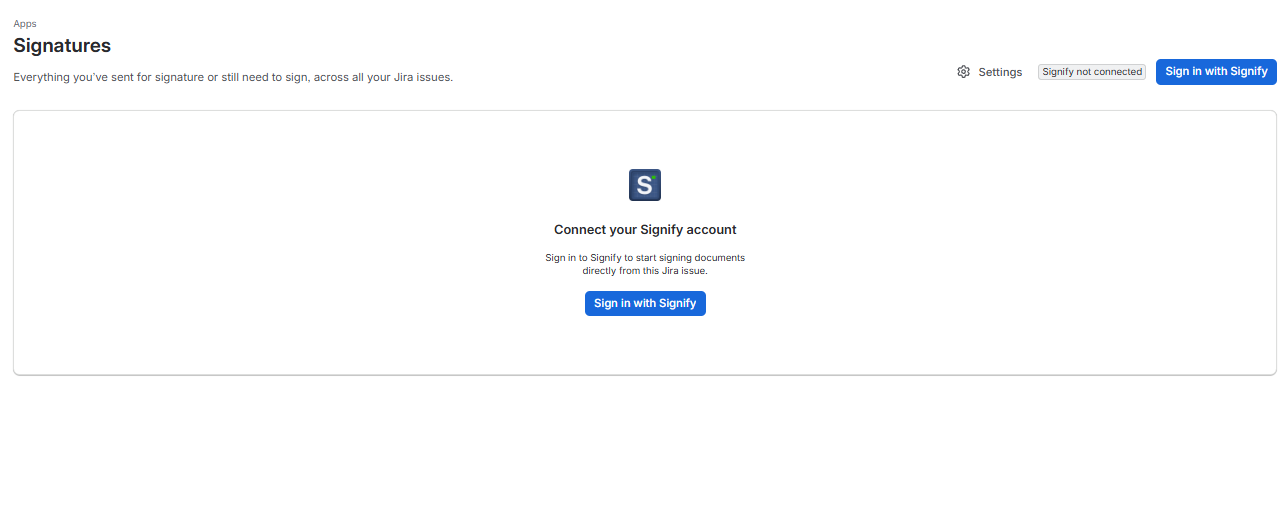
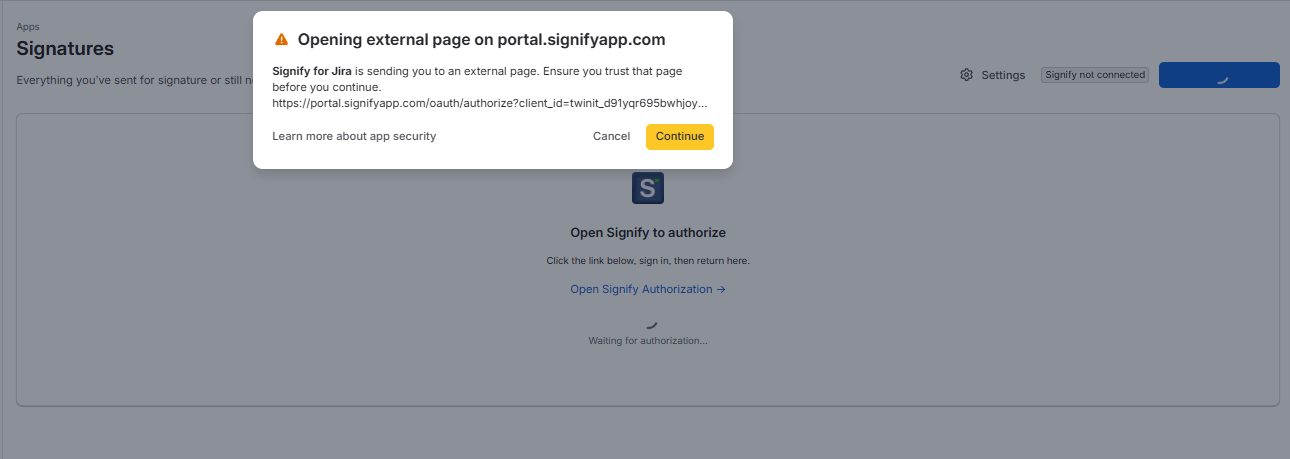
- Select Sign in with Signify. Signify opens in a new browser tab:
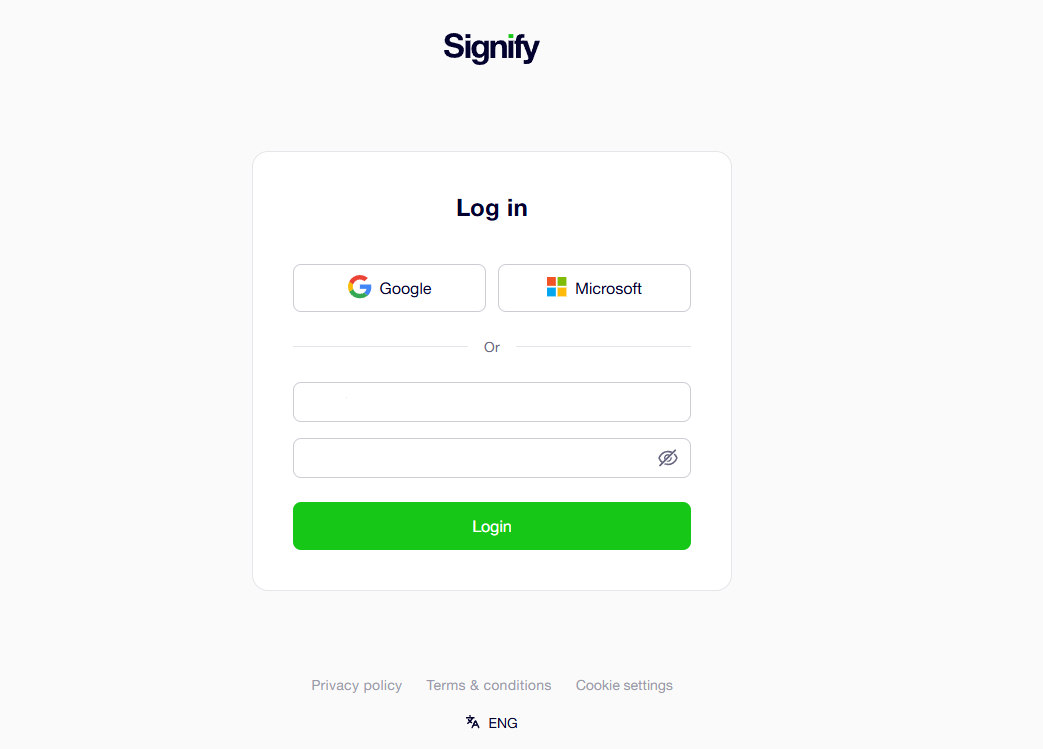
- Sign in to Signify and approve access:
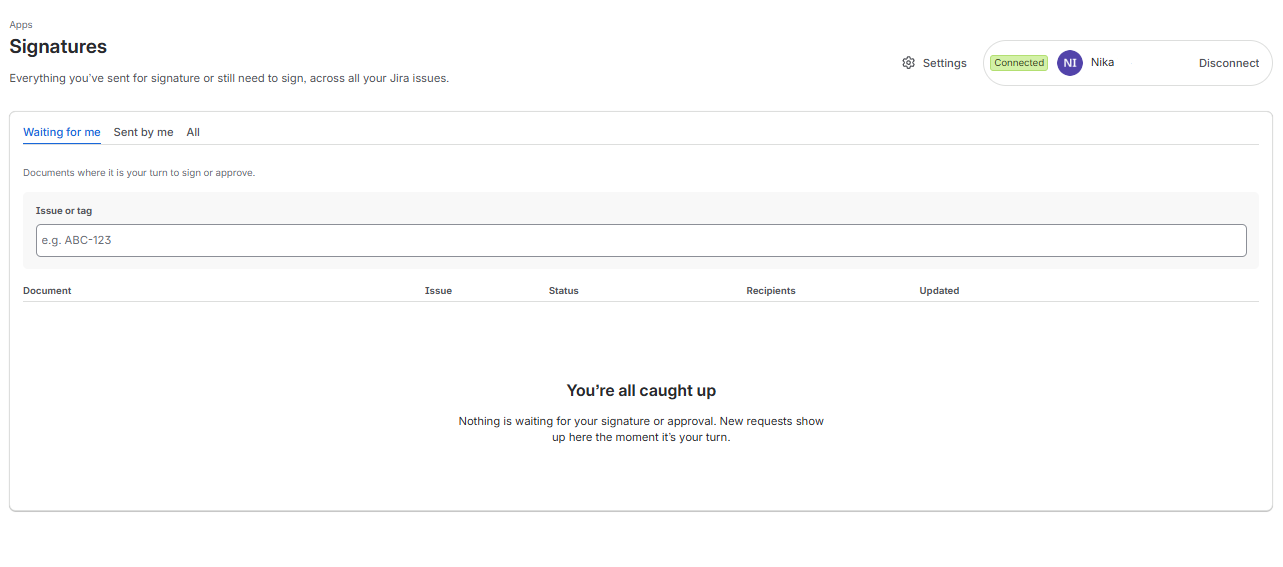
- Return to Jira. The panel detects the connection by itself and shows your documents. To disconnect, select Disconnect in the panel header, or on the Signatures page:
Licence
If the app shows License expired, the free trial has not started or has ended. Ask your Jira administrator.
Configuration Setup:
To configure the app settings, click the “Settings” button on the main page
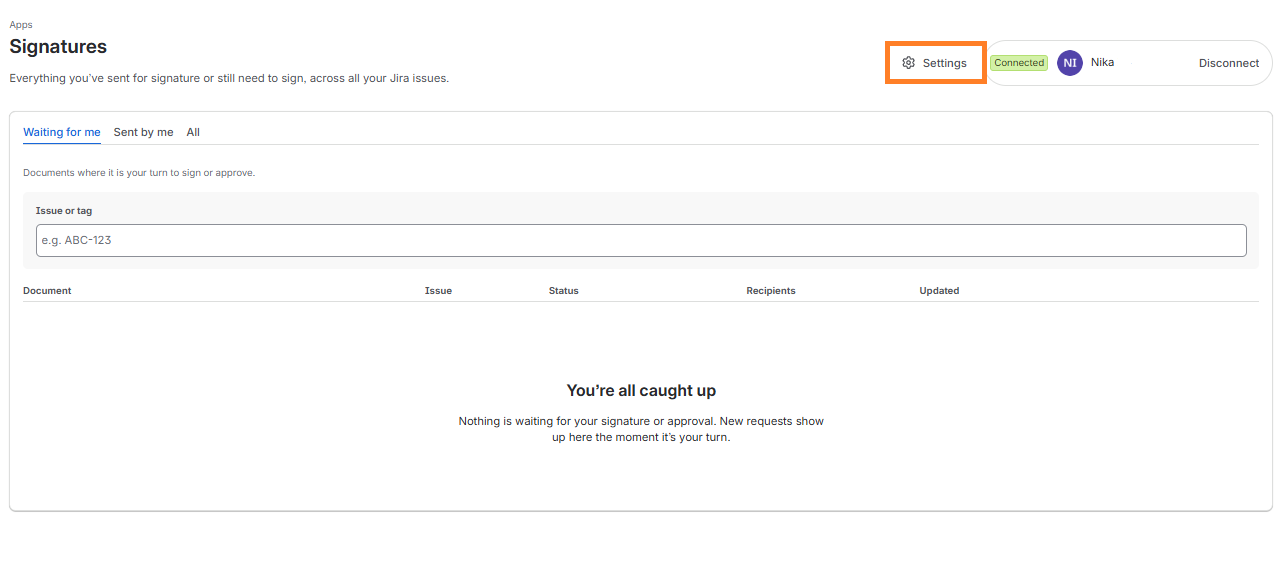
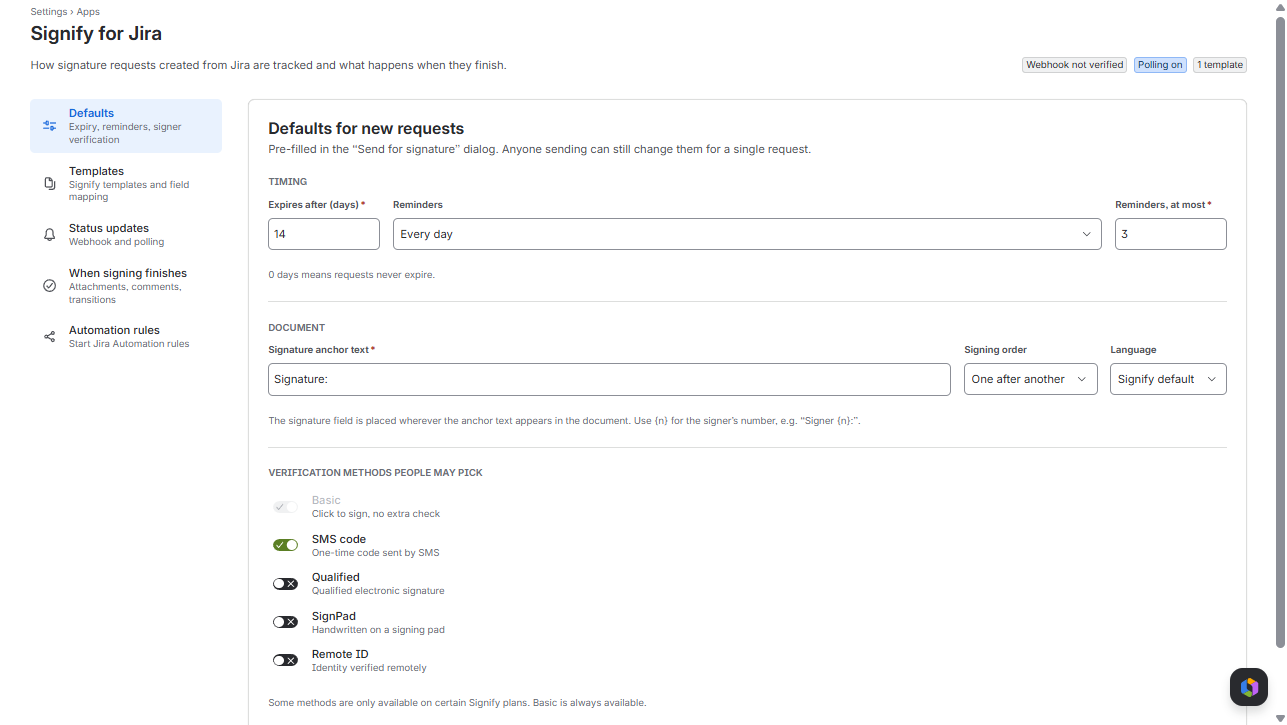
You will be navigated to the App Settings page, where you can see:
Defaults
- Expiry, reminders, signer verification
Templates
- Signify templates and field mapping
Status updates
- Webhook and polling
When signing finishes
- Attachments, comments, transitions
Automation rules
- Start Jira Automation rules
Defaults
| Setting | Effect |
|---|---|
| Expires after (days) | Default expiry for new requests. 0 means no expiry. |
| Reminders, Reminders, at most | Default expiry for new requests. 0 means no expiry. |
| Signature anchor text | Default marker text for signature placement. {n} becomes the signer number. |
| Signing order | One after another, or all at once. |
| Language | Default language of emails and the signing page. |
| Verification methods people may pick | Basic is always available. Some methods depend on your Signify plan. |
Tamplates
Signify does not let apps list templates, so each template is registered by its ID (up to 50). A template can be sent from Jira only if Quick send is allowed is turned on in Signify and every recipient has a signature field.
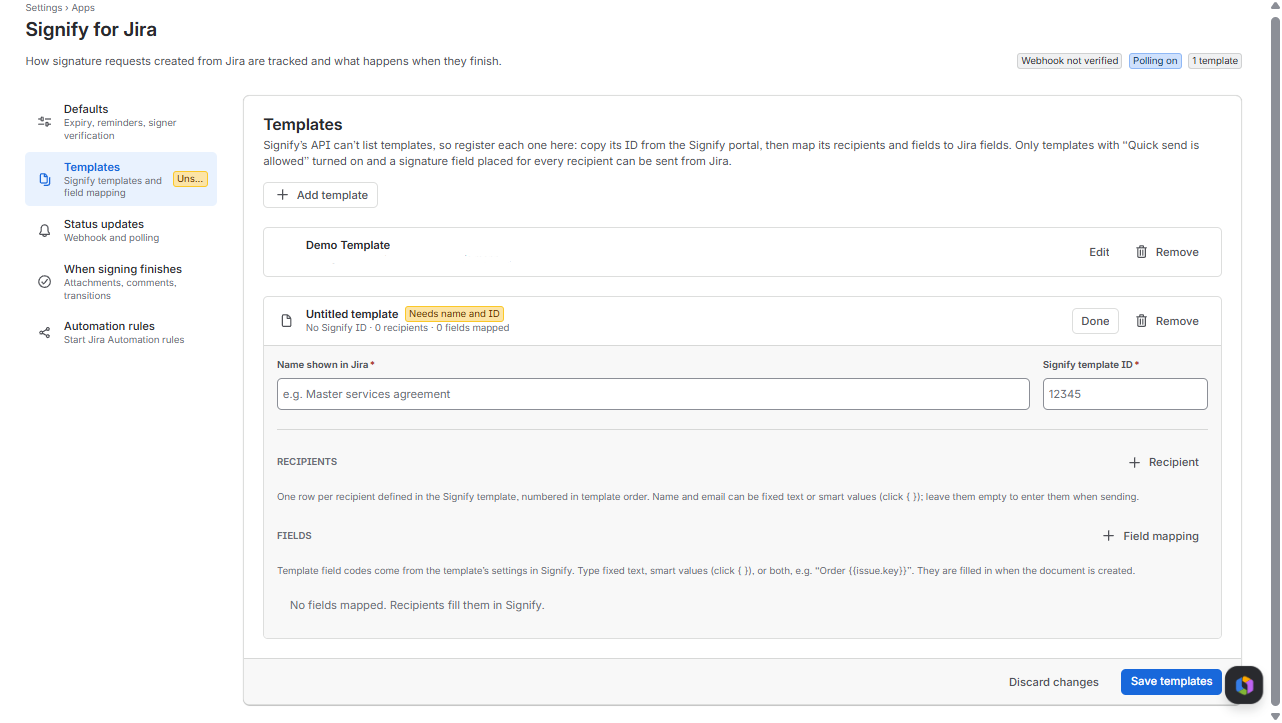
- Enter the Name shown in Jira and the Signify template ID.
- Under recipients, add one row per template recipient: its number in Signify, a label, a Name and an Email. Type fixed text, or click { } in the box to pick a smart value such as the reporter, the assignee, the person sending or a user field. Leave both empty to enter them when sending.
- Under fields, enter each Template field code and what it is Filled from: fixed text, smart values, or both, for example order {{issue.key}}. Click {} to search the smart values and any Jira field.
The {} button opens a searchable list of smart values. In a Name or Email box, a picked value replaces the text; in Filled from it is added at the end.
Status Updates
Signify tells Jira the moment someone signs, through a webhook. Set it up once; the same steps are on the page under How to set up the webhook in Signify (select it to expand):
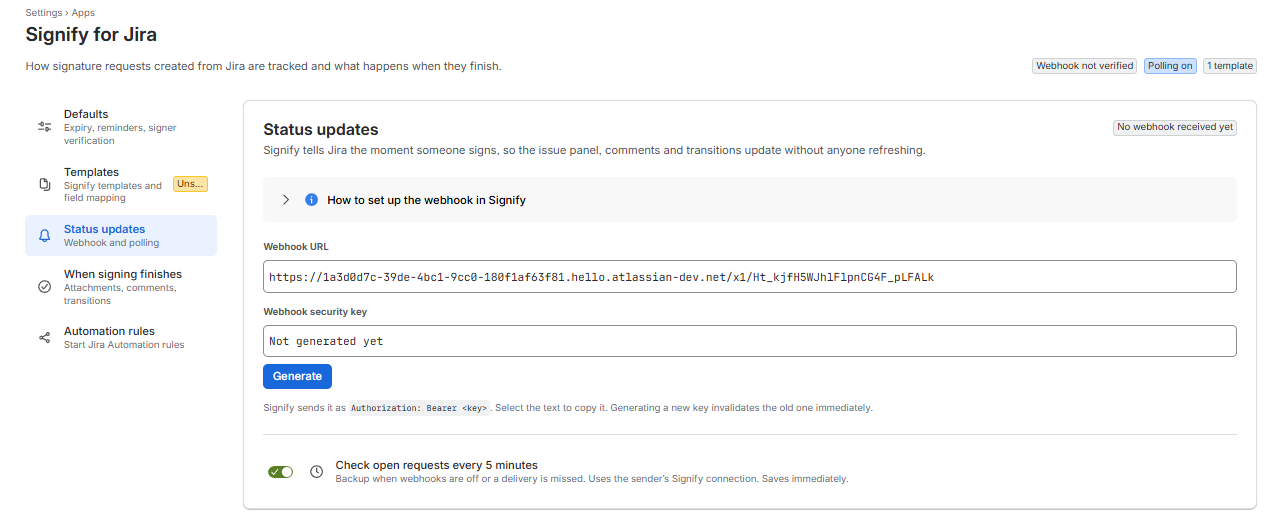
In Signify, open API Credentials and find the webhook settings.
Paste the Webhook URL and the Webhook security key from this page. Use Generate to create the key.
Set the webhook type to Recipient, save, then press Send in Signify to test. The page then shows Webhook working.
Check open requests every 5 minutes is a backup for missed webhook deliveries. Generate new replaces the key; the old key stops working immediately, so update Signify at the same time.
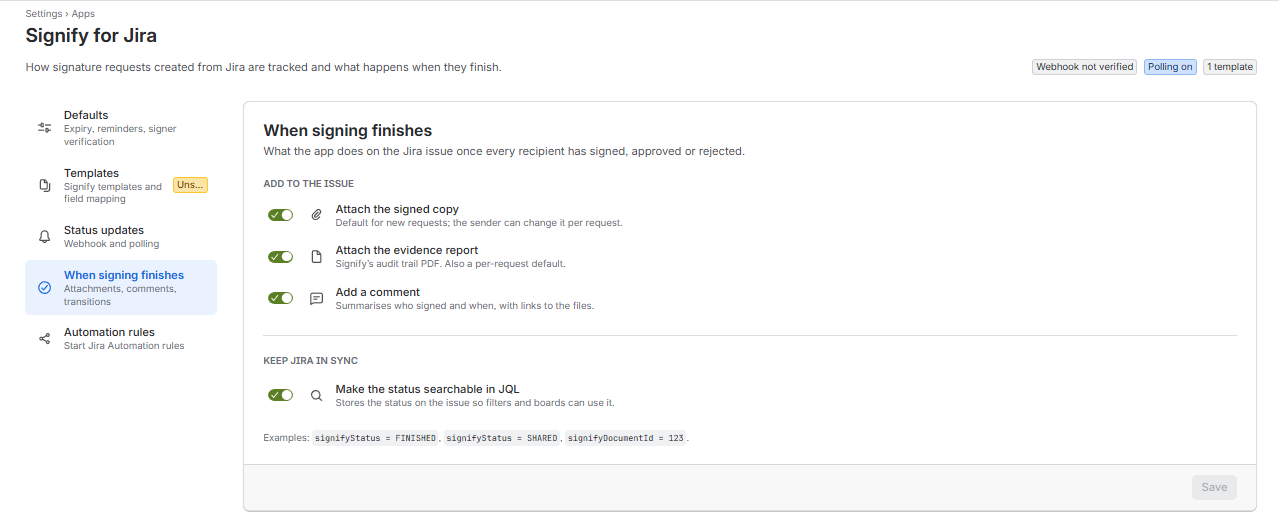
When signing finishes
| Setting | Effect |
|---|---|
| Attach the signed copy, Attach the evidence report | Defaults for new requests. Senders can change them per request. |
| Add a comment | Adds a comment to the work item when a request completes or is rejected. |
| Make the status searchable in JQL | Stores the status on the work item. Examples: signifyStatus = FINISHED, signifyStatus = SHARED, signifyDocumentId= 123. |
Automation Rules
Jira Automation does not let apps add their own triggers, so the app calls rules that start with Jira’s built-in Incoming webhook trigger. Register them under Settings > Apps > Signify for Jira > Automation rules: up to 20 webhooks, each receiving the events you pick. Several webhooks can receive the same event. The page shows how many are registered (for example Webhooks 1 of 20), and the steps below are also on the page under How to set up a rule in Jira Automation (select it to expand).
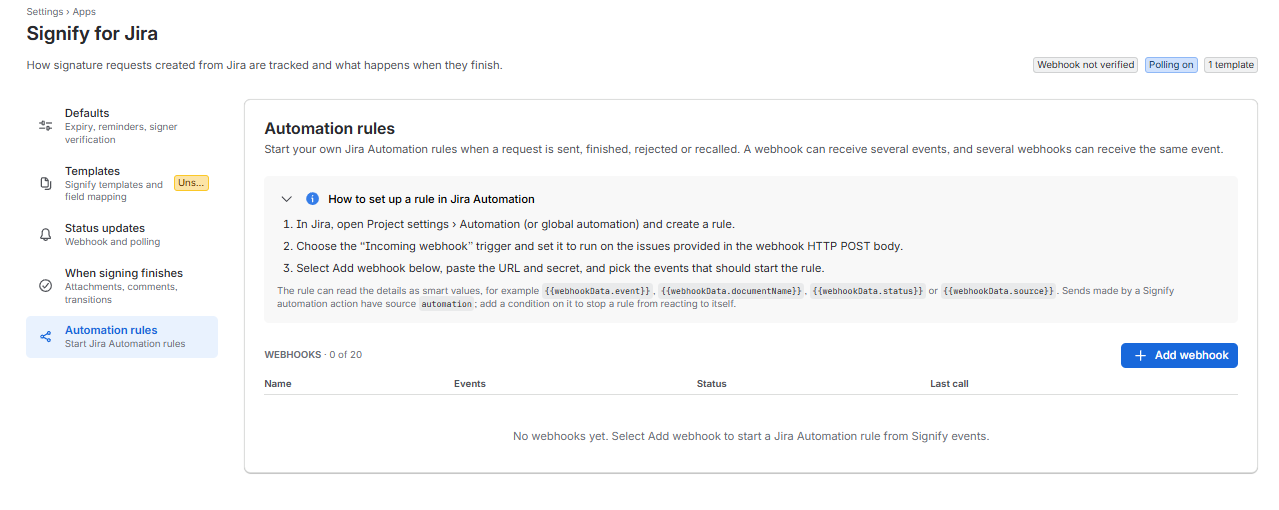
- In Jira, open Project settings > Automation (or global automation) and create a rule.
- Choose the “Incoming webhook” trigger and set it to run on the issues provided in the webhook HTTP POST body.
- Select Add webhook below, paste the URL and secret, and pick the events that should start the rule.
The rule can read the details as smart values, for example {{webhookData.event}}, {{webhookData.documentName}} {{webhookData.status}} or {{webhookData.source)} Sends made by a Signify
automation action have source automation; add a condition on it to stop a rule from reacting to itself.