Layouts
| nav-order | 7 |
| nav-title | Layouts |
| nav-icon | |
| description | Decide which fields appear on a form, at which stage, how they render, and which must be filled before a risk can move on. |
A layout decides where a field appears. It never decides which values are legal — that belongs to the field. Find layouts under Settings → Layouts.
Building a layout
Select target entity. Choose the entity type this layout will structure. Fields and workflow stages are configured specifically for each entity:
Risk
- The register entry itself — identify, score, treat.
Control
- A safeguard in the control library, reused across risks.
Treatment plan
- How planned controls actually get implemented.
Risk register
- The register container’s own attributes.
Incident
- A risk that materialized, and its aftermath.
Start from
- A copy of the default incident layout - Fields already placed on each stage. Fastest.
- Blank - The incident lifecycle is there; you place every field yourself.
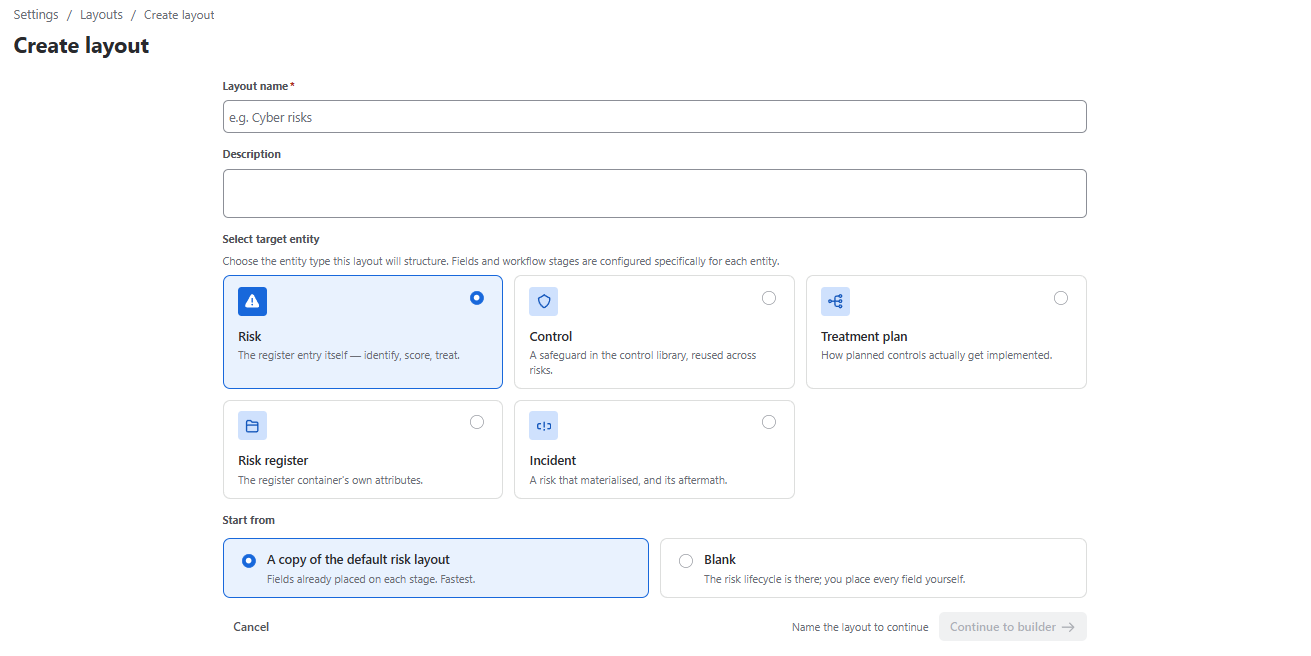
Once you have filled in the relevant information, click the “Continue to builder” button to see:
Fields library
- All
- Custom
- Built-in
Stages of the control lifecycle
- Planned - The control is chosen but not yet built
- Implementing - Being built or rolled out
- Operating - Live and being tested
- Retired - No longer in operation; kept for audit.
Stages are the lifecycle a risk moves through — Identification, Assessment, Assessment Approval, Risk Control, Risk Treatment, Closed.
Properties
- Pick a field to set how it behaves here, or a stage header to manage which fields gate it.
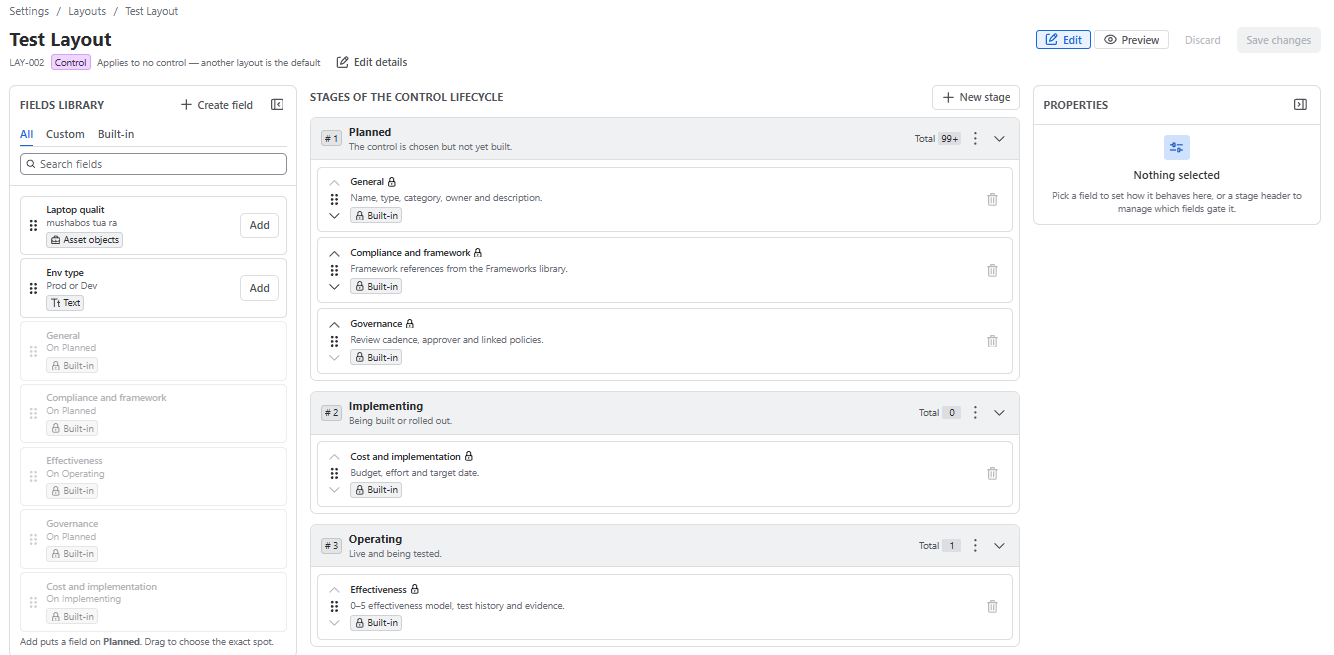
You can Drag a field or press “Add” in the library. “Add” puts a field on Planned. Drag to choose the exact spot.
Dependency validation
If a field’s options are filtered against another field — cities depending on country — the builder checks that the other field is on the same layout and earlier. If it is not, the row is badged so you can see it before publishing. This check is the reason “just drag the field on” is safe advice.