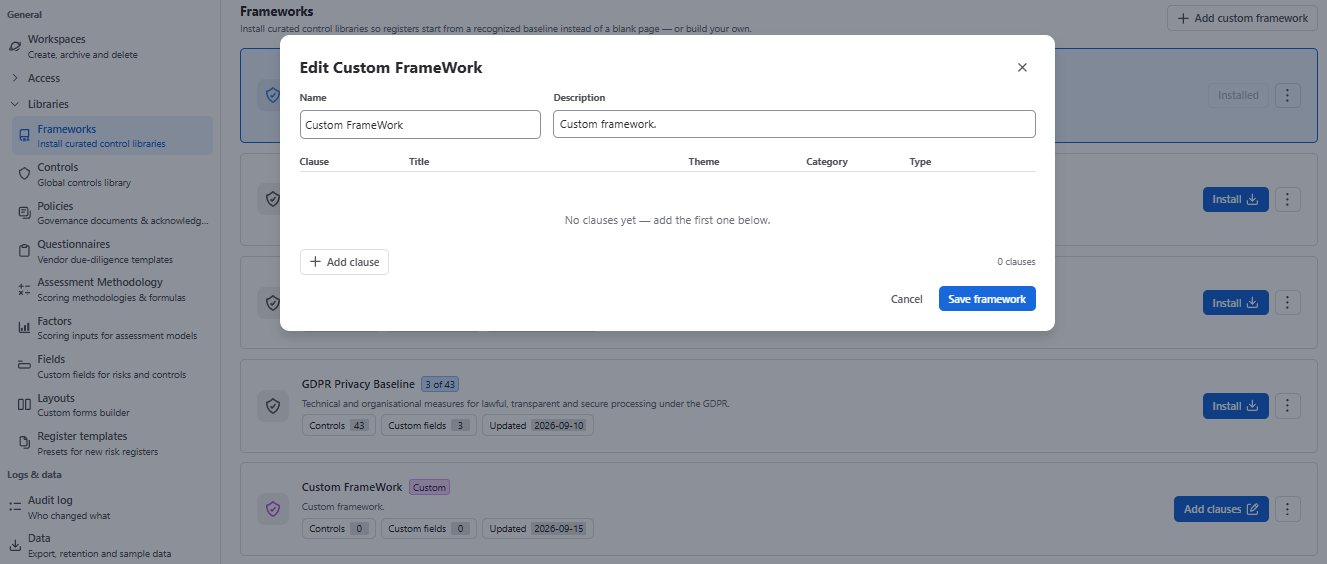
Frameworks
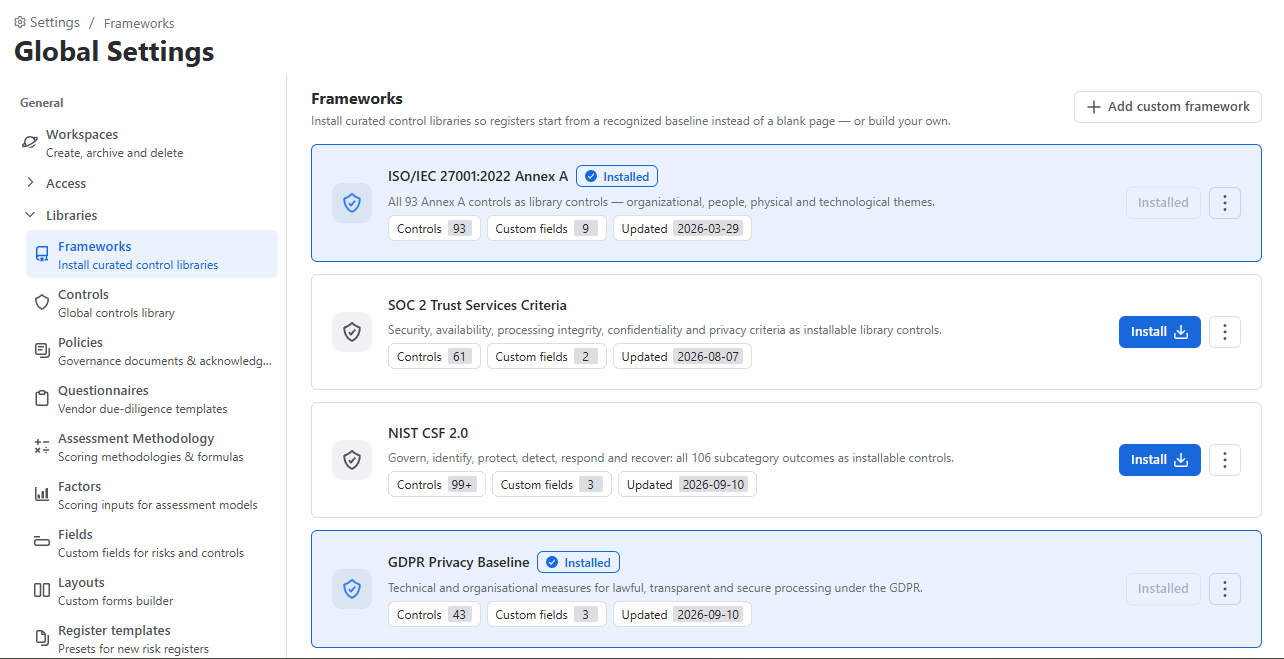
A framework pack saves you from typing a standard’s control set into the library by hand. Find them under Settings → Frameworks.
Available packs
- ISO 27001 Annex A
- NIST Cybersecurity Framework 2.0
- SOC 2 Trust Services Criteria
- GDPR Privacy Baseline
Installing a Framework
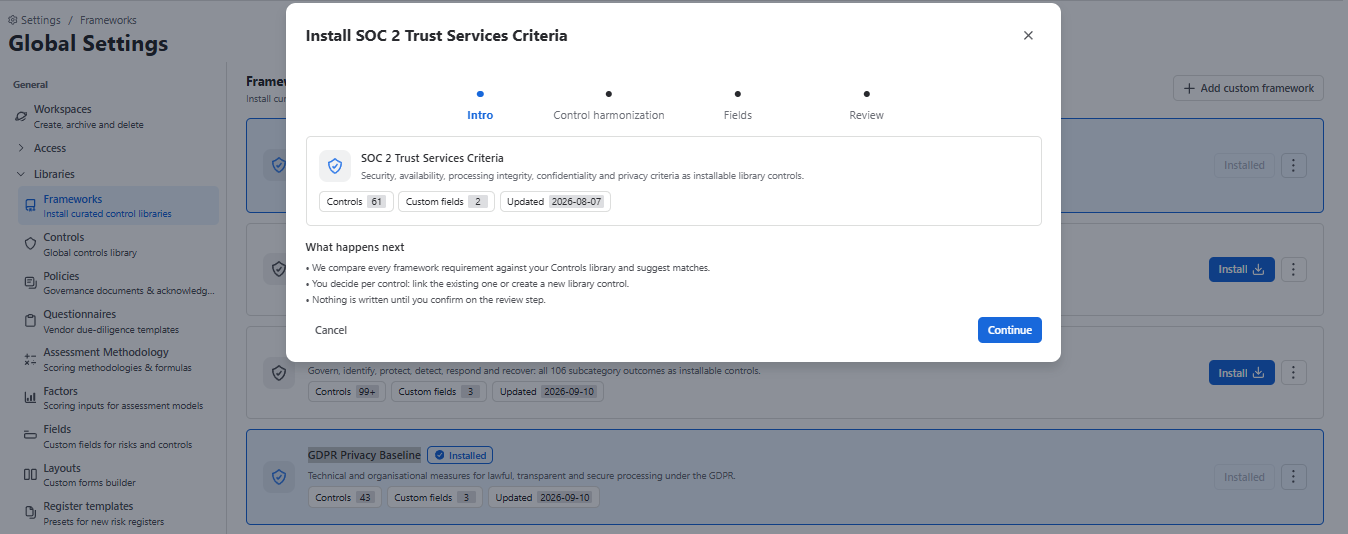
Installation is a five-step review. Nothing is written until you confirm on the final step.
Intro
- We compare every framework requirement against your Controls library and suggest matches.
- You decide per control: link the existing one or create a new library control.
- Nothing is written until you confirm on the review step.
Control harmonization
Fields
- Fields the framework adds to risks, controls and plans. Select fields get their options as an editable list under Assets › Framework lists. Place the fields on forms afterwards under Settings › Layouts.
Review
After installing
The framework appears as a card. Its menu offers:
| Action | What it does |
|---|---|
| Check for updates | Pull revisions when the standard changes. |
| Manage applicability (SoA) | Mark which controls apply to your organization and justify exclusions. |
| Crosswalk | Map this framework’s controls to another framework’s, so one control can evidence both. |
| Save as custom | Fork the pack so you can modify it without losing updates to the original. |
| Uninstall | Remove the pack. Controls already attached to risks are retained. |
Statement of Applicability is not yet available. The SoA is a mandatory artefact for ISO 27001 certification, and the menu item is present but the feature is not built. Do not plan a certification timeline around it until it ships.
Add custom framework
Starts an empty framework you fill with your own clauses — an internal policy set, a contract’s security schedule, a regulator’s checklist. Click “Add custom framework” button and give it a name:
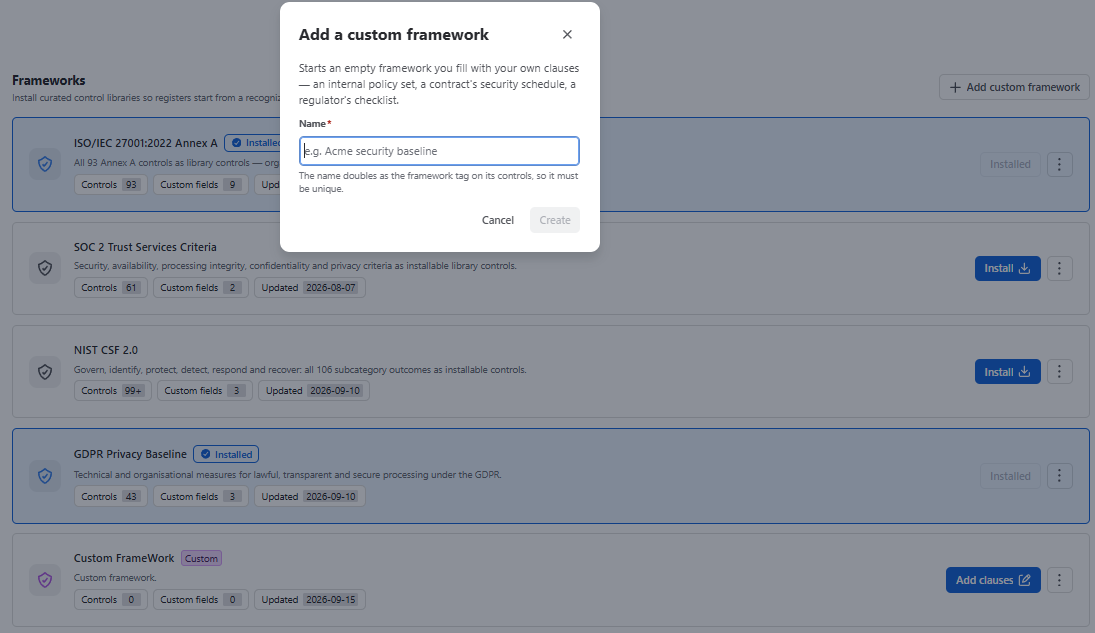
Once you create a new custom framework, it appears on the Frameworks grid:
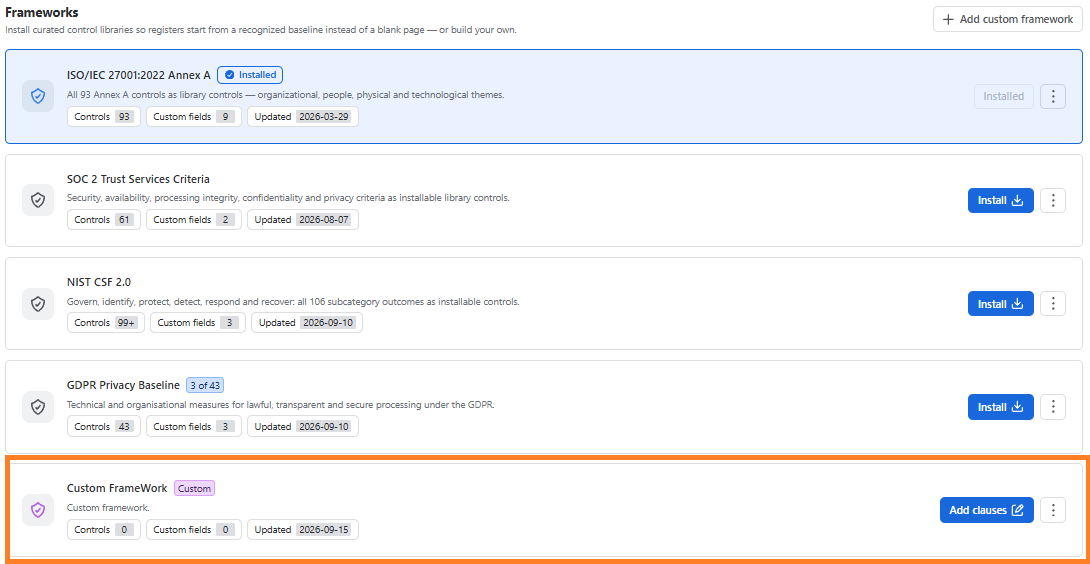
Click “Add clauses” button and till the fields: