Fields
| nav-order | 6 |
| nav-title | Fields |
| nav-icon | |
| description | Create custom fields, choose where their options come from, filter those options against other fields, and manage deletion and restore. |
A field owns one question and decides which answers are legal. It does not decide whether you are asked — that is the layout’s job.
Creating a custom field
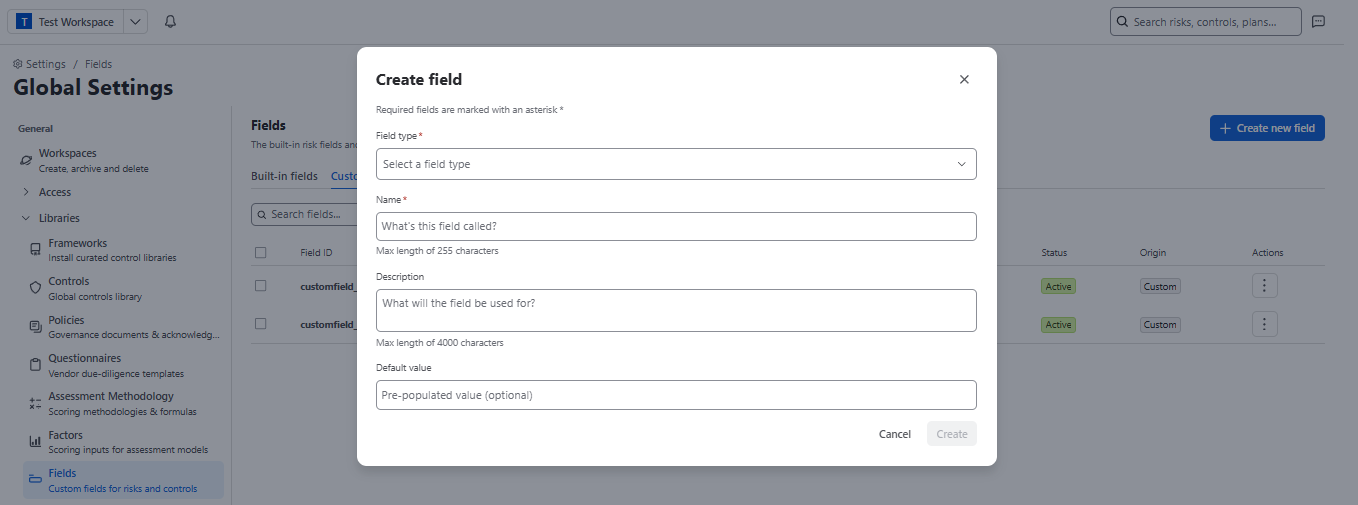
Go to Settings → Fields and select Create new field.
- Field type
- Name
- Description
- Default value
Edit Field
You can edit the field by clicking the “Actions” button and choosing “Edit”:
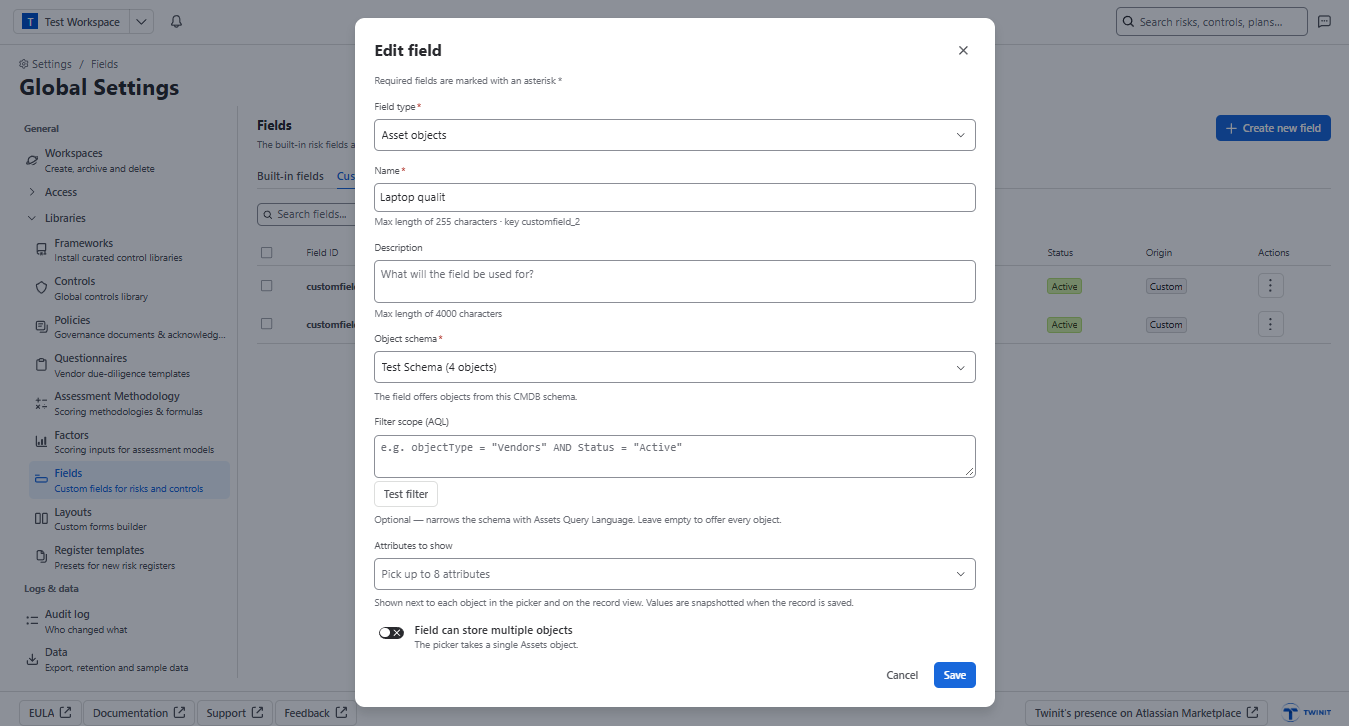
Creating a field does not put it on any form. Nothing appears anywhere until you place it on a layout. This is deliberate — one field, many forms, placed differently in each — and it is the single most common point of confusion for new administrators.
Where select options come from
A single or multi-select field picks one of two modes:
| Mode | Use when | Stores |
|---|---|---|
| Type them here | A short list nothing else needs — Yes / No / Not applicable | The label |
| A custom asset list | The options are records you maintain elsewhere | The record’s identity |
Filtering the options
A list-sourced field can filter which records are offered, using an expression:
country = {{Country}} AND status = "Active"
Two kinds of reference, and the difference is the whole trick:
| Syntax | Resolves against | Example |
|---|---|---|
| A plain path | The record being filtered | status, country.status |
{{Field}} |
Another field on the record being filled in | {{Country}} |
Only {{Field}} creates a dependency, and dependencies are derived from the expression — never declared separately. There is no second place to keep in sync, which is why cascading fields cannot silently break here.
The editor validates the expression as you type and shows a live result count against a sample value, so you can see 2 of 14 offered before you save.
Deleting and restoring
Deleting a field removes it from every layout and stops it being collected. Captured values are retained for a recovery window and the field can be restored.
Switching a field from “type them here” to a list changes how values are stored — from a label to a record identity. Existing values must be matched by label, and unmatched ones flagged. Plan this migration; do not do it on a field with a lot of history without checking the match report first.