Controls
A control is a safeguard that reduces a risk. In Risk Management for Jira controls live in a library that is independent of any one risk, so the same control can be attached to many risks and maintained in one place.
| Group | Contains |
|---|---|
| Identity | Name, description, control type (preventive, detective, corrective) and category. |
| Compliance mapping | Which framework clauses this control satisfies. Populated automatically for controls from a framework pack. |
| Effectiveness | How well the control works when operating as designed. |
| Governance | Owner, reviewer and review cycle. Without these a control quietly rots. |
| Evidence | What proves the control operates, and where that proof lives. |
| Weight and cost | Relative importance and operating cost, for prioritization. |
| Implementation and scope | Current status and which parts of the organization it covers. |
The idea that matters most here: a control’s contribution is decided per risk, not globally. The same control can cut 40% off one risk and 10% off another, because that is how controls behave in reality.
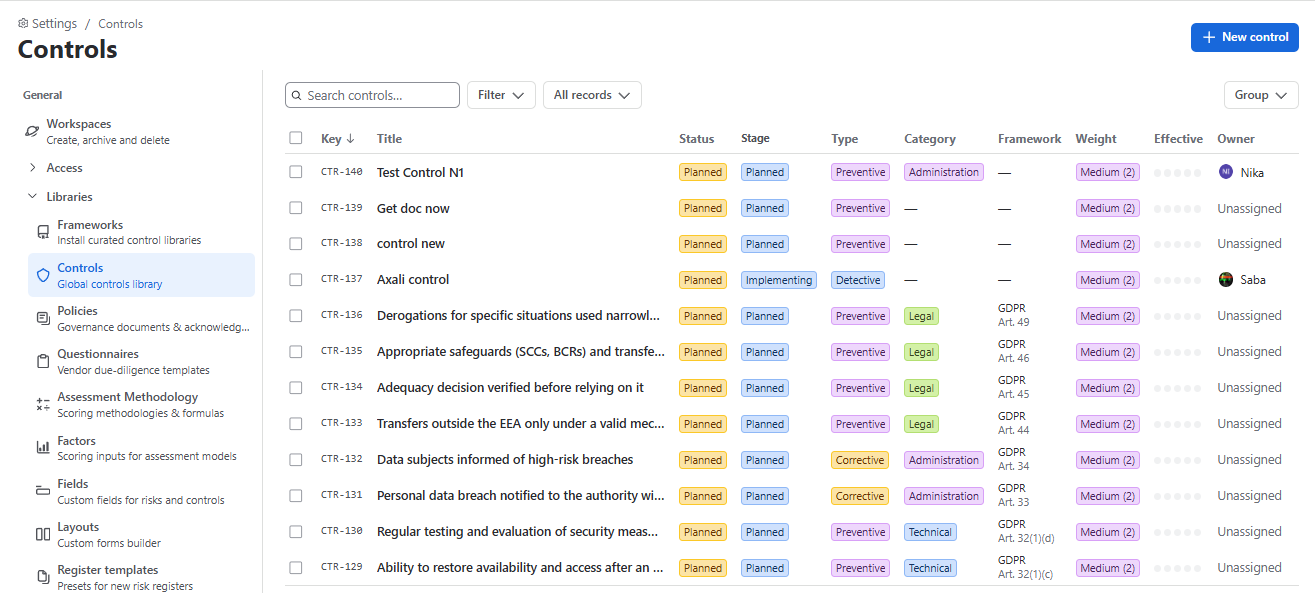
The control library holds every safeguard your organization relies on, defined once and reusable across any number of risks. Find it under Settings → Controls.
Creating a control
There are two ways to create a Control
Option N1:
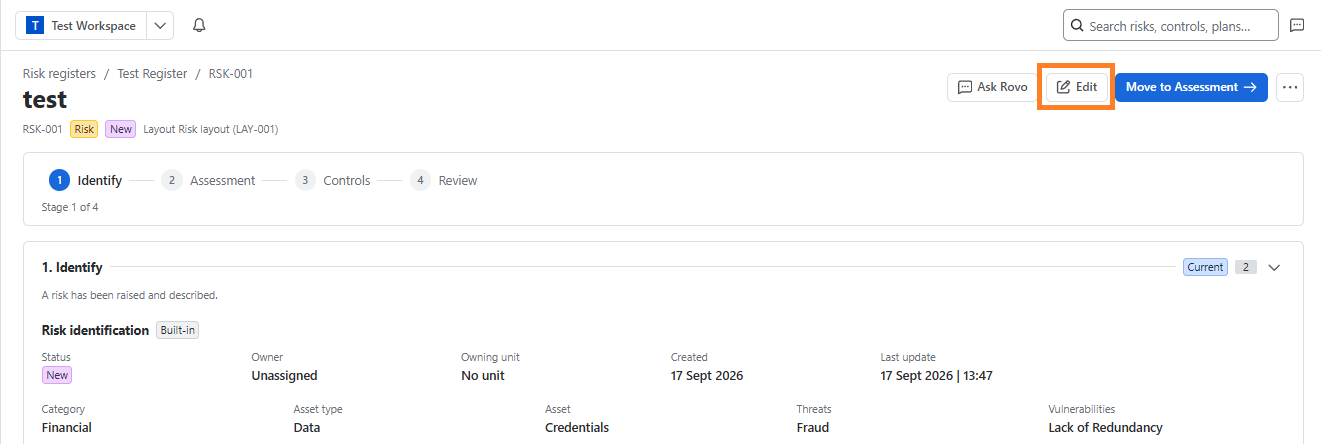
After creating the Risk Register and Risk, create a Control by clicking the “Edit” button on the Risk:
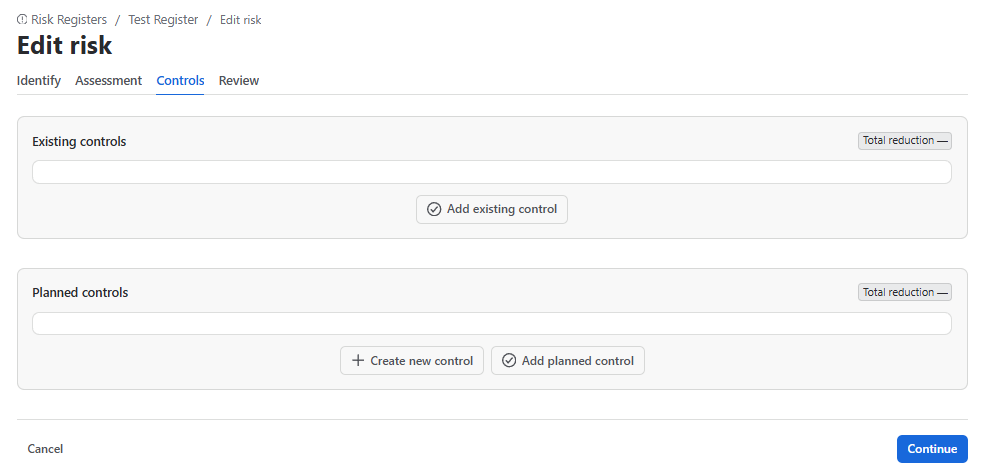
Then click on “Controls” tab where you can:
- Add Existing Controls
- Create New Control
Option N2:
You can create a control through Settings → Controls. Click “ + New Control “ button to create new one:
Manage Controls
Once the controls are created, manage them by clicking the “Edit” button to work on the control and make updates:
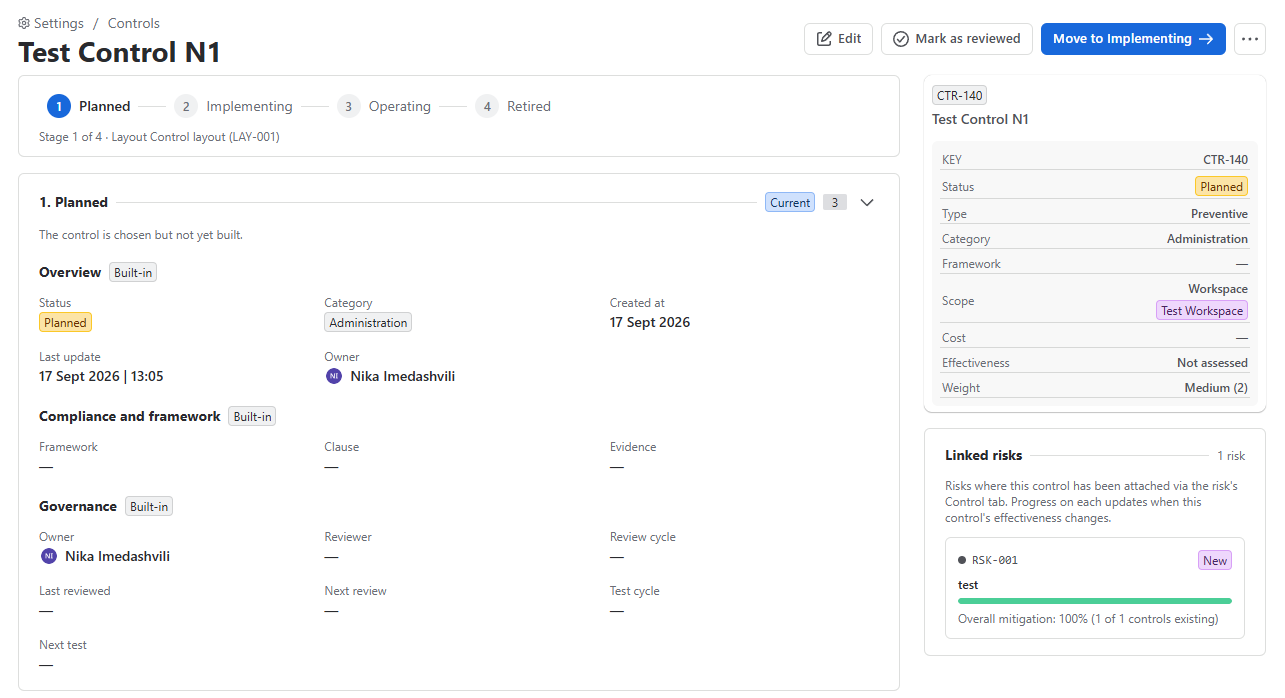
Everything on this page is the control’s global definition. When you attach a control to a risk it also gains local properties for that risk only — which dimension it reduces, by how much, and its local implementation status. See Attaching controls to a risk.