Second Grand Child
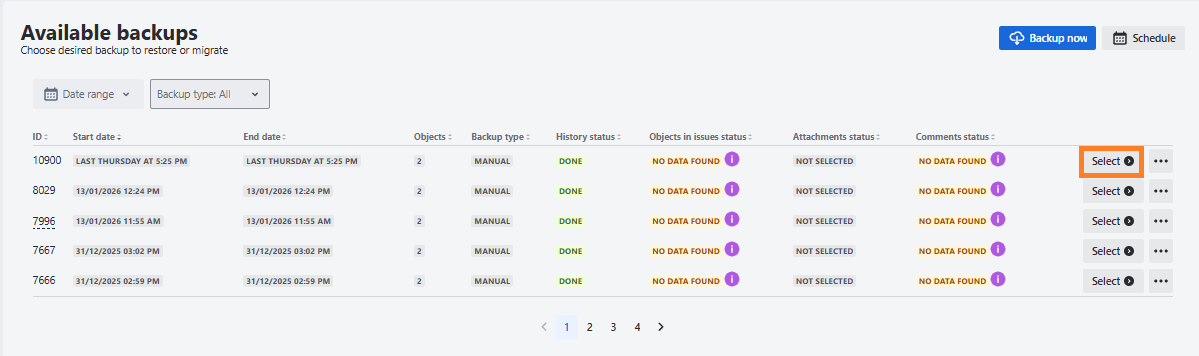
To restore the schema, select it by clicking the Select button.
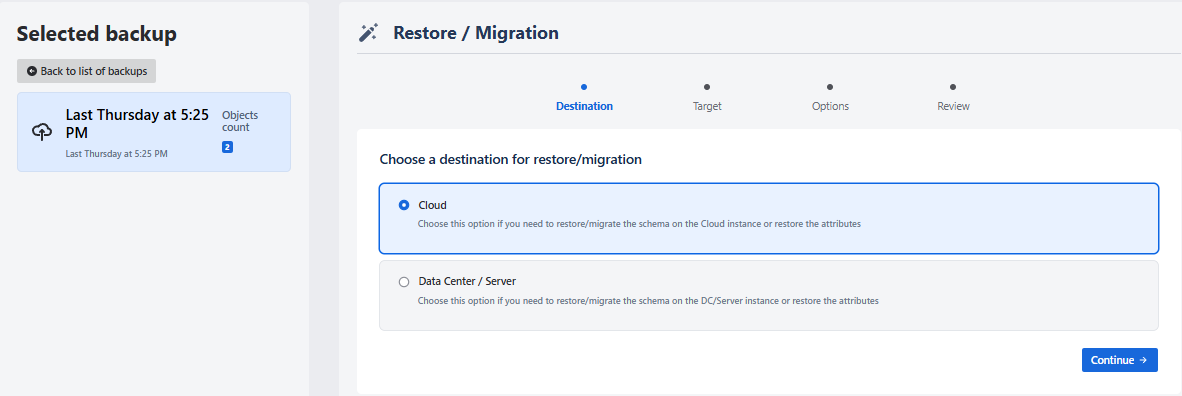
You will see the information about the selected backup on the left side of the page and the Restore options - on the right (Destination). As the first step, you need to select the destination - DC/Server or Cloud:
After selecting Cloud under Destination, you can restore the schema on the current instance in a new or an existing schema or migrate it to another instance:
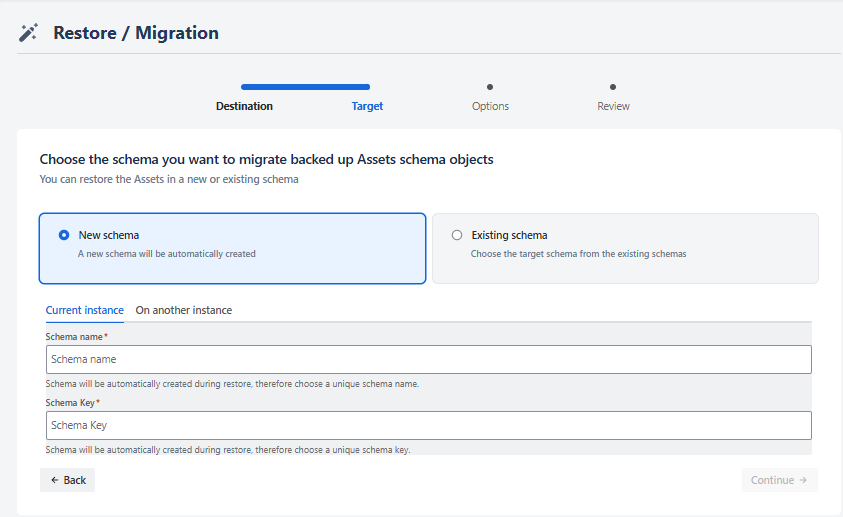
New schema - current instance
To restore the schema on a current instance in a new schema, choose a new schema name and key, where the schema should be restored in (the schema will be automatically created). Click continue to move to the restore options:
დამატებითი ახსნა & ახალი ლინკები:
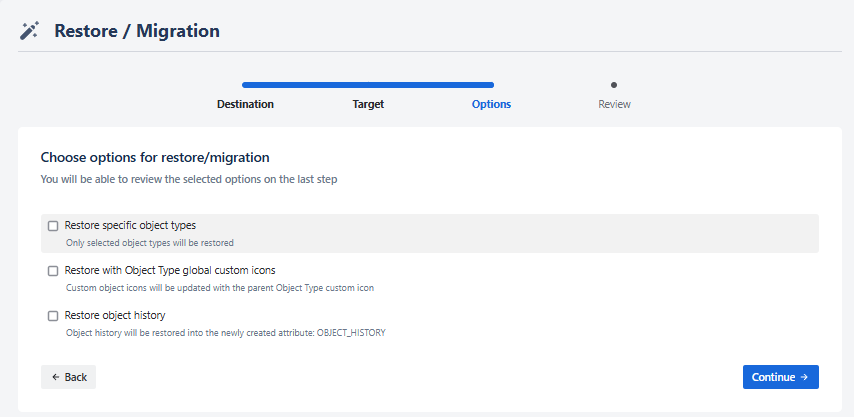
From here you can select to restore object history or restore specific object types. After the restore starts, the status will be shown in the right pane Destination) and Restore history.
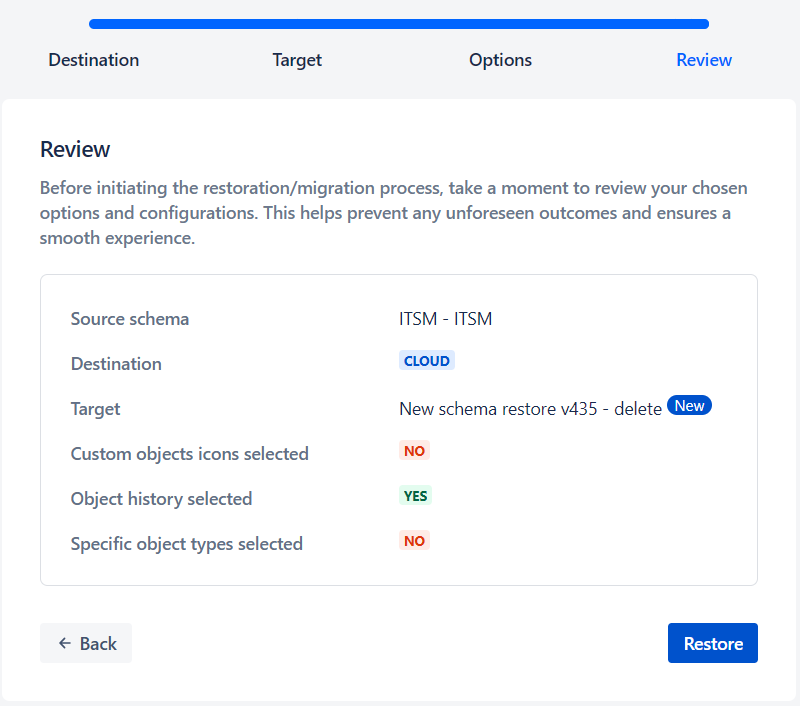
Selecting the options, you will be directed to the last, Review step of the restore wizard, where you can review the selected details and click Restore button to start the restore:
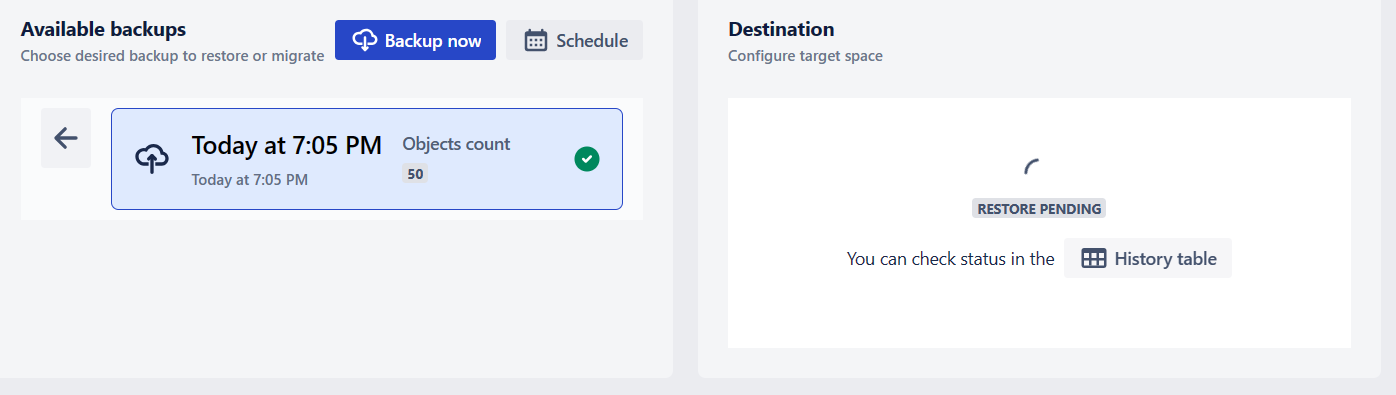
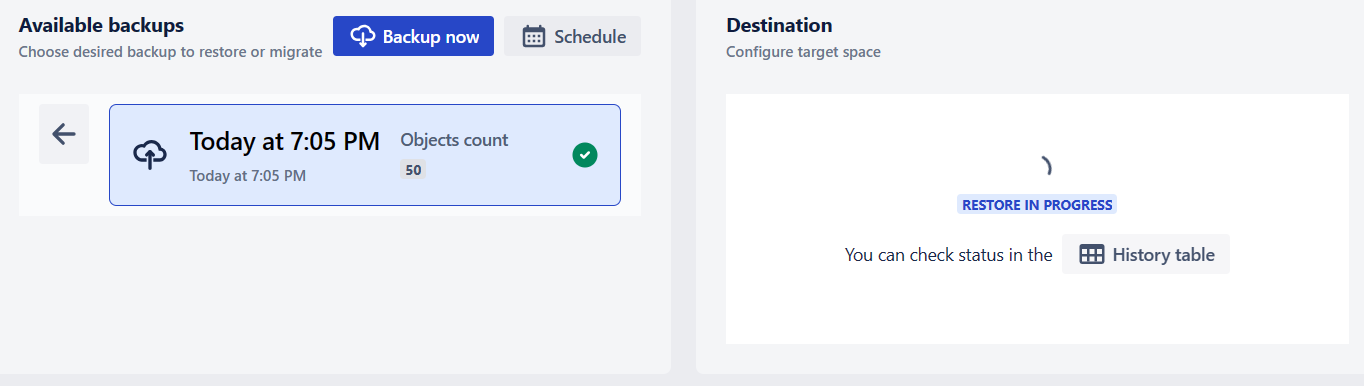
After the restore started, the Status of the restoration can be:
Restore pending
Restore in progress

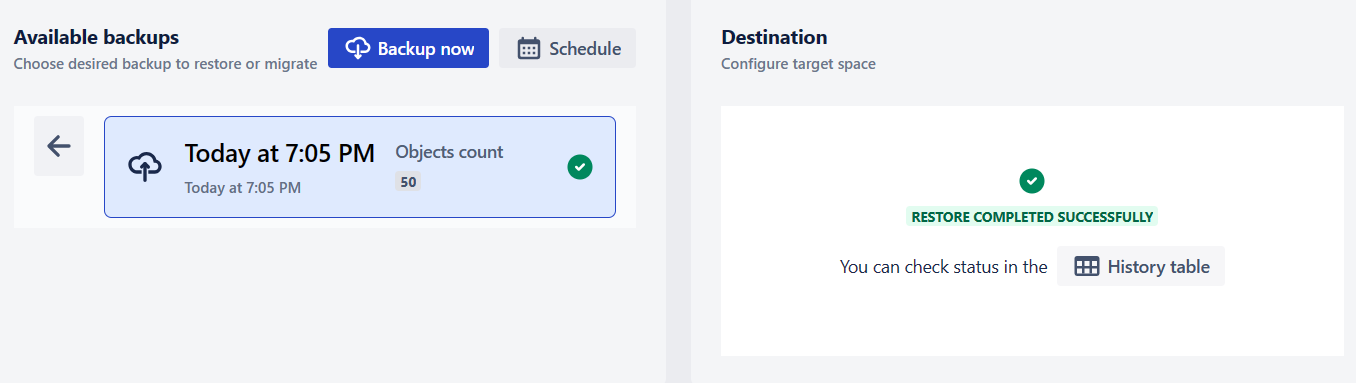
Restore completed
If the restore was completed successfully, you will see “Operation success“ message by clicking the Result message:
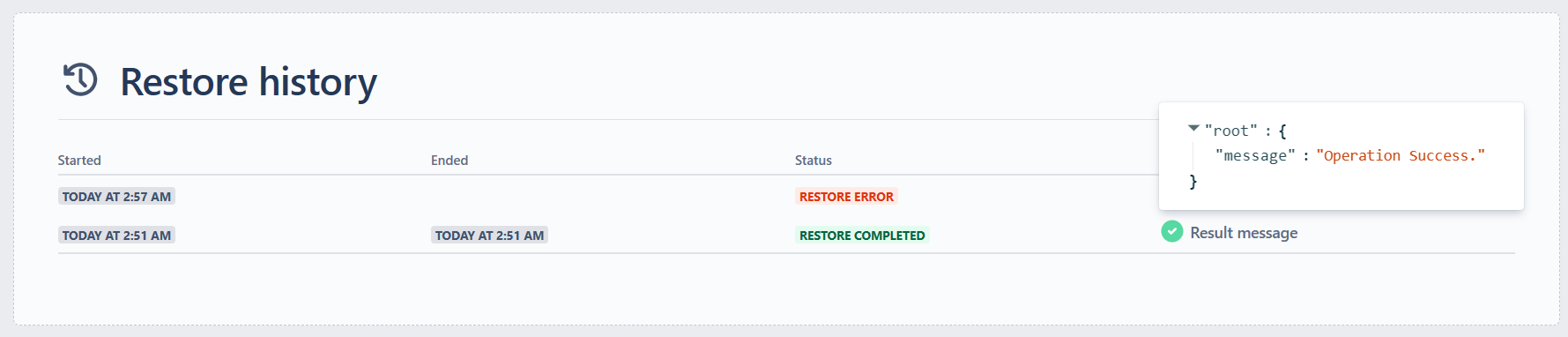
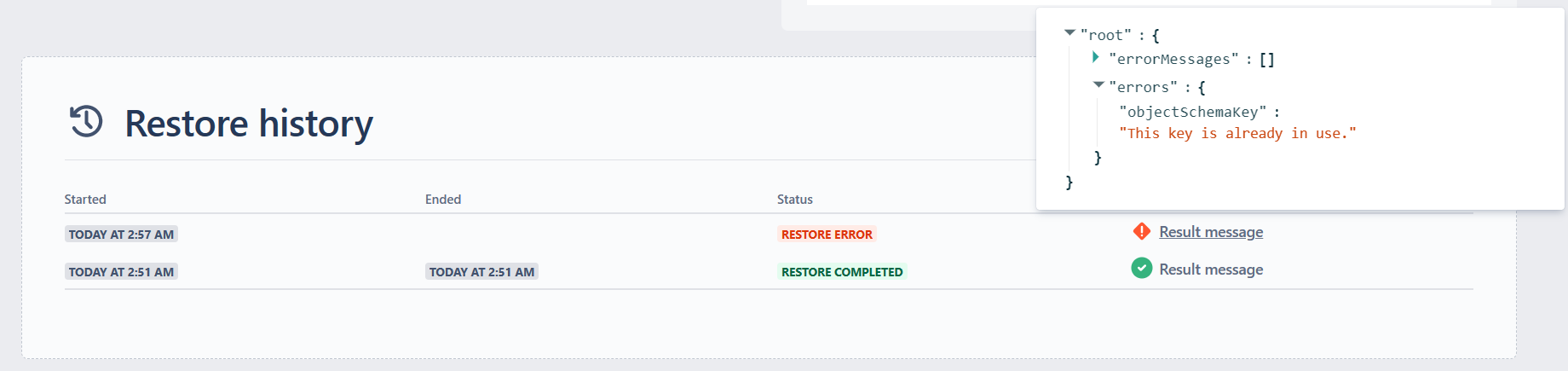
Restore Error
If the restore was not successful, you will see the error message by clicking the Result message:
Restore completed:
The schema will be automatically created during restore, therefore choose a unique schema name and key. If the schema exists either with the same name, or the key, restore will not be successful and the corresponding result message will be visible in the Restores Grid.
Due to the rate limits of the corresponding Atlassian REST API, the performance of the restore process is limited to ~1,000 objects per minute. For example, if a schema contains 90,000 objects, restoration will take approximately 1.5 hours. Also, please keep in mind that if you start more than one parallel restores/migrations, it may also take long due to the Request per-minute limitation of the corresponding Atlassian REST API.
Once started, you can terminate the restore by clicking the STOP button and confirming termination in the confirmation popup.
Termination may take some time (up to 2 minutes), therefore if the process is stopped by the end of the progress, restore still might have been completed! The “Restore ended” will show date/time when the restore was terminated. Additionally, if you click the STOP button more than once, until the process is stopped and start a new restore during this 2-minute period, the newly started process might also be stopped!
Once restore is started, you can see the stages of the restore under the Status column. The following steps can be observed:
- Restoring Icons
- Restoring Schema
- Restoring global config
- Restoring global status types
- Restoring schema status types
- Restoring reference types
- Restoring global reference types
- Restoring object types
- Restoring attributes
- Restoring object entries
- Restoring object references
The status is updated every 10 seconds, therefore if number of entries in certain stage is low, displaying the stage progress might be skipped.
After restoring the schema on the current instance, the schemas will be automatically synced on the current instance.
If the restore process is interrupted due the API, connectivity or system error, you will see the error under the status: The process was interrupted due to API or connectivity issues.
Restore with Object Type global custom icons
If this checkbox is checked, custom object icons will be updated with the parent Object Type custom icon. Due to the lack of a corresponding endpoint in the Atlassian REST API, individually uploaded object avatars cannot be restored. The checkbox will not be visible if the restore is done on the same instance as the original one and the icons will be restored by default, because the global icons list is the same for the original and the restored schema.
Restoring icons may take considerably longer! If a schema contains many objects, after backup is completed, icons will be backed up in the background, which may take long, depending on the number of objects. Therefore, if you are trying to restore a backup with icons immediately, icons may not be included in the restored schema.
Restore object history
You can restore also the history of objects by checking the “Restore object history“ checkbox at the “Options” step of the Restore wizards:
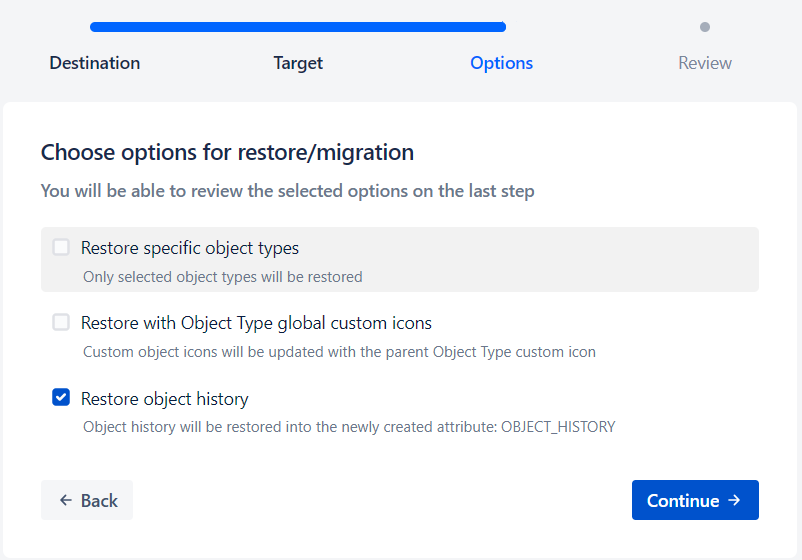
If checked, after the schema is restored, object history will be restored in a newly created attribute: OBJECT_HISTORY.
Due to the limitations of Atlassian corresponding REST API, after the backup is finished, object history is backed up in the background. To prevent the cases when the history restore is tried before the history is backed up, you will not be able to select this option immediately after the objects backup is finished and the option will be disabled until the backup is completed in the background. The estimated waiting time before restoring object history option becomes available, depends on the number of objects and with a rough average is 5 minutes plus ~1 minute for every 1,000 objects. You can see the object history backup status in the Restore & Migration Guide.
Due to the limit to Text Area attribute type, only 10,000 characters can be stored in the OBJECT_HISTORY. If the history contains more data, the latest actions will be restored.
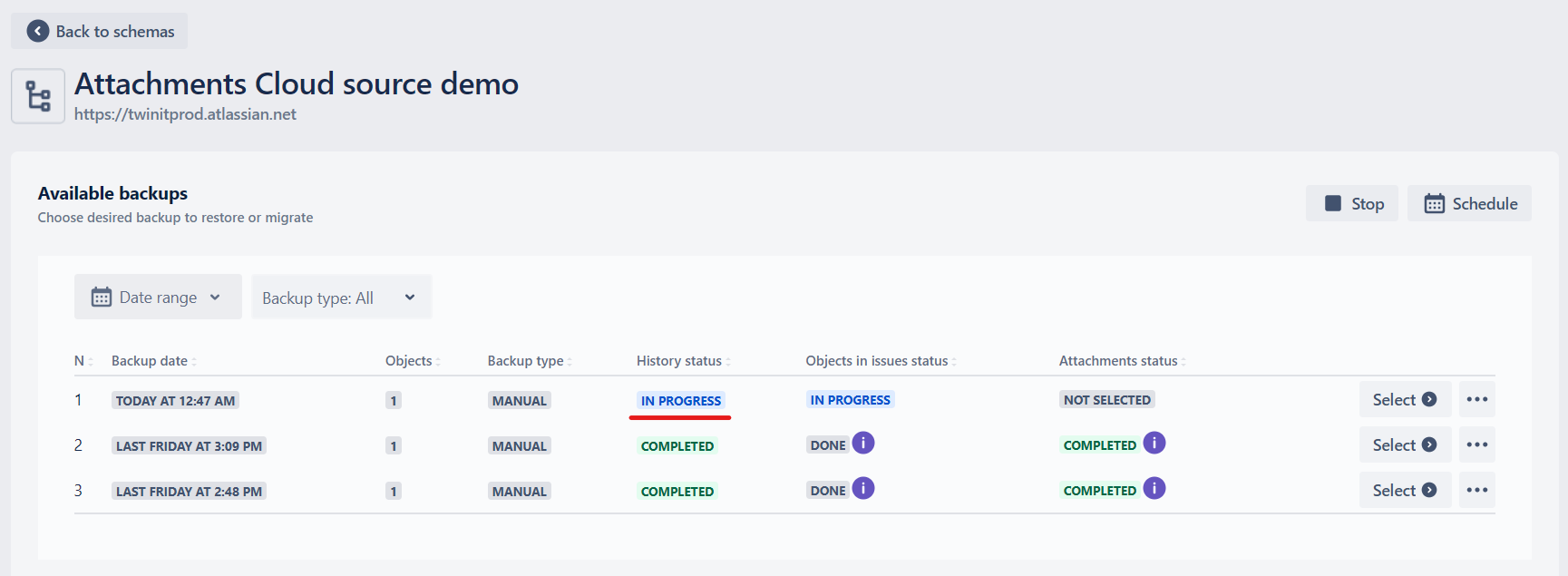
Times in the restored history attribute will be always shown in CET (UTC+2)
Restore specific Object Types
You can also restore the Schema not completely, but only certain Object Types, including Objects. To do so, check “Restore specific Object Types” checkbox at the “Options“ step of the restore wizard and the list of all the Object Types from the backup will show up:
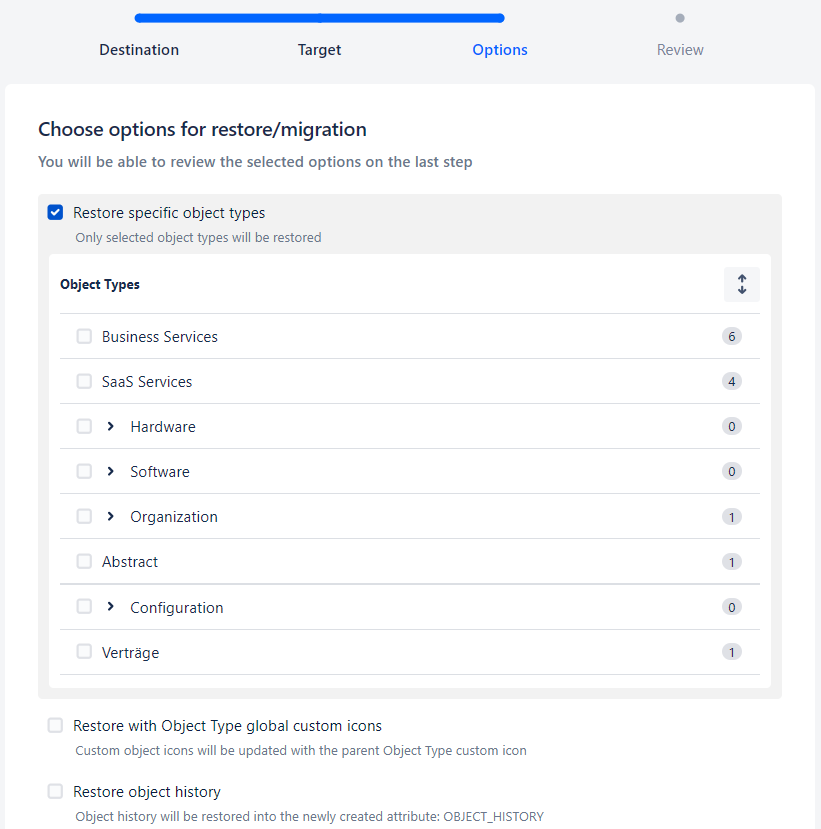
You can Expand and collapse the parent Object Type(s) by clicking the arrow and select child Object Type(s) from the list by clicking the corresponding Checkbox:
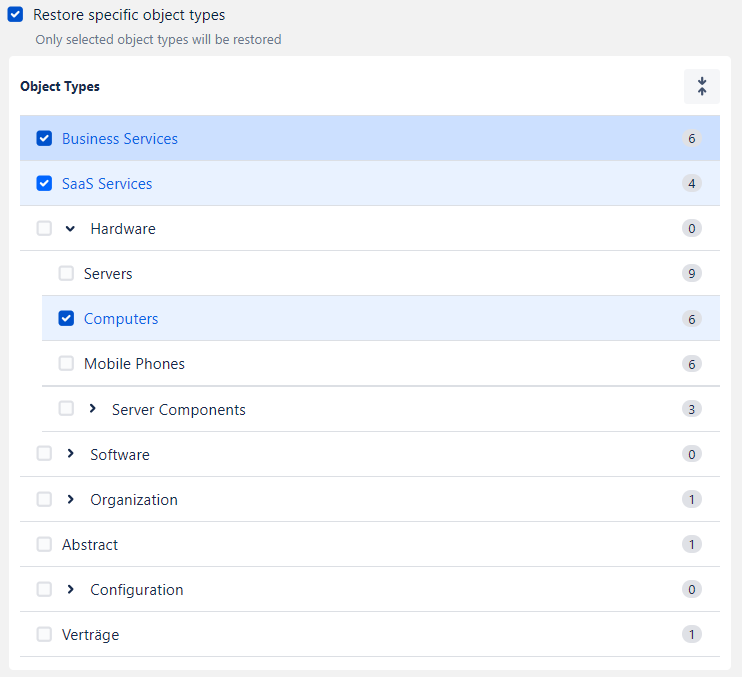
To expand or collapse all the parent object types, click the “two arrows“ button at the top rightmost corner.
You can see the number of the selected Object Types and the objects, with the list of the Object Types to be restored, on the next (Review) step, after clicking the Continue button:
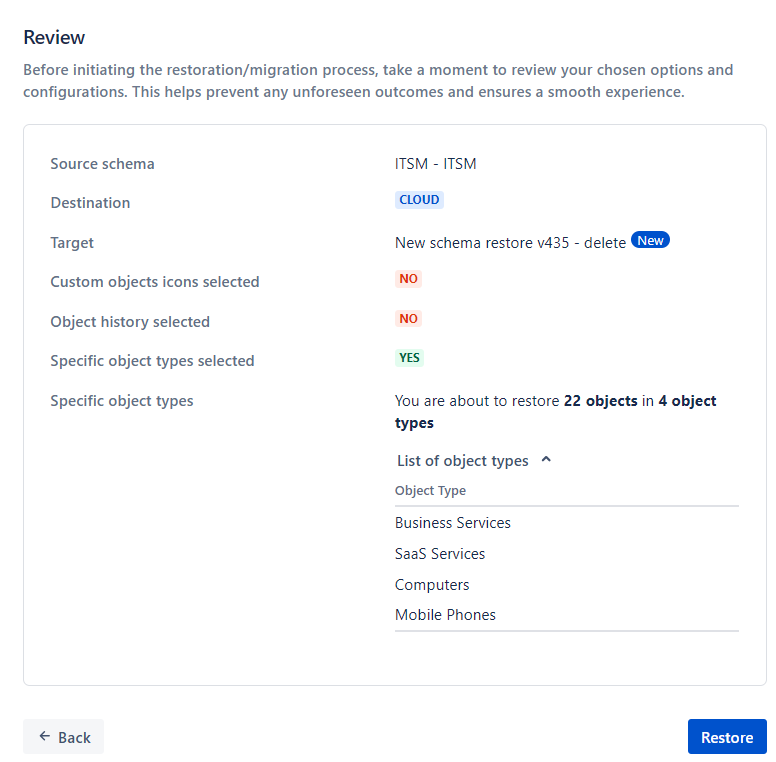
If at least one child Object Type is Selected all the corresponding parent Object Types (including parent Objects) will also be restored.
If you try to restore an Object Type that has an attribute referenced to another Object Type (which you are not restoring), in such case the restored Object Type will lack the corresponding attribute.
While restoring objects with the reference attributes with Cardinality set to 1, the objects will not be created during restoring Specific Object Type in an existing schema (you will see the “cardinality“ error in the audit log). To solve this, change Cardinality to allow a minimum 0 value on Cloud for all the relevant attributes and restore again.
New schema - another instance
You can migrate a backup from the current to another instance. To do so, select the “On another instance” option at the Target step of the restore wizard, choose a Target instance and enter a unique Schema name and key:
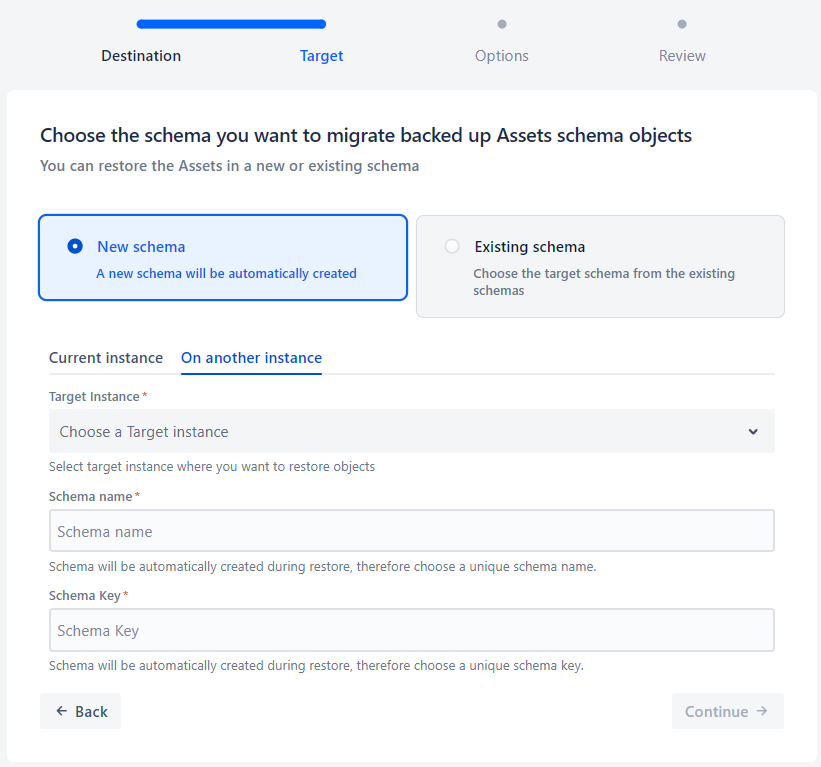
The Insight Assets Backup and Migration app must be installed on the target instance with an active trial or paid subscription.
Under the Targe instance dropdown, you will see the instances that were added to the List of target instances under the current connection. You can identify and select the added target instance by name and the URL:
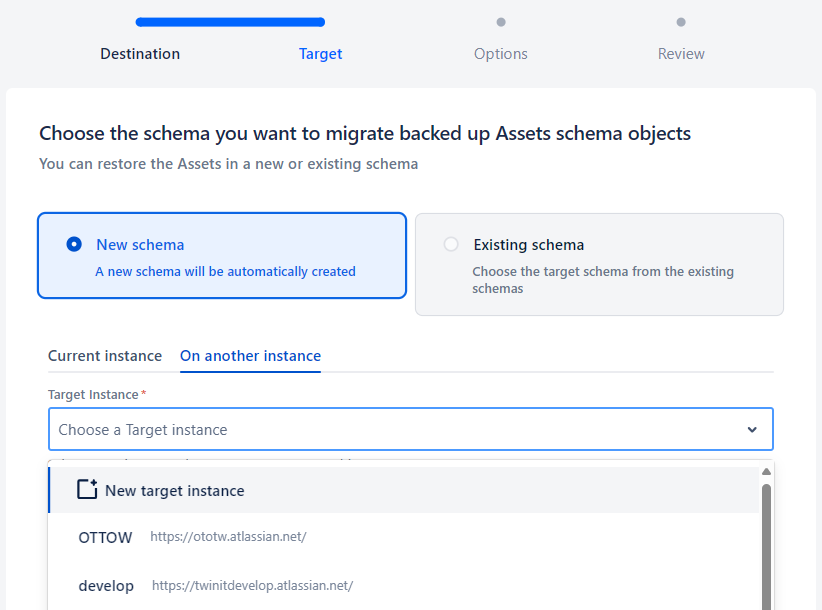
It is mandatory to select the Target instance before you can continue!
Also, from the same window, you can choose to add a new target instance, by filling the same information as while adding a new target instance under the current connection. Select New target instance in the dropdown to see the necessary fields to fill in:
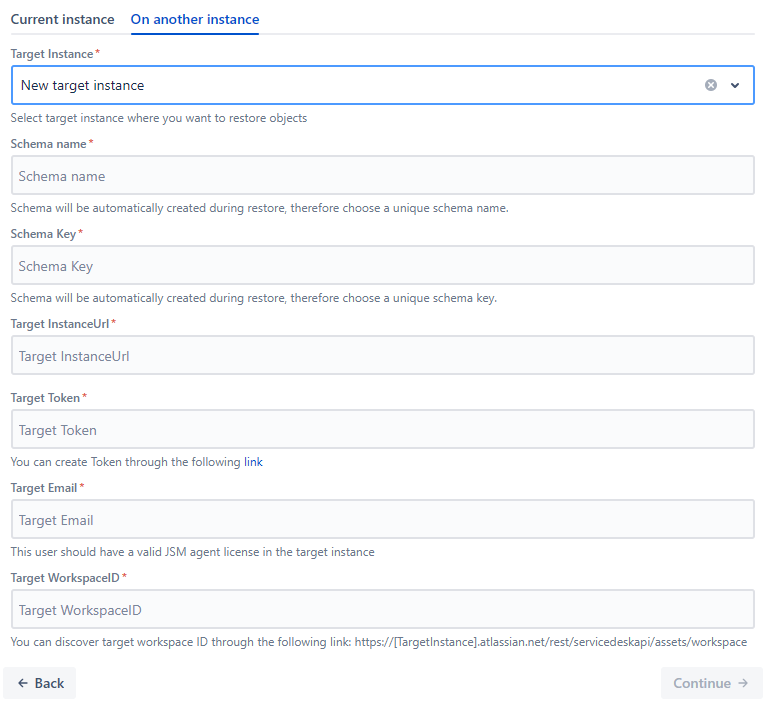
After Migration is started, you will have a chance to save the newly added instance to the List of target instances.
In the next step you will be able to select the options for restore:
- Restore Specific Object Types
- Restore with Object Type global custom icons
- Restore object history
On the last (Review) step you can review the details of the restore, before starting the migration process by clicking Migrate button:
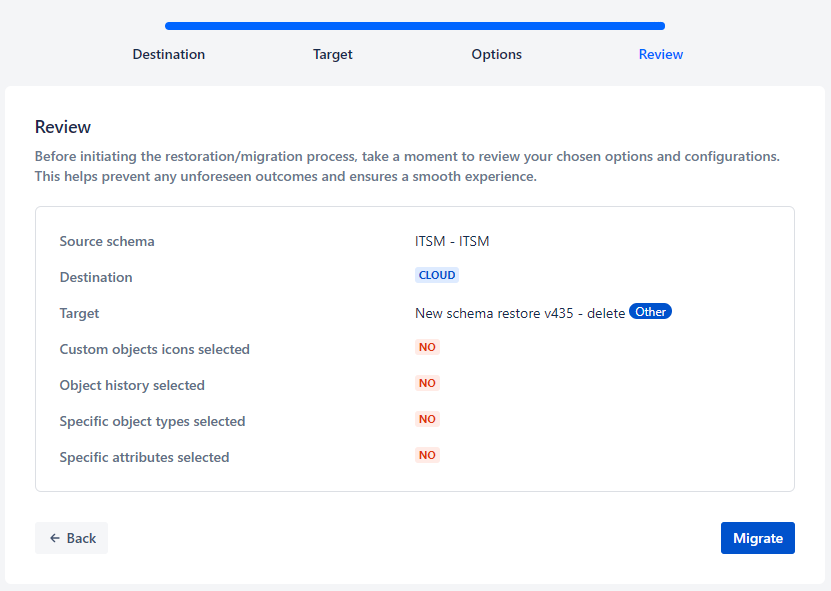
Schema in another instance will be automatically created during migration, therefore choose an unique schema name and key. If the schema exists either with the same name, or the key, restore will not be successful and the corresponding result message will be visible in the Restores Grid.
If the schema which is being restored contains references to the users, which does not exist in another instance, the object attribute will be still restored but the attribute value will be empty. If the attribute contains several users, from which at least one user does not exist (or is disabled) on the Cloud instance, the attribute will not be populated also with the other users. If this happens, the corresponding error will appear in the real-time and full log , indicating the relevant object key and the attribute. This is also relevant to the cases, when a user group is selected in the attribute, but the user does not belong to that group on Cloud.
Such empty attributes are by default hidden from an object view unless manually edited. Additionally, due to the GDPR restrictions, matching with the users is not possible via email, and only Full Name (Name/Surname) is used. Therefore, in some cases (e.g. when there are several users with identical names and surnames), the user attribute value may not be restored.
Existing schema
You can restore objects in the original/existing schema by selecting “Existing schema“ option at the “Target” step of the Restore wizard. By checking this option, you will see the list of the existing schemas on the current instance. the “Schema” dropdown will show the list of the existing schemas on the instance, from where you can choose a schema you want the objects to be restored in:
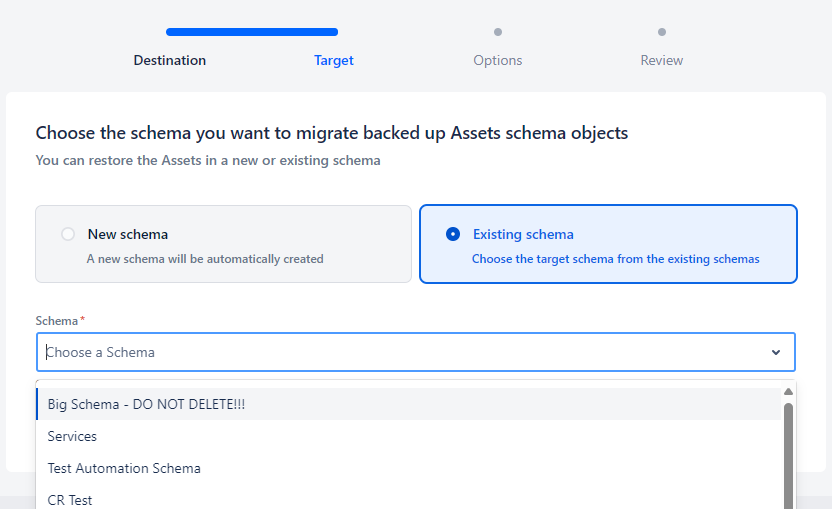
This way, only objects that do not exist in the schema will be restored and the existing objects will not be updated. To update the existing objects, use the “ Restore specific object attributes ” option.
In the next step, you can choose the options of the restore:
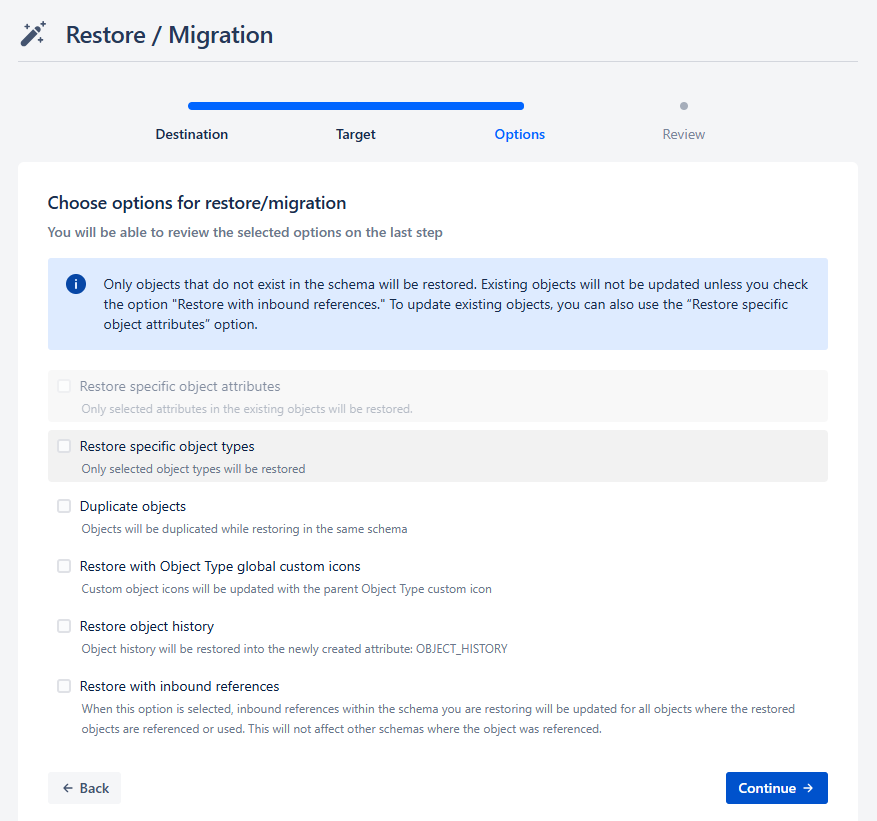
Restore specific object attributes
Restore specific object types
Duplicate Objects
This option deals with the cases when objects that need to be restored already exist in the existing schema (Object IDs are used for matching)
- If checked: Duplicate objects will be created
- If unchecked: Duplicate objects will NOT be created
Restore with Object Type global custom icons
Restore object history
Restore with inbound references
- When this option is selected, inbound references within the schema you are restoring will be updated for all objects where the restored objects are referenced or used. This will not affect other schemas where the object was referenced.
In the last (Review) step of the wizard, you can review the details of the restore, selected options and start restore by clicking the **Restore **button:
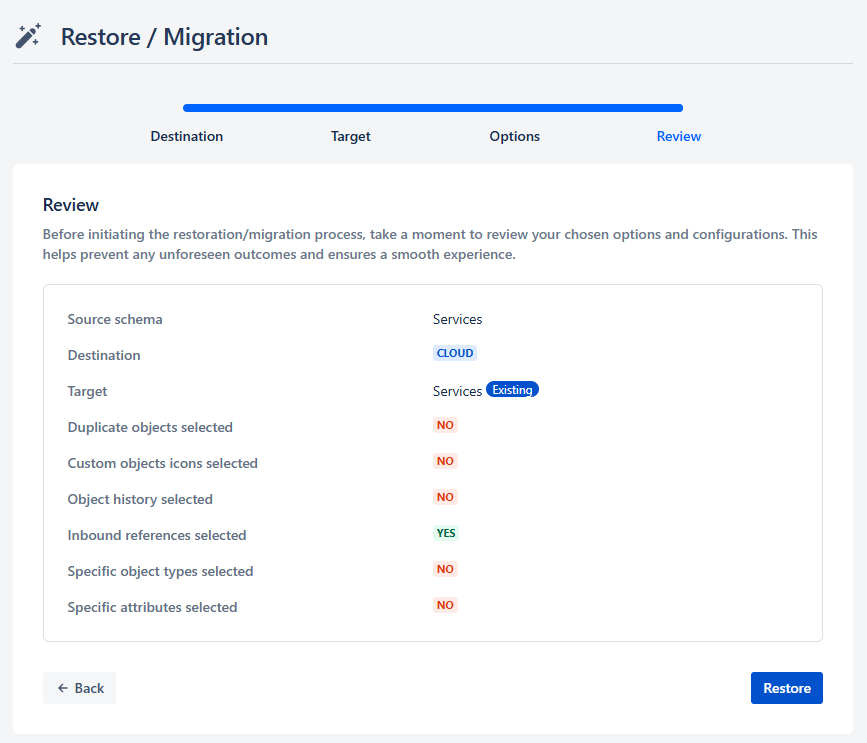
While restoring the backup in an existing schema, only missing objects will be created and the existing objects will not be modified. If you restore a backup twice in the existing schema, even if you choose not to duplicate the objects, they will still be duplicated as the restored objects will have new IDs.
While adding new objects in the restored schema, if you create new objects by cloning the existing ones, due to cloning of ORIGINAL_ID and ORIGINAL_KEY in new objects, these objects will not be restored if this schema is backed up and restored again, unless the duplicate option is selected.