Translations
Translate the app’s customer-facing text into 36 languages. Customers see a language when it is LIVE, is used in their profile and matches their Jira language (otherwise English).
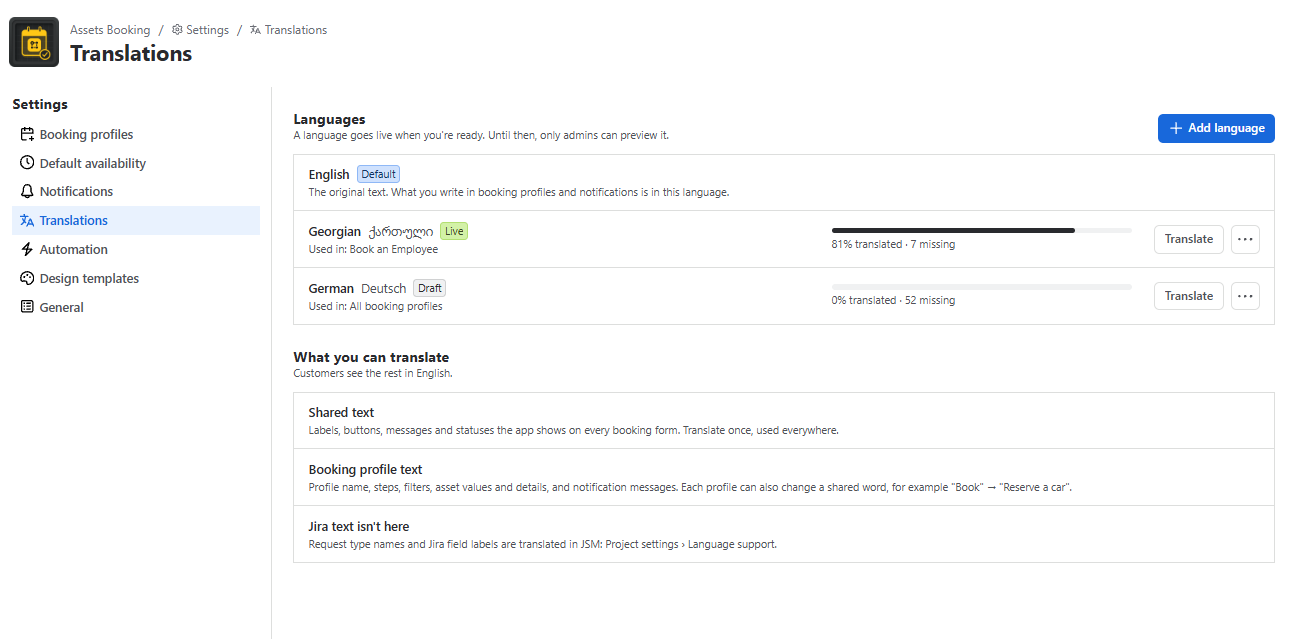
Click Add language, choose the Language and where to use it: All booking profiles (including future ones) or Selected booking profiles. It starts as a DRAFT
Click Translate. The editor groups texts (Booking form, Messages, Booking status, Booking profile, Booking steps, Customer filters, Asset values, Asset details, Requests from the home page, Notification messages). Use Show: Missing to find gaps.
Fill in translations yourself, use Translate with Al for the missing ones, or Export CSV for a translator and Import CSV back (columns key, english, translation).
Click Save, then… Make live.
Placeholders such as {asset} must stay unchanged.
A profile can override a shared word, for example “Book” → “Reserve a car”.
Al translations arrive as unsaved changes marked Al check before saving, so review them before saving.
Request type names and Jira field labels are translated in JSM itself (Project settings > Language support).
Current coverage. In this version, translations apply to the summary and description of requests booked from the portal home page. The other portal booking screens still show English. Translating now prepares them for upcoming releases.
Customers see the booking form in their Jira language. Add a language here and translate the app’s text. Anything not translated shows in English.