Booking Profiles
A booking profile connects request types to the Assets objects customers can book and sets the booking rules. Create one profile per kind of thing people book, for example Pool cars, Meeting rooms or Laptops. There are two ways to create a Booking Profile:
- Create With AI
- Create Manually
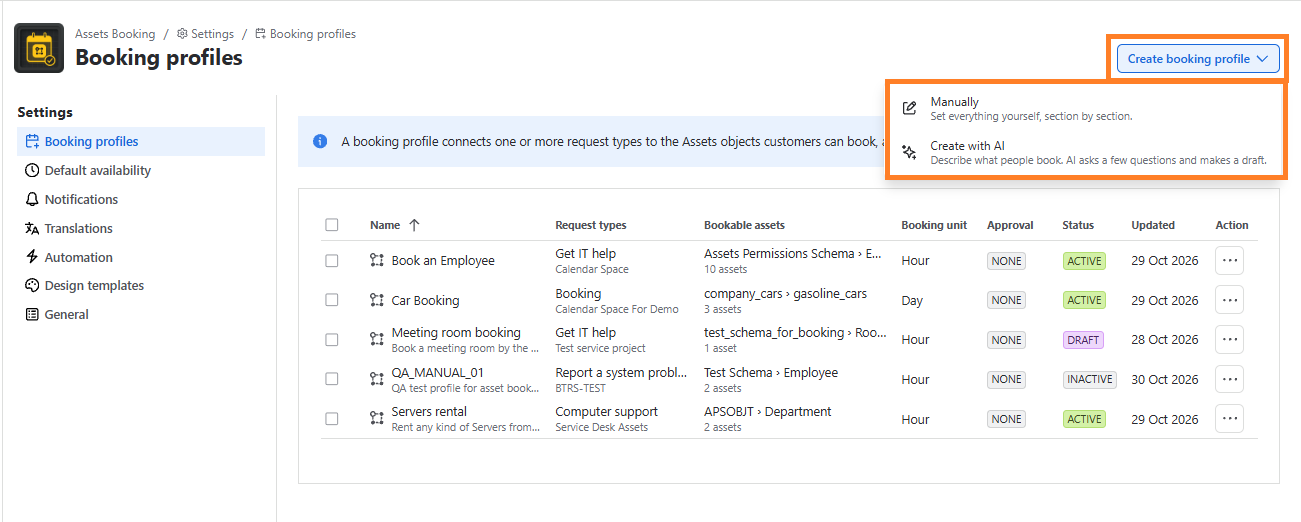
Create with AI
Create booking profile Create with Al opens an assistant above the table.
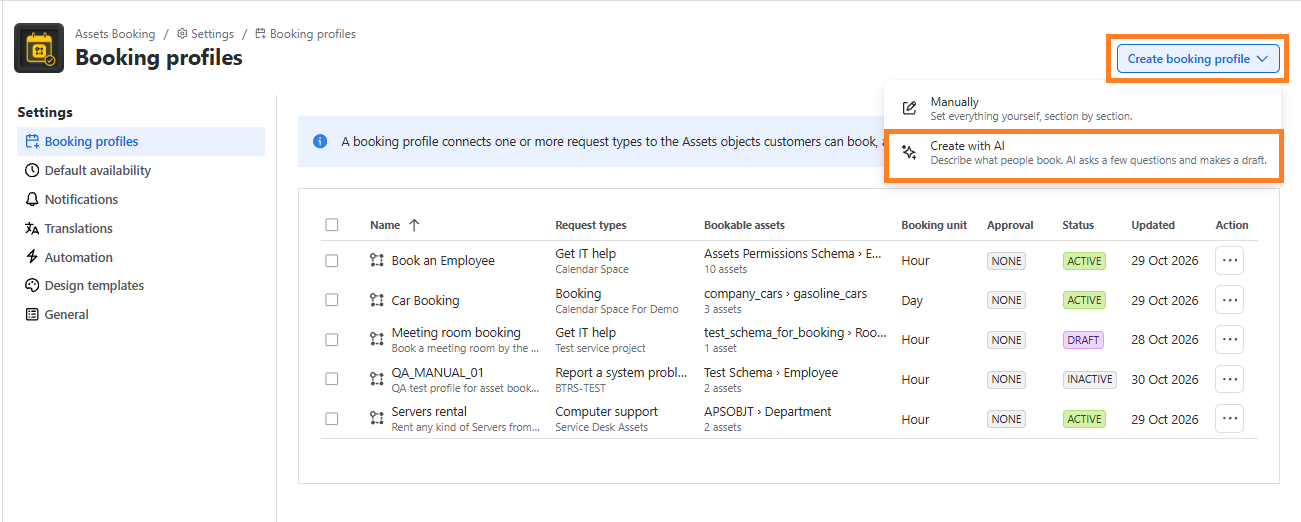
- Describe what people will book, for example: pool cars for business trips, up to 7 days, fleet managers approve trips over 4 days. You can also use Try an example.
- The assistant reads your portals, request types, organisations, groups, Assets schemas and fields, then asks the remaining questions one at a time. Pick an answer tile or type your own.
- Review the summary and click Create draft. The profile is saved as an inactive DRAFT and opens in the editor with a Created with Al banner.
- Check every section, turn on Active and save.
Privacy. The assistant uses Claude through Atlassian’s Forge LLM, so prompts never leave the Atlassian platform. It never saves anything until you click Create draft, and AI answers can be wrong, so always review the draft.
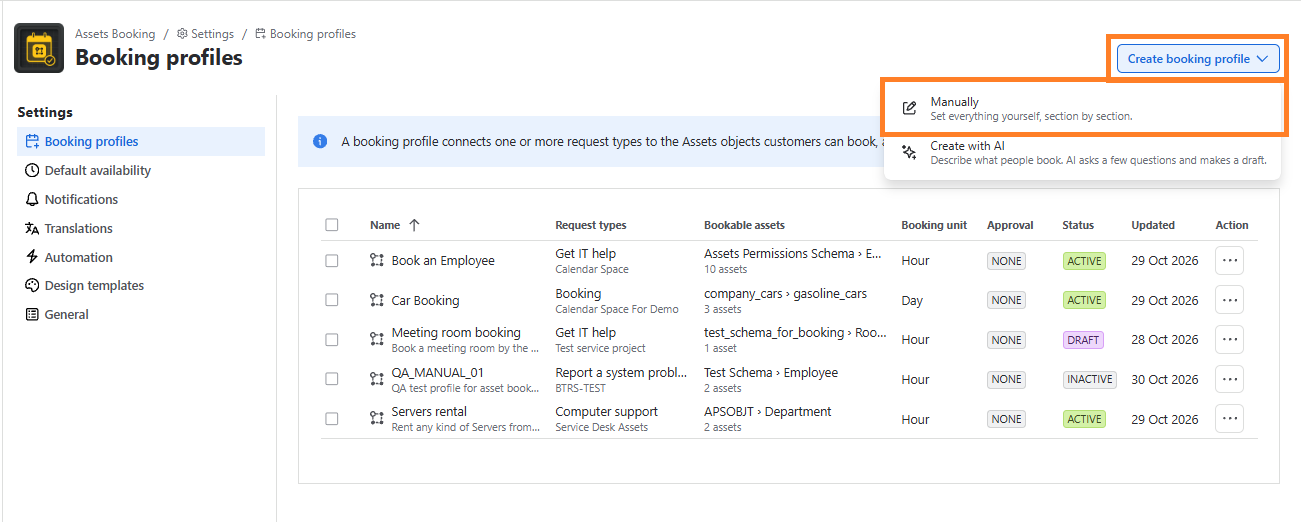
Create Manually
Set everything yourself, section by section.
Basics
| Field | Description |
|---|---|
| Name * | The form title customers see, up to 60 characters. Example: Car reservation. |
| Description | Shown under the title, up to 140 characters. |
| Portal * | The help center portal. Pick it first; changing it removes request types that aren’t on the new portal. |
| Also show on the portal home page | Off by default. When on, customers see a booking card on the portal home page and can book without opening a form. The profile must then have exactly one request type: bookings from the home page create a request of that type. |
| Request types * | Up to 20 request types that create a booking. Types already used by another profile show (has a profile) and can’t be chosen. |
| Who can book | Everyone who can use the portal (default) or Only some organizations (up to 50). Other customers don’t see the booking form. |
Assets and fields
What customers can book Choose the mode AQL (the only mode available today; Assets field and Builder are marked Coming soon).
- Assets field *: the Assets objects field where the booked object is saved on the request.
- Schema *: the Assets schema to search.
- Steps. One to five step cards. The last step is marked What customers book; earlier steps are choices customers make first.
Name on the portal: the label customers see, e.g. Office or Car (up to 40 characters; must be unique; Customer and Organization are reserved).
AQL: the query, e.g. objectType = “Vehicle” AND Status “In service”. Use the shortcut links to insert object types, attributes and placeholders:
- ${Office): the value customers picked in an earlier step;
- ${Customer): the account of the customer who books;
- ${Organization): the customer’s JSM organizations.
Details on each option: up to three attributes shown under each asset so customers can compare, e.g. Type Seats. Gearbox.
The app checks each query with Assets as you type and shows the number of matching objects. Use Show results to see a sample.
Example: cars per office. Step 1 Office: objectType = “Office” . Step 2 Car: AND Office = ${Office} AND Status = “In service” .
Keep the Assets field in sync. After choosing the Assets field, the app shows the last step’s AQL. Copy it into the field’s filter scope (AQL) in Jira’s custom field settings, so the field offers the same objects as the booking form. The app can’t read or change the field’s settings, so update both whenever either changes. Replace step placeholders such as ${customfield_10010} .
Customer filters
Turn on Show filters on the portal to let customers narrow a long list. Add up to 8 filters with Add filter or the Suggested shortcuts. For each filter set:
Attribute and Label on portal
Show as:
- numbers: At least (number) or Exact value
- yes/no: Checkbox
- lists: Buttons (pick several) or Dropdown (pick one)
Values customers can pick. If all values are selected, new values added in Assets appear automatically.
Rules
| Setting | Default | Description |
|---|---|---|
| Customers book by | Full days | Full days: customers pick a pick-up day and a return day (cars, equipment). Hours: start and end time on one day (rooms, desks). |
| Longest booking | 7 | In days or hours. Leave empty for no limit. |
| Book at least … days ahead | 1 | Notice in calendar days in the site time zone. 0 lets people book for today. |
| Time between bookings | 60 min | Kept free between two bookings of the same asset to clean, charge or hand over. Steps of 5 minutes. |
| Approval | No approval | No approval: confirmed at once. Always: the slot is held until someone approves. Only long bookings: bookings Longer than (days) need approval; the threshold must be shorter than the longest booking. |
| Who approves | — | Required when approval is used. Members of this Jira group approve or decline in the app. |
| Handover | Pick-up and return | Pick-up and return: agents mark pick-up and return; late returns are flagged. Nothing to hand over: the booking completes by itself when it ends. |
Not active yet. Fair-use limits (Active bookings at a time, Days per month) and Extras (Weekly repeats, Waitlist) are saved with the profile but aren’t enforced in this version.
Availability
- Pick-up and return hours: Use Default availability (default) or Set hours for this profile, for a desk that keeps different hours. Customers can only start or end a booking inside these hours.
- Closed days: pick closed-day templates (managed in General; template changes apply to the profile right away) and add up to 50 of the profile’s own days with Add closed day. Closed days from Default availability always apply too.
Design
Choose the Template for the portal form: built-in Classic or Modern (default), or one of your custom designs. Preview shows it with the profile’s name and description. If a profile’s design is deleted, customers see Modern until you pick another.
Saving and Activating
- Switch the Active toggle in the footer on when the profile is ready (“Customers can book as soon as you save.”) or leave it off to save as inactive.
- Click Create profile or Save changes.
- If something is wrong, the page scrolls to the problem and lists everything under Fix these to save, each with a Show link. 4 Use Open in portal to test the form as a customer. Every save is recorded in General > Change history.